
You told Windows to switch the screen off after ten minutes. An hour later your monitor still glows with the desktop or the lock screen, though every power setting looks right.
I would unplug any game controller and close game overlays first. Then I would ask Windows which program holds the display. Super User counts 50,933 views on one 2021 question. A 24H2 thread on Microsoft Q&A shows 10+.
What keeps a screen lit
Windows switches your screen off when nothing asks it to stay on. A program playing video or sound can ask, and Windows keeps a list of those asks, called power requests.
Some causes never show up in that list, so owners report finding them by unplugging devices and closing apps one at a time. Devices first.
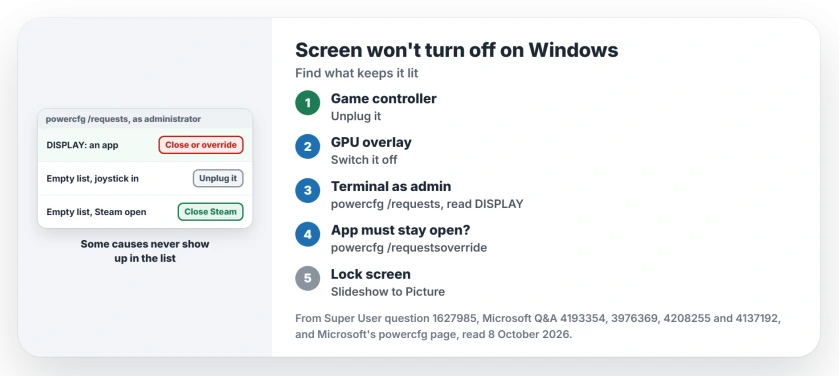
Status: checked 8 October 2026. Owners got screens to switch off again by unplugging a game controller, closing a GPU overlay or Steam, or dropping a Slideshow lock screen.
Ours: this laptop's Performance plan turns the display off after 3,600 seconds plugged in and 240 on battery. powercfg /requests refused to run until it had administrator rights.
1. Unplug the controller, close the overlay
The asker of that Super User question had tried power plans, a clean graphics driver install and DISM, and none of it helped. Then they found "a combination of 2 things (together)": a USB joystick and the GeForce Experience overlay.
"If I either unplugged (1) or disabled (2) or both, display/sleep works again," they wrote. Try both on your PC, since it takes about a minute.
Others recognized it at once, and one owner wrote: "My issue was #2, GeForce Experience." Their code editor "registers itself as a full screen application, so triggers the GeForce Experience Overlay".
Another had "Bought a joystick recently!" A third: "Turns out it was in fact a usb game controller preventing it."
On AMD graphics, one owner wrote "My problem was with AMD Adrenaline Edition". Switching off Instant Replay in its recording settings fixed it. Is yours on?
Ours: on a PC with the newer NVIDIA app, I would switch its overlay off the same way. No owner here has tested that yet.
2. Ask Windows which program holds the display
Right-click Terminal, pick Run as administrator, then type:
powercfg /requestsRead your DISPLAY section first. One owner found their audio driver there, "meaning an app was playing some kind of audio and stopping Windows from sleeping".
Another wrote that the list "helped to show me that Barrier was preventing the display from sleeping". Barrier shares a keyboard and mouse between PCs. A third found a crashed video player: "In my case, it was VLC".
Close that program and wait out your timeout to see whether the screen switches off.
Does it have to keep running? Microsoft documents an override for exactly that on its powercfg page. You name the process and the request it should stop counting:
powercfg /requestsoverride process vlc.exe displayUse the name your own list showed. Ours: typed with nothing after it, requestsoverride lists the overrides you have. It did that here without administrator rights, and the list was empty.
Our page on a PC that won't go to sleep covers the SYSTEM entries, which block sleep rather than the screen.
3. Close Steam when you walk away
Steam does not always show up in that list. "Running powercfg -requests does not show anything related to Steam, yet closing the client allows the monitor to enter standby," one owner wrote, after seeing it on three different computers.
"Thanks, this solved it for me," another replied. Leave Steam running all day? Close it before you step away, and check whether your screen switches off when it should.
4. Lock screen set to Slideshow?
One owner searched for months before finding this. "In the end it was that my lock screen background was set to slideshow," they wrote. "Changing it to a static picture did the trick."
You change it in Settings, Personalization, Lock screen. Slideshow runs on timers of its own. A Windows 11 user posting on Microsoft Q&A saw the reverse fault with it on: the screen went black mid-game.
Started after an update?
One owner's screens stayed lit after a big update in October 2020. powercfg's list was empty, and a clean boot changed nothing.
A repair upgrade fixed it: "i performed an repair upgrade and this seems to have fixed the problem." Our repair install guide does the same job and keeps your apps and files. Keep it for last.
What did not help
Resetting every power plan. A 24H2 asker ran powercfg -restoredefaultschemes on an adviser's advice. Their reply: "Ran this, didn't do anything". In the end they put the monitors "on their own power strip".
A clean graphics driver install did not help the first asker either, because the joystick and the overlay were still plugged in and running.
Screen goes dark too soon instead?
That is the opposite fault, often the separate timer for a locked PC. Our page on the screen turning off after you lock shows how to change it.
Does a screen saver count as off?
No. A screen saver keeps your display lit and drawing. Our screen saver page covers what Microsoft suggests in its place.
The Short Version
- Unplug game controllers and switch off GPU overlays first.
- Run powercfg /requests as administrator and read DISPLAY.
- Close that app, or give it a requestsoverride.
- Close Steam; it can hold the screen without appearing in the list.
- Change a Slideshow lock screen to a picture.
- Started after an update? A repair install fixed it for one owner.
Where to Next
Which one was it on your PC? Leave the name from the DISPLAY section, or the device you unplugged, in a comment. Others with the same setup will find it faster.

Isaac Smith is the founder and editor of PC Glance, a website that covers computers, laptops, and technology. He is a tech enthusiast and a computer geek who loves to share his insights and help his readers make smart choices when buying tech gadgets or laptops. He is always curious and updated about the latest tech trends.