

You start Remote Desktop and it sits on Securing remote connection for 20 seconds, sometimes a full minute. Then it connects normally. The network is fast and the other PC is awake.
I would check what your PC can reach on the internet before you blame the network. Microsoft has a support article on exactly this delay, KB 2915774.
Owners on Super User and Microsoft Q&A fixed it by opening one outbound port, and the Super User question has 25,447 views.
What the PC is waiting for
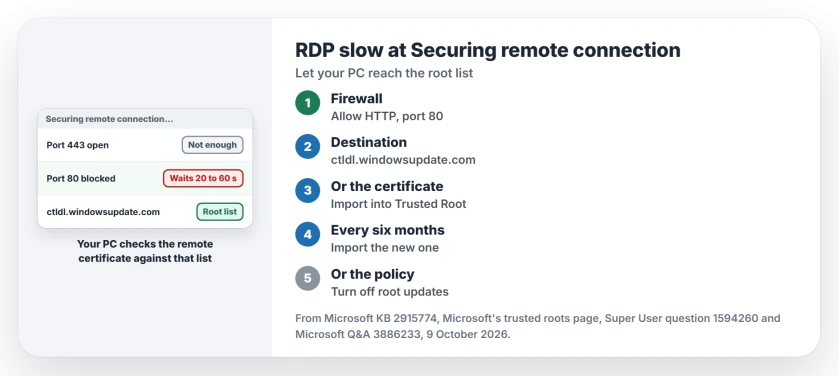
During that screen, your PC checks the certificate that the remote computer presents to it. By default it is self-signed. Windows checks it against Microsoft's list of trusted roots.
Microsoft's article on the stuck screen says the system "tries to retrieve the trusted certification authority list from the Internet". If it cannot reach the internet, it waits for a timeout instead of failing fast.
Status: Microsoft documents the cause (KB 2915774, checked 9 October 2026). This Home laptop last fetched the root list at 08:40 UTC that day, with no policy blocking it.
Ours: the AutoUpdate key here holds a LastSyncTime from the same morning. Windows refreshes that list quietly, and only a blocked network turns it into a wait you can see.
The port 80 trap
Microsoft's page on trusted roots says a computer fetching that list "requires HTTP (TCP port 80) access" to ctldl.windowsupdate.com, plus DNS. That is plain HTTP, not HTTPS.
So a firewall that allows 443 but blocks 80 still breaks it for you. Check your outbound rules for that.
An owner on Super User described it in 2025: "Very slow establishment of RDP started for us when port 80 outbound was blocked from the jump server". Port 443 stayed open the whole time.
Their fix: "Allowing port 80 again fixed both issues". The second issue was Windows Update, which had stopped too.
1. Allow port 80 to ctldl.windowsupdate.com
If your network blocks outbound traffic on purpose, add one rule for HTTP to ctldl.windowsupdate.com from the PC that starts the connection. That keeps the root list current and removes the wait without opening anything else.
On Microsoft Q&A, an owner with a fully on-premises setup saw the same pattern. With all outbound traffic denied, RDP hung at that screen "for around a minutes or so". With outbound allowed, it connected at once.
2. Import the remote PC's certificate
This is Microsoft's Method 1. On the remote PC, export the certificate from Certificates (Local Computer), Remote Desktop, Certificates. On your PC, import it into Trusted Root Certification Authorities for the computer account.
One owner said this is the step that removes the last seconds: "You would have to pre-add the cert to get faster".
Microsoft spells out the catch: "By default, the self-signed certificate expires in six months". Then you import the new one.
3. Turn off Automatic Root Certificates Update
Microsoft's Method 2 is a policy, under Computer Configuration, Administrative Templates, System, Internet Communication Management, Internet Communication settings. Enable Turn off Automatic Root Certificates Update.
The Super User answer that names it says the check "will really timeout after about 20 seconds" otherwise. Results vary. One commenter still waited about 18 seconds, while another owner went from "60+ seconds down to about 10".
On Windows Home there is no Group Policy editor to set that policy. Microsoft's own template writes a DisableRootAutoUpdate value, and 1 switches the updates off. In an admin Terminal:
reg add "HKLM\SOFTWARE\Policies\Microsoft\SystemCertificates\AuthRoot" /v DisableRootAutoUpdate /t REG_DWORD /d 1 /fDelete that value to undo it. Microsoft warns that with it off, "you need to update any client or server when a new root certificate update is rolled out". On a PC that browses the web, I would open port 80 instead.
Why it is only slow sometimes
The asker's title says sometimes, and that fits. Microsoft says computers that reach Windows Update receive updated lists "on a daily basis".
My reading: between refreshes the check has nothing new to fetch. So many of your connections go through quickly.
What I would skip
Another answer turns off credential delegation in the .rdp file with enablecredsspsupport:i:0. It does connect faster.
But it only works when Network Level Authentication is off, and the answer itself says keeping NLA disabled is not recommended.
If the connection fails outright and the message names CredSSP, the two PCs disagree about a 2018 security update, which is a separate fix.
Does RDP refuse to connect at all? Our page on Remote Desktop not connecting starts with the edition check.
A connection that fails after a PIN sign-in is covered in our RDP credentials page.
Connected fine, then a frozen screen mid-session? Turning off UDP on the client is what ended it for owners.
The Short Version
- The wait is your PC checking the remote certificate against Microsoft's root list.
- Allow outbound HTTP, port 80, to ctldl.windowsupdate.com.
- Or import the remote PC's certificate into Trusted Root, and redo it every six months.
- Or turn off Automatic Root Certificates Update, knowing you then update roots by hand.
- Skip the enablecredsspsupport trick.
Where to Next
How long did your connection hang before the fix, and after? Put both numbers in a comment so others can compare.

Isaac Smith is the founder and editor of PC Glance, a website that covers computers, laptops, and technology. He is a tech enthusiast and a computer geek who loves to share his insights and help his readers make smart choices when buying tech gadgets or laptops. He is always curious and updated about the latest tech trends.