
You connect with Remote Desktop, type your password, and get An authentication error has occurred. The last line blames CredSSP encryption oracle remediation, a phrase that tells you very little.
I check which of the two PCs is behind on updates first, because a 2018 security fix changed what your PC will accept. The Super User question from May 2018 has 239,617 views. A January 2025 Q&A thread between two current PCs counts 30+.
Two guesses in one message
Ours: the Remote Desktop client on this laptop, version 10.0.26100.8875, now offers two causes. Its first line reads "This could be due to NTLM authentication being blocked on the remote computer". Only then does it add the CredSSP line.
The CredSSP case is the old one. In March 2018 Microsoft fixed a flaw in CredSSP, the part of Windows that hands your sign-in to the other PC.
Then came the change that started the error. For May 8, 2018, Microsoft lists "An update to change the default setting from Vulnerable to Mitigated".
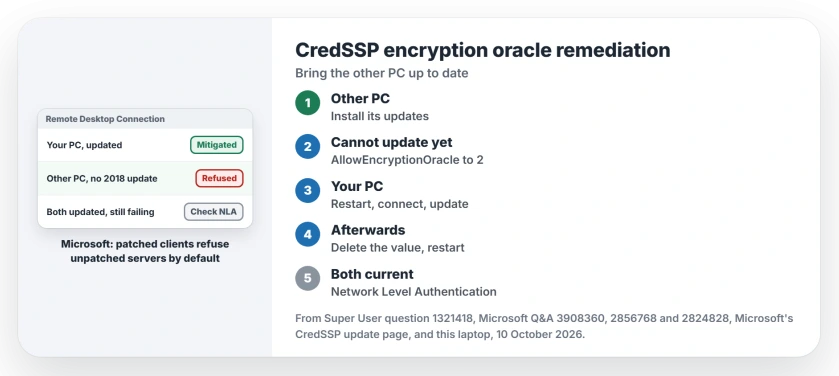
Status: Microsoft documents the 2018 change and its registry value. Owners confirm the update and NLA fixes. This laptop's Remote Desktop client and CredSSP key checked 10 October 2026.
From then on, Microsoft says, "patched clients cannot communicate with unpatched servers". So when an updated laptop meets an old server, the laptop refuses to hand over your sign-in.
Want proof on your own PC? Open Event Viewer, Windows Logs, System, and look for event 6041 from LsaSrv.
Microsoft writes that it "will be logged on patched Windows clients if the client and remote host are configured in a blocked configuration". No 6041 event at all points you to the newer cause, the one in step 3 of this page.
Ours: this laptop has no 6041 events, and the CredSSP Parameters key does not exist. With no value set, it runs the Mitigated default.
1. Update the PC you connect to
That is the real fix. The accepted Super User answer, posted for the asker, says to bring both ends up to the May 2018 update or later. A commenter called it "one of those rare cases where the accepted answer is also the best answer".
The server side was the problem for one owner, who had updated only the client PCs. Their servers lacked the updates, and their words were: "Once the server was updated, everything worked".
Microsoft's CredSSP update page puts it the same way: "Mitigation consists of installing the update on all eligible client and server operating systems". A server that old needs its updates anyway.
2. Can't update it today? Allow the old version, then undo
You can relax your own PC for a short time, connect, update the other machine, then put the setting back. Microsoft documents the value. It is AllowEncryptionOracle under the CredSSP Parameters key, where 2 means Vulnerable.
It takes one line. In Command Prompt opened as administrator, paste:
reg add "HKLM\Software\Microsoft\Windows\CurrentVersion\Policies\System\CredSSP\Parameters" /f /v AllowEncryptionOracle /t REG_DWORD /d 2Restart your PC, since Microsoft lists a reboot as required. Then connect to the other PC as usual.
Owners confirmed it for years, one writing "For those using Windows 10 Home, this should work perfect". Another said the key "does allow me to connect", for just long enough to patch the other machine.
Microsoft is blunt about what 2 does. Client apps "will expose remote servers to attacks by supporting fallback to insecure versions".
I would keep it for an hour, not a week. So once the other PC is updated, remove the value from your PC and restart once more:
reg delete "HKLM\Software\Microsoft\Windows\CurrentVersion\Policies\System\CredSSP\Parameters" /v AllowEncryptionOracle /fIf your PC runs Windows Pro, it has a policy for the same switch in gpedit.msc. Look under Computer Configuration, Administrative Templates, System, Credentials Delegation.
Set Encryption Oracle Remediation to Enabled with Vulnerable. A Home PC has no gpedit.msc, and this laptop has none either.
3. Both PCs up to date? Check Network Level Authentication
This is the newer version of the error. You are more likely to meet it today. The January 2025 asker ran Remote Desktop from a Windows 10 22H2 laptop to a Windows 11 24H2 workstation.
Both ran current versions. They tried every Encryption Oracle level on both PCs, and nothing changed.
Their fix was one box. In sysdm.cpl, on the Remote tab, they cleared the box that only allows computers using Network Level Authentication. It had been ticked on both PCs.
Two more owners replied, one with "This worked for me!"
Years earlier, a Super User reader hit the same thing on a Hyper-V virtual machine, and clearing that box fixed it. Remote Desktop marks that box as recommended, and it does so for a good reason.
That is the trade. With it cleared, the remote PC shows its own sign-in screen before checking who you are.
I would not leave it cleared on a laptop that travels.
So use it on your home network only, and read it as a sign the sign-in is the problem. Does that PC use a PIN rather than a password? Then the RDP credentials fix may be the cleaner way back.
An account with no password at all fails for another reason entirely: Windows keeps blank passwords for the PC's own keyboard.
Skip these
Uninstalling the 2018 security updates from your PC, which one answer suggested. It removes the fix rather than meeting it halfway.
Setting Force updated clients on both ends, before every machine is current. Microsoft warns it "should not be deployed until all Windows and third-party CredSSP clients support the newest CredSSP version". Wait for the last machine.
Why does the error appear on only one server?
Because the setting is about the pair. Your PC talks to updated machines fine and refuses the one that is behind.
If Remote Desktop fails before any password box appears, start with Remote Desktop not connecting instead.
The Short Version
- The error means your PC and the remote one disagree on CredSSP versions.
- The fix is updating the PC you connect to.
- In a pinch, set AllowEncryptionOracle to 2 on your PC and restart.
- Connect, update the other PC, then delete that value again.
- Both PCs current? Try the Network Level Authentication box on the remote PC.
Where to Next
Was the other PC a server, a VM or a home PC, and which fix did it take? Note the pair and what fixed it in the comments. The next owner with that setup can then skip straight to it.

Isaac Smith is the founder and editor of PC Glance, a website that covers computers, laptops, and technology. He is a tech enthusiast and a computer geek who loves to share his insights and help his readers make smart choices when buying tech gadgets or laptops. He is always curious and updated about the latest tech trends.