
Your L2TP/IPsec VPN connects from your phone in seconds, but Windows gives up after a long pause.
The message often reads: The L2TP connection attempt failed because the security layer encountered a processing error during initial negotiations.
I look at the router first. Windows refuses this kind of VPN through NAT by default, and your phone does not.
Asked in February 2018, the Super User post on it is at 110,080 views. Two Windows 11 threads about it on Microsoft Q&A each count 100+.
Why your phone connects and Windows does not
Your home router shares one public address between every device in the house, which is what NAT means. A VPN server on a NAS or in an office usually sits behind a router as well.
Microsoft explains the clash on its L2TP/IPSec client troubleshooting page. It says "The original version of IPSec drops a connection that goes through a NAT because it detects the NAT's address-mapping as packet tampering".
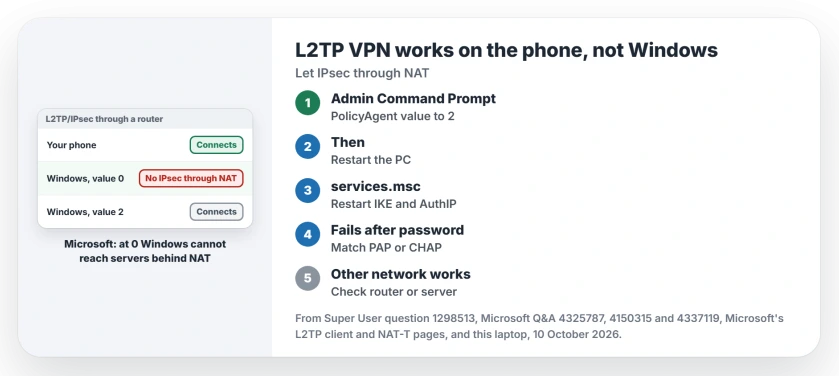
Status: Microsoft documents the NAT value and what each setting does. Owners confirm 2 on Windows 10 and 11. This laptop's IPsec keys and services checked 10 October 2026.
The newer method, NAT-T, gets around that. But Windows will not use it toward a server behind NAT unless you allow it.
The switch is a registry value. Microsoft states that 0 is its default, and at 0 "Windows can't establish security associations with servers located behind NAT devices".
Ours: the PolicyAgent key on this laptop holds no such entry, so it runs that default of 0. No VPN is set up here.
1. Set AssumeUDPEncapsulationContextOnSendRule to 2
From an admin Command Prompt, add the value:
reg add HKLM\SYSTEM\CurrentControlSet\Services\PolicyAgent /v AssumeUDPEncapsulationContextOnSendRule /t REG_DWORD /d 0x2 /fThen restart your PC, as Microsoft's steps require.
Why 2 rather than 1? Microsoft says that at 2, "Windows can establish security associations when both the server and VPN client computer" are behind NAT. At home, your laptop sits behind your own router too.
The Super User asker came back with the answer themselves: "I was finally able to resolve the matter after making an edit in the registry and then rebooting". Their phone and laptop were on the same network.
Is your server a Synology NAS? A 2022 Q&A owner on Windows 11 21H2 had the same story. Their Windows 10 PC and Android phone connected, Windows 11 did not. After the value, they wrote: "The Windows L2TP VPN connection is now functional".
If your VPN server runs Windows, Microsoft adds that it can need the change as well, "on the VPN client computer and the VPN server".
A NAS or a router that runs the VPN sets this in its own settings instead.
Was your PC upgraded from Windows 7? One owner had three such PCs that still failed with the value set. After an in-place reinstall of Windows 10, keeping apps and files, they set the value again and it worked.
2. Restart the two IPsec services
Value set, and you still get the same error? On the 100+ Q&A thread, one reader ended four hours of trying with a restart of IKE and AuthIP IPsec Keying Modules. Six people marked that reply helpful.
Open services.msc, right-click IKE and AuthIP IPsec Keying Modules and choose Restart. Then start IPsec Policy Agent the same way, which another reply on that thread added. Then test your VPN again.
Ours: on this laptop both services are set to Manual and sit stopped, which is normal when no VPN is running. Windows starts them when a connection needs them.
3. Match the sign-in method the server expects
The asker of that thread fixed theirs in the VPN's own settings. They had Microsoft CHAP selected, and their Cisco Meraki server wanted PAP. Their words: "After changing these protocol setting it worked fine, no issues".
Open the Run box, type ncpa.cpl and press Enter. Right-click the VPN, choose Properties, then the Security tab, and tick the method your VPN's admin names, such as Unencrypted password (PAP).
Do not guess at it. The built-in VPN client page explains why the sign-in type is the field that fails without saying so.
Before or after the password?
Microsoft's page splits the fault in two by timing. When IPsec fails, "it will fail silently", and an error follows after a long wait of around a minute. That is the NAT case, or a wrong preshared key or certificate.
If you see the prompt for your name and password and it fails after that, Microsoft writes, "the IPSec session has been established". Then the trouble is the sign-in, so go to step 3.
Error 809 on this laptop's own message list blames the network in between. It says that "one of the network devices (e.g, firewalls, NAT, routers, etc) between your computer and the remote server is not configured to allow VPN connections".
When the network or the server is the problem
A 2021 Q&A owner had the registry value set and still got 809 at home. The same laptop connected over their phone's hotspot, and so did their Mac and Linux machines on the home network.
That thread ends unsolved. The asker moved the question to another Microsoft forum.
Another 100+ thread from April 2022 ended at the server, a Synology NAS. Its VPN had lost the network port it was bound to. Choosing LAN1 again and restarting the NAS fixed it, so test from a second network before you change Windows again.
A network reset did nothing for the Windows 11 owner, and it deletes your saved VPN entries too. Read what a network reset removes before you press it.
Should I set ProhibitIpSec instead?
One Super User answer turns IPsec off entirely with a ProhibitIpSec value. I would skip it. Microsoft's page describes IPsec as the layer that sets up the protected session, so the tunnel would run without it.
The Short Version
- Windows blocks L2TP/IPsec through NAT by default; phones do not.
- Set AssumeUDPEncapsulationContextOnSendRule to 2, then restart.
- Still failing? Restart IKE and AuthIP IPsec Keying Modules.
- Fails after the password prompt? Match the sign-in method, such as PAP.
- Works on another network? Then check the router or the VPN server.
Where to Next
Which VPN server is yours, a NAS, a router or an office? Say which one, and which step got you connected, so I can see what each kind of server needs.

Isaac Smith is the founder and editor of PC Glance, a website that covers computers, laptops, and technology. He is a tech enthusiast and a computer geek who loves to share his insights and help his readers make smart choices when buying tech gadgets or laptops. He is always curious and updated about the latest tech trends.