
Your language switcher shows Unknown Locale (qaa-Latn), and Settings has no such language to remove.
Sometimes it is qab-Latn or qac-Latn instead, and each extra entry adds one more stop every time you cycle languages with Windows key plus Spacebar.
I would add the ghost on purpose in PowerShell, then remove it. It sounds odd. It works. When the list will not take it, I reset the list to one language and add yours back.
The Super User question on it has 116,973 views, and its top answer scores 210.
What qaa-Latn actually is
Language tags from qaa to qtz are not real languages at all, only placeholders. On Super User, Ramhound quoted a keyboard project's note: "The codes qaa-qtz are reserved for local use".
Windows has no name for such a tag, so it shows its fallback label. Ours: this laptop's nlsbres.dll.mui file holds that wording, Unknown Locale, next to Unknown Language and Unknown Region.
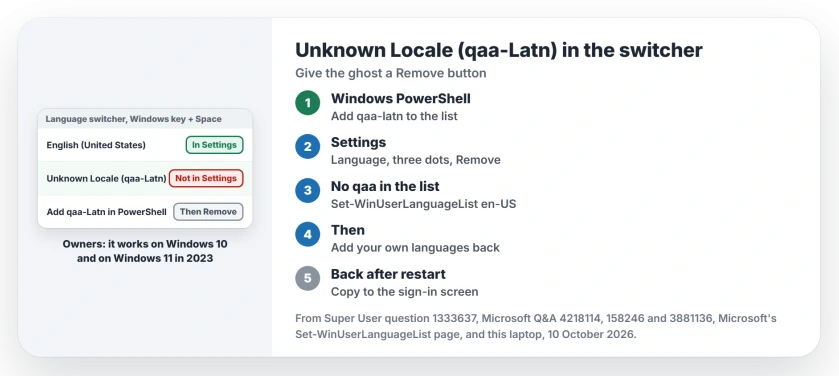
Status: both PowerShell fixes carry owner confirmations from Windows 10 through Windows 11 in 2023. Microsoft's page for the command they use was checked 10 October 2026.
Settings lists your languages, while the switcher lists every input method Windows has loaded for you. When the two drift apart, the ghost gets no Remove button.
1. Add it in PowerShell, then remove it
Open Windows PowerShell from Start. The accepted answer used an admin window, though one reader noted the list is per user, so a normal one works too. Then run:
$LanguageList = Get-WinUserLanguageList
$LanguageList.Add("qaa-latn")
Set-WinUserLanguageList $LanguageList -Force
Now qaa-Latn is a proper entry. Open Settings, then Time & language, then Language & region, and remove it with the three dots next to it.
Prefer to stay in PowerShell? The same answer gives a second script that finds the entry and removes it:
$LanguageList = Get-WinUserLanguageList
$Language = $LanguageList | where LanguageTag -eq "qaa-Latn"
$LanguageList.Remove($Language)
Set-WinUserLanguageList $LanguageList -Force
Owners kept writing back for years. One reader wrote "Works even for Windows 11", and another said it "still works for Windows 11 in 2023!"
Is your ghost qac-Latn or qab-Latn? Swap that tag into both scripts. Two readers removed QAC-LATN this way.
2. Not in the list? Reset it to one language
Some owners ran Get-WinUserLanguageList and found no qaa entry at all, so the first fix had nothing to remove. One asker on Microsoft Q&A said exactly that about QAA, QAB and QAC.
Then I would rebuild the list from scratch. This replaces your whole list with English (United States):
Set-WinUserLanguageList en-US -ForceRestart, then add your own languages and keyboards back in Settings. Type with something else, such as de-DE? Put your own tag in place of en-US.
On a 100+ Microsoft Q&A thread, an adviser gave the same reset in two lines. Their note: "After restart, English (United States) will be the only language under Preferred Languages".
The asker came back: "The process you described did the trick".
The answer's own author used it too. When the ghost "just happened again after another Windows 10 update", they reset the list to en-US instead.
Microsoft says on its Set-WinUserLanguageList page that the command "Sets the language list and associated properties for the current user account".
3. Back after a restart?
One reader found qaa-Latn returning after each restart. My bet in that case: your account is clean, but the copy for the sign-in screen is not.
Next I would give the sign-in screen, and any new account, the same list as yours. The stray keyboard layout page walks through it, with Microsoft's one-line command.
Another owner added one more step that is easy to skip: sign out, then sign in again, once the change is made.
Windows PowerShell, not PowerShell 7
Use the blue Windows PowerShell, which ships with Windows, and not the newer one. One reader warned: "Make sure you use Windows PowerShell".
In PowerShell 7, they warned, Get-WinUserLanguageList can stop with a Cannot marshal error instead of a list. Ours: this laptop has no PowerShell 7, and Windows PowerShell returned its list without admin rights.
Is Unknown Locale harmful?
No, as far as I can tell. It is a label, not a program. It only costs you a stop in the switcher, and sometimes a keyboard you did not choose.
Still confused by what Windows calls a language, a keyboard and an input method? Keyboard language on Windows sorts the three apart.
The Short Version
- Unknown Locale (qaa-Latn) is a private tag Windows cannot name.
- Add qaa-Latn in Windows PowerShell, then remove it in Settings.
- No qaa entry in the list? Reset it to one language and add yours back.
- Use Windows PowerShell, not PowerShell 7.
- Back after a restart? Give the sign-in screen the same list.
Where to Next
Did yours say qaa, qab or qac, and which step cleared it? Leave both in the comments, along with your build number.

Isaac Smith is the founder and editor of PC Glance, a website that covers computers, laptops, and technology. He is a tech enthusiast and a computer geek who loves to share his insights and help his readers make smart choices when buying tech gadgets or laptops. He is always curious and updated about the latest tech trends.