
You add a line to your hosts file to block a site or point a name at a test server. You save it, and nothing changes: the site loads exactly as before, even after you flushed the DNS cache.
I split this in two before touching anything else. Is Windows ignoring your line, or is your browser answering without it?
The Super User question with this exact complaint has 57,818 views. Three Microsoft Q&A threads about saving the file each show 10+ on Same question.
First, ping the name you added
Open Command Prompt, clear the Windows cache and ping the name you added. Use your own name in place of the example.
ipconfig /flushdns
ping www.example.com
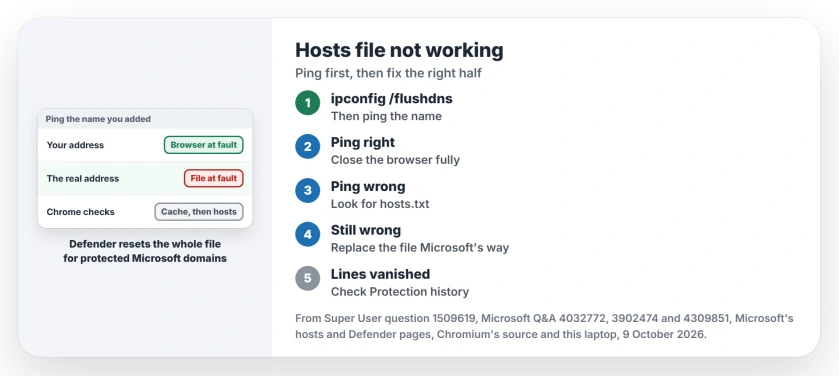
Does the reply come from 127.0.0.1, or whatever address you wrote? Then Windows is reading your line, and the browser is the problem.
If it shows the site's real address, Windows is not using your line at all. I run this first, because every later step depends on which half you are in.
The top Super User answer puts the first step plainly: "Just changing the hosts file is not enough", and the flush in the box covers it.
The asker's ping still showed the real address. Their fix was the file itself, further down this page.
Status: a ping splits the fault in two, Microsoft documents the format and Defender's reset, and owners confirmed the replacement and the restart. Our hosts file examined 9 October 2026.
Ours: on this laptop the hosts file is 3,306 bytes over 98 lines. It is saved without a byte order mark, and no second hosts file sits next to it.
Ping is right, the browser is wrong
Your browser keeps its own list of addresses. Chromium's resolver code checks that cache first and only then the hosts file, so in Chrome an address looked up before your edit keeps winning.
Close every browser window and open it again. If your browser keeps running in the background, check Task Manager and end the leftover copies too.
Secure DNS is not the culprit in Chrome. The same code checks the hosts file before any DNS over HTTPS lookup, so leave that setting where it is.
Moved a name between two servers and Chrome now insists on https for it? The old server left an HSTS note in Chrome, and deleting it takes one internal page.
Ping is wrong: check the file name
Notepad likes to add .txt. Microsoft's reset steps warn that "A hosts file can't have a file extension", which is why they tell you to choose All files when you save.
File Explorer hides extensions by default, so hosts.txt can look like hosts. This lists the real names:
dir %WinDir%\System32\drivers\etcOurs: here the folder holds hosts, lmhosts.sam, networks, protocol and services. Nothing in it ends in .txt.
Then check the line itself
Microsoft says each entry sits on its own line: an IP address "followed by one or more hostnames, separated by whitespace (tabs or spaces)". A line that starts with # is a comment and does nothing.
Give the name with www and without it, since each name is matched as written. The Super User asker had both and it still failed. So this alone may not be your fix.
One owner on Windows 11 found lines with several spaces stopped working after an update, and wrote "I have to manually update my host file to keep single spaces". Use a single space.
Replace the file the way Microsoft does
This fixed it for the Super User asker. Their ping kept showing the real address, so they followed Microsoft's steps for replacing the hosts file, and "then I manually put in my websites now it's working".
From Microsoft's reset page: open Notepad, paste in the default text from that page and choose Save as. Type the name hosts inside quotation marks, set the type to All files and save it to the desktop.
In the etc folder, rename the old file to Hosts.old. Copy the new one in and accept the administrator prompt. Then add your own lines back one at a time, with a ping after each.
Blocked a Microsoft address? Defender may reset the file
Microsoft Defender watches this file. Its page for the SettingsModifier:Win32/HostsFileHijack detection says it "blocks any attempt to modify the hosts file to insert entries for specific, protected domains".
The cleanup is wider than you would guess. In Microsoft's words, Defender "will reset the hosts file to default, removing any existing entries". One blocked Windows address can take all your other lines with it.
I would check this before rewriting the file a third time. Open Windows Security, then Virus and threat protection, then Protection history, to see whether it acted. Ours: the history on this laptop holds nothing about the hosts file.
Notepad says you do not have permission
Ordinary accounts can only read this file. Ours: its permissions here give Users read and execute only, and full control to Administrators and SYSTEM.
So type Notepad in Start, right-click it and choose Run as administrator. Then open the file from inside Notepad.
That answer on Q&A has 40+ people marking it helpful. Its asker wrote back that "it updated this time", with a Windows update in between.
Refused even as administrator? If your new line names a Microsoft address, Defender's block can be the reason. Otherwise an adviser on Q&A suggests editing a copy on the desktop and pasting it back over the original.
File Explorer still goes to the old address
Network shares can lag behind. One owner on Windows 11 added a file server to the hosts file and could ping it by name, yet File Explorer still could not find it.
A restart fixed it. In their words, Explorer "does not bother to re-read the Hosts file once it has done it once", which matches what ping showed them.
Did pages stop loading altogether after your edit? Our DNS server not responding page covers that. An old blocking line can also bite years later, as with iPhone error 1109 in a restore.
The Short Version
- Flush with ipconfig /flushdns and ping the name. That tells you whether Windows reads your line.
- Ping right, site wrong: close the browser fully. Chrome checks its own cache before the hosts file.
- Ping wrong: look for hosts.txt, then check one address and one name per line.
- Still wrong: replace the file with Microsoft's steps and add your lines back.
- Blocking a Microsoft address can make Defender reset the whole file.
Where to Next
Which was it on your PC: the browser, the file name or Defender? Tell me in the comments.

Isaac Smith is the founder and editor of PC Glance, a website that covers computers, laptops, and technology. He is a tech enthusiast and a computer geek who loves to share his insights and help his readers make smart choices when buying tech gadgets or laptops. He is always curious and updated about the latest tech trends.