

You send the magic packet and your PC stays dark. Put it to sleep and the same packet wakes it every time, so your router and your app are fine. Only a shutdown from Windows breaks it.
I start with a switch Windows ships turned on: fast startup. The Super User question about exactly this, asked on New Year's Eve 2019, has 78,425 views, and two Microsoft Q&A threads on it each show 50+ on Same question.
What Windows does to your network card at shutdown
When you click Shut down, Windows does not fully power off. With fast startup on, it writes part of the system to disk first, a hybrid shutdown that Microsoft files under the S4 power state.
Microsoft's Wake on LAN page is blunt about what follows: in that state, "WOL from S4 or S5 is unsupported".
The reason is power. Microsoft says adapters stay unarmed "because users expect zero power consumption and battery drain in the shutdown state".
Some PCs wake anyway. The same page says the firmware on some systems may arm the network card "even though Windows isn't involved in the process". So a friend's PC can wake after a shutdown while yours never does.
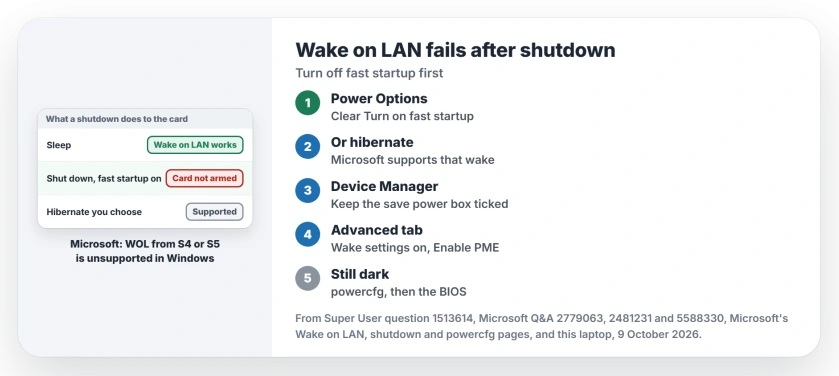
Status: fast startup is the switch to check first, as Microsoft explains on its own Wake on LAN page, and owners confirmed three fixes. Power settings on our ASUS laptop checked 9 October 2026.
Ours: our ASUS TUF A17 runs Windows 11 Home 25H2 with fast startup on, as it shipped. Running powercfg /a lists Hibernate and Fast Startup, and no S3 sleep at all. I could not send it a packet, since its Ethernet port has no cable here.
1. Turn off fast startup
Microsoft gives the steps. Open Control Panel, then Power Options, then the link about what the power buttons do, clear Turn on fast startup (recommended) and select Save Settings.
Is the box grayed out? Use the link at the top of that page that unlocks the grayed settings, then try again.
Now shut down from the Start menu and send your packet. Owners report this works on both versions.
The asker of one 50+ Q&A thread did it on Windows 10 and wrote back "This fixed the issue". A Super User commenter on Windows 11 said "Disable fast startup did the trick".
Microsoft does not love this step, though. Its page says "We don't recommend that you disable the hybrid shutdown (S4) state", and your cold starts get a little slower.
Keep fast startup and hibernate instead
You can skip that trade. Microsoft supports Wake on LAN from sleep and "when the user explicitly requests to enter hibernate (S4) state", so hibernate the PC instead of shutting it down.
No Hibernate in your power menu? On the same Power Options page, tick Hibernate under Shutdown settings and save.
2. Leave the save power box ticked
Open Device Manager, expand Network adapters and open your Ethernet adapter. On the Power Management tab, tick Allow this device to wake the computer.
Guides often say to untick the first box on that tab, the one about saving power. Leave it ticked.
One owner on Microsoft Q&A found that unticking it grays out both wake boxes. On Super User, another owner fixed an Asus board when they chose to "leave it checked".
Tick Only allow a magic packet to wake the computer as well. If your PC starts waking at night on its own, our page on a PC that wakes itself up shows how to find what woke it.
3. Turn on the adapter's own wake settings
The Advanced tab of the same window holds the settings that matter after a shutdown. Their names depend on the network chip.
On an Intel I211 board, one owner listed what they changed. Among them: Wake on Magic Packet and Wake on Pattern Match on, Energy Efficient Ethernet off, and Enable PME on.
Another I211 owner wrote that "Turning on Enable PME like you suggested made it work again". A driver reinstall had left it off.
Realtek chips use other names. Our laptop's Realtek port lists Wake on Magic Packet, Wake on pattern match and WOL & Shutdown Link Speed. Energy-Efficient Ethernet and Green Ethernet are both on.
Recheck these after a driver update or a big Windows update. An owner on Q&A wrote that Windows Update kept resetting the card's energy saving options. They set them again each time.
Can Windows arm your card at all?
Open Command Prompt and run the line in the box. Microsoft's powercfg page says it lists devices "currently configured to wake the system from any sleep state".
powercfg /devicequery wake_armedOurs: here it listed mice, keyboards and a USB Realtek adapter, but not the built-in Realtek port.
The wider wake_programmable list leaves that port out too, so of the two network adapters here, only the USB one can be set to wake the laptop.
Your adapter missing from both lists? Then Windows sees no wake feature on it to switch on. I would go to the BIOS next.
Wakes after one kind of shutdown, not the other?
Some PCs behave the other way round. One owner's PC woke after Shut down in the Start menu, yet not after the shutdown command in Command Prompt. Their voice assistant setup relied on that command.
The two really differ. Microsoft's shutdown page says the /hybrid switch "Shuts down the device and prepares it for fast startup", so a plain shutdown /s is a full one.
Which of the two your board wakes from is up to its firmware. Test both.
Testing from another room over Remote Desktop? The Start menu there lacks a Shut down entry, but Alt+F4 or the shutdown command still reach it.
Still dark? The BIOS and the chip
The Super User asker had Wake on LAN and Power On By PCI-E on in the BIOS. Their PC still woke only after a shutdown from the BIOS itself. Look there for an energy saving or Deep Sleep option for the network port, and turn it off.
Two chips have their own stories. A NUC owner on Windows 11 was told by Microsoft support it was "a known issue with MS Windows and the Intel i226-v adapter", and only the board maker can ship the firmware that fixes it.
On a board with two network ports, one owner found the second port woke the PC while the I211 never did. If your PC will not even sleep for a test, our page on a PC that won't go to sleep comes first.
The Short Version
- Fast startup makes a shutdown a state Microsoft does not support Wake on LAN from. Clear it in Power Options.
- Or keep it and hibernate instead, which Microsoft does support.
- In Device Manager, keep the save power box ticked and tick Allow this device to wake the computer.
- On the Advanced tab, turn on the wake settings, and Enable PME on Intel. Recheck after updates.
- Still dark: powercfg /devicequery wake_armed, the BIOS energy options, or the other port.
Where to Next
Does your PC wake from sleep but still not from a shutdown with fast startup off? Leave a comment with your board and network chip.

Isaac Smith is the founder and editor of PC Glance, a website that covers computers, laptops, and technology. He is a tech enthusiast and a computer geek who loves to share his insights and help his readers make smart choices when buying tech gadgets or laptops. He is always curious and updated about the latest tech trends.