
You click a link that should open an app on your PC: a phone number, a meeting, a torrent. Chrome stops to ask first. Every single time, and the box that would let you skip the question is missing.
I would look at the page address before you change any setting. A 2019 Super User question about this prompt has 113,994 views, and the answers that worked come down to two things: the page and a policy.
Why the Always allow box is missing
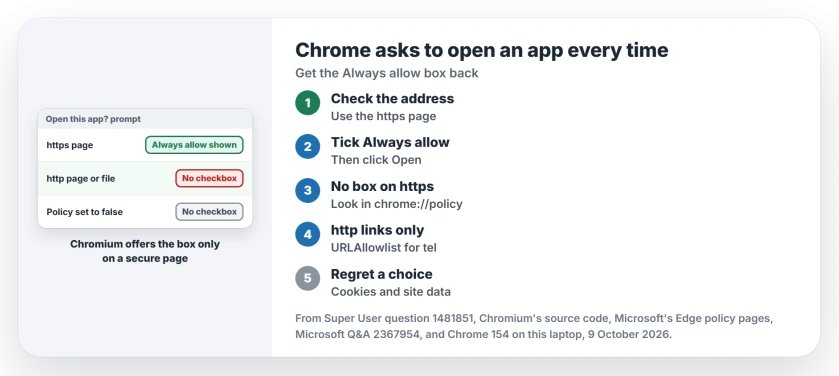
The box reads Always allow, then the site's name, then to open links of this type in the associated app. Chrome only draws it under two conditions, and its own source spells them out in a comment.
The checkbox is offered "so long as the group policy to show the checkbox is not explicitly disabled and there is a trustworthy initiating origin".
In plain words: no policy turned it off, and the link sits on a secure page. Miss either one and you get the prompt with no box.
Status: Chromium's own source and Microsoft's Edge policy pages explain the missing box, and owners report the policy fixes working. Chrome 154 and Edge 154 examined on 9 October 2026.
Ours: across 25 Chrome profiles and Edge's on this laptop, I found not one saved Always allow choice. Chrome writes that list only once you tick the box. No Chrome or Edge policy existed here either.
1. Click the link from an https page
Look at the address bar of the page holding the link. Does it start with http rather than https? Is the link in a file on your PC? Then the box will not appear.
Microsoft says it plainly for Edge, which shares Chrome's code, and its page on the checkbox policy says it "only applies to https:// links". A Super User commenter found the same in Chrome on Windows.
So open the https version of your page, if the site has one. Click the link and tick Always allow. Then click Open.
From then on, that site opens that app without asking.
2. Box missing on an https page? Check for a policy
Type chrome://policy in the address bar, or edge://policy in Edge. Look for ExternalProtocolDialogShowAlwaysOpenCheckbox. If it reads false, you have your answer.
Microsoft's page spells out the result when it is off: "The user is prompted for confirmation every time an external protocol is invoked". At work or school, IT set it. Ask them.
A home PC with a policy you never set is another matter. Our page on a Chrome search engine that keeps changing shows how to find what wrote it.
3. Let one app through on every site
Some links come from http pages you cannot change, like an old phone system. Owners solved that with the URLAllowlist policy, listing the protocol itself.
Microsoft's Edge page confirms the side effect they relied on: the policy lets the browser "automatically invoke external applications registered as protocol handlers". For tel links in Chrome, one value does it:
reg add "HKCU\Software\Policies\Google\Chrome\URLAllowlist" /v 1 /t REG_SZ /d "tel:*"Restart Chrome and check that chrome://policy shows it. For Edge, use Microsoft\Edge in place of Google\Chrome in that key.
One owner who went this way wrote: "Having both of these configured allows the link to run without nagging". Another confirmed the Mac version "worked for me in macOS Big Sur with Chrome 95".
It has one cost. With any policy set, Chrome tells you it is managed by your organization. That is expected here.
I would still prefer the https route. It needs no policy at all.
Did you tick Always allow and now regret it?
Chrome keeps no switch for each choice. Its source clears the whole list when you delete Cookies and other site data in Delete browsing data, which logs you out of your sites as well.
On Windows, which app answers the link is a separate question. Our default apps page covers choosing the app for a link type, such as tel or mailto.
The Short Version
- No Always allow box: the page is not https, or a policy hides the box.
- On https: tick Always allow once, and that site stops asking.
- Check chrome://policy or edge://policy for ExternalProtocolDialogShowAlwaysOpenCheckbox.
- Links from plain http pages: let the protocol through with URLAllowlist.
Where to Next
Which app link keeps prompting you, and from which site? Drop it in the comments, and say whether the box appeared after the https switch.

Isaac Smith is the founder and editor of PC Glance, a website that covers computers, laptops, and technology. He is a tech enthusiast and a computer geek who loves to share his insights and help his readers make smart choices when buying tech gadgets or laptops. He is always curious and updated about the latest tech trends.