
You connect to your PC with Remote Desktop, open Start to restart it, and the power menu offers you nothing that turns it off.
I would use Alt+F4 on the remote desktop first and a one-line command second. Before either, decide who will switch your PC back on afterwards.
Its Super User question, from April 2010, has 398,599 views, and the latest Windows 11 asker I found on Microsoft Q&A posted in November 2025.
Why Start leaves it out in a remote session
One owner with three PCs described it in September 2024. Their Windows 10 machine offered a restart over Remote Desktop. Windows 11 did not. In their words: "I can only sign out".
The November 2025 asker said the same after an upgrade, since before Windows 11 "all power options were available". They had already tried Group Policy and security policy. Neither helped.
That matches the older answers. The 2012 asker, in the answer they accepted, found "no way to enable reboot/shutdown from the start menu in a remote session", and no policy changed that either.
An owner offered a reason back in 2010: "The restart option is deliberately removed from the normal location to prevent accidents". The commands still exist, though. Three routes reach them from inside your session.
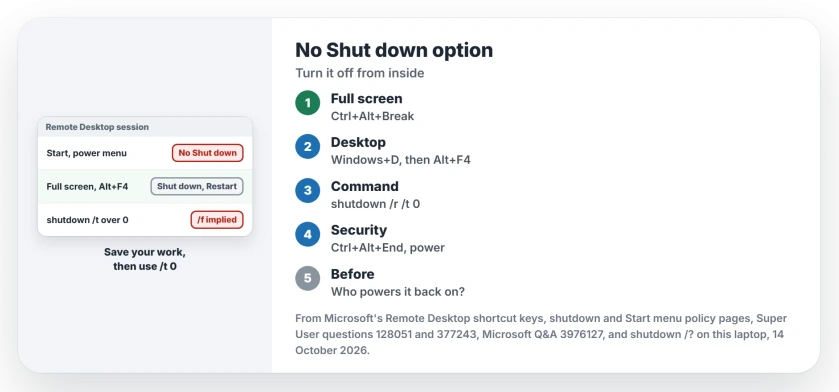
Status: Microsoft's shutdown, shortcut key and Start menu policy pages read 14 October 2026, with shutdown /? run on this 25H2 laptop. No PC was shut down.
1. Go full screen, then press Alt+F4 on the remote desktop
By default, your shortcuts reach the remote PC only in full screen.
Microsoft's page of shortcut keys for Remote Desktop says the default combinations work "for the local machine, unless you have the Remote Desktop Connection window in full-screen mode".
Press Ctrl+Alt+Break to go full screen, then Windows+D to show the remote desktop, and click an empty spot on it.
If full screen still leaves the desktop small, reset the size Remote Desktop saved.
Now press Alt+F4. A Shut Down Windows dialog appears, and its list normally holds Shut down and Restart. If yours lacks them, step 2 still works.
An owner gave this answer in 2013, and it now has 51 votes: "This way I get all options". A commenter later added: "Works on Win10 as well".
Mind your focus. Another answerer warned that if a window has it, "Alt+F4 will simply close the active window" instead, so click the desktop before you press it.
2. Run shutdown /r /t 0, or /s to switch off
Press Windows+R inside your full screen session, or open Command Prompt there, then type one of these and press Enter:
shutdown /r /t 0
shutdown /s /t 0
The first restarts the remote PC. The second turns it off. Microsoft's shutdown reference says /a "Aborts a pending system shutdown" while a countdown is still running.
The Windows 11 owner from 2024 confirmed it: "The shutdown/s command works". On the 2010 question, the same command is the accepted answer, with 161 votes.
Mind the countdown, though. Ours: shutdown /? on this laptop says /t defaults to 30, and "If the timeout period is greater than 0, the /f parameter is implied".
That /f closes your apps without asking. Microsoft's reference warns that it can cost you unsaved work. Save what is open in the session first, then use /t 0.
3. Or press Ctrl+Alt+End for the power button
Microsoft documents Ctrl+Alt+End as the remote twin of Ctrl+Alt+Del. It opens the Windows Security screen of the remote PC rather than your own.
That screen normally carries a power button. A policy can take it away. With that policy on, Microsoft states, "The Power button is also removed from the Windows Security screen".
The same policy strips Shut Down and Restart from Start. Microsoft's page adds that it does not stop programs that do those jobs, so your command from step 2 still works under it.
A Q&A adviser told the 2025 asker to reset that policy's NoClose value. They replied "it still didn't work", which fits the owner reports: on Windows 11, the menu simply lacks it by default.
Ours: NoClose is absent on this laptop, the normal state. Seeing a black screen instead of a desktop? The same shortcut gets your remote desktop back.
Who switches it back on?
A shutdown over Remote Desktop ends your connection too. A commenter on the 2010 question put it plainly: "somebody will need to be local to powerup the workstation".
Another owner learned that the hard way, with a Windows Server 2012 box far away that Remote Desktop would not reach again.
So I would restart rather than shut down a PC I cannot reach by hand. If you need it off, check first that it wakes over the network, because Wake on LAN often fails after a full shutdown.
The Short Version
- Windows 11 leaves Shut down and Restart out of Start in a Remote Desktop session.
- Go full screen with Ctrl+Alt+Break, show the remote desktop with Windows+D, then press Alt+F4.
- Or run shutdown /r /t 0 to restart, or shutdown /s /t 0 to switch off.
- Ctrl+Alt+End opens the remote security screen and its power button.
- Restart rather than shut down a PC you cannot reach to switch on again.
Where to Next
Which route worked on your PC, and which Windows does it run? Leave that in a comment. When a reader confirms a route I have missed, it goes onto this page with their name.

Isaac Smith is the founder and editor of PC Glance, a website that covers computers, laptops, and technology. He is a tech enthusiast and a computer geek who loves to share his insights and help his readers make smart choices when buying tech gadgets or laptops. He is always curious and updated about the latest tech trends.