
You try to delete, move or copy a folder, and up comes Error 0x8007018B: Access to the cloud file is denied. Often it is an old OneDrive folder, left behind by a reset or a work account.
I start with one question: does OneDrive still sync that folder? The answer picks the fix. On Super User, the question about an old OneDrive folder that would not go has 72,422 views.
A Microsoft Q&A thread about the same code shows 200+ people who had it too.
What the error is telling you
OneDrive marks the files and folders it manages as cloud files, so Windows asks OneDrive before it moves or deletes them. When OneDrive no longer looks after that folder, nothing answers and Windows says no.
One reader on the Super User thread explained the leftover case. They wrote that "the cloud file error can also be caused by switching off Files On-Demand if/when OneDrive fails to remove reparse point flag from folders".
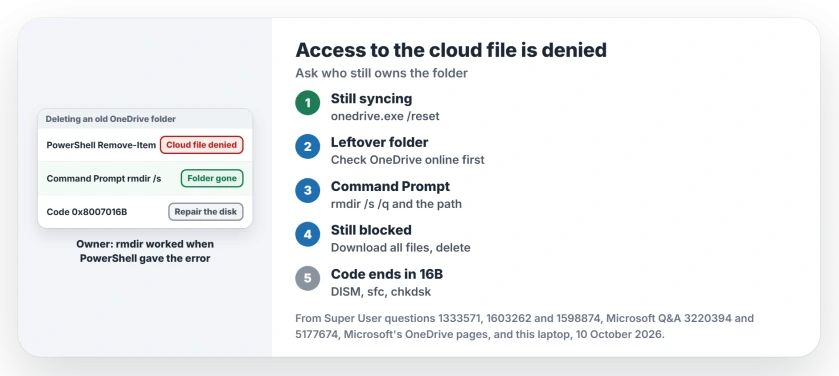
Status: Windows names both codes itself. The reset is Microsoft's, rmdir and the disk repair are owner fixes. OneDrive 26.173 on this laptop checked 10 October 2026.
Ours: certutil on this laptop decodes 0x8007018B as error 395, "Access to the cloud file is denied". Its sister code 0x8007016B means "The cloud file metadata is corrupt and unreadable". That one needs a different fix.
1. Still syncing? Reset OneDrive
Is the folder inside the OneDrive you use today? Then reset the app before anything else. Microsoft's Reset OneDrive page says you keep every file through a reset.
Open the Run box with the Windows key and R, paste this line, then press Enter:
%localappdata%\Microsoft\OneDrive\onedrive.exe /resetIf the OneDrive cloud icon does not come back, open Start, type OneDrive and start the app. If Windows cannot find that path, Microsoft's page gives two Program Files paths to try instead.
A 2019 Q&A asker hit 0x8007018b copying photos out of OneDrive. After the reset they wrote "back up and running now".
Expect a long resync, though. Microsoft warns that "Resetting OneDrive only disconnects all your sync connections (including personal and work or school)". If you had picked only some folders to sync, pick them again afterwards.
A reset is no cure-all. Another Q&A asker had one MP4 they could not delete from their own OneDrive: "Already tried onedrive.exe /reset with no result". For a single stuck file, delete it on the OneDrive website first.
2. A leftover folder? Use rmdir, not PowerShell
This is the Super User case. Maybe it is your case too. The asker reset Windows, OneDrive made a new folder under their user name, and the old D:\OneDrive refused every delete, rename and copy.
The accepted answer used PowerShell's Remove-Item with -Recurse and -Force. It stopped working for later readers. One wrote "When I tried it I got the error: Access to the cloud file is denied".
Another added: "Something has definitely changed in OneDrive or PowerShell", so skip PowerShell here.
Command Prompt's own rmdir did the job. One reader put it plainly: "Cmd's rmdir /S worked for me when PowerShell gave the cloud file error". A 2020 asker on a second Super User question found the same with an empty folder.
Before you delete anything, open OneDrive on the web and check your files are there. An old folder can hold online-only files with no copy on your disk.
Then open Start, type cmd, open Command Prompt and type your own path:
rmdir /s /q "D:\OneDrive"The /s switch takes everything inside the folder. The /q switch skips the question, so check your path twice.
The same advice fits a work account you lost. A Q&A asker who had left their company got "Access to Cloud file is denied" from Remove-Item on its leftover files.
3. Download all files, then delete
Still blocked? Owners report that the delete went through once OneDrive stopped treating your folder as online-only. A 2020 answer turned Files On-Demand off first, then deleted.
Current OneDrive has no off switch for that. Open the OneDrive icon, then Settings, Sync and back up, Advanced settings, and choose Download all files.
Microsoft says that button "is equivalent to the legacy option of turning off Files On-Demand mode". Your disk needs room for the whole OneDrive.
When everything has downloaded, delete your folder in File Explorer or with rmdir. The same answer warned that "PowerShell cannot handle broken symlink", which is why Command Prompt keeps coming up.
When the code ends in 16B
0x8007016B, or "The tag present in the reparse point buffer is invalid", means the cloud marking itself is damaged. A 2020 Super User asker, 25,309 views, could not open or delete such a folder.
An owner fixed theirs with three repair commands. Run them in Command Prompt as administrator, one at a time, then restart so chkdsk can run:
DISM.exe /Online /Cleanup-image /Restorehealth
sfc /scannow
chkdsk /f /r
Two readers confirmed it. One wrote "Did steps 1 through 3 and it made my folder accessible again", another "Steps 1-3 worked for me too".
If your folder is on another drive, point chkdsk at it, such as chkdsk D: /f /r. Expect each command to take a while, DISM and sfc especially.
The owner whose steps worked also deleted the folder on OneDrive online first. Then they pressed Shift and Delete on the PC to skip the Recycle Bin.
Disk repair is not a sure thing, though. One reader wrote "Doing chkdsk on a drive messed up by OneDrive does NOT help in my case", and their thread ends there.
A SharePoint library you no longer have
A work variant: you synced a SharePoint library to your PC, the site was deleted, and its folder now throws the same error.
A Microsoft moderator on Q&A suggested Unlink this PC in OneDrive's Account tab, then a reset, but the asker never reported back.
Unlinking only disconnects the sync, and your files stay online. Turning OneDrive off without losing files walks through the same Account tab.
If the trouble is a file that will not sync at all, rather than one you cannot delete, see why OneDrive stops on a file name.
How do I check a folder is still a cloud folder?
Run fsutil reparsepoint query with the folder's path in Command Prompt. A folder still marked prints a Reparse Tag Value line. A plain folder answers Error 4390.
Ours: every folder in this laptop's OneDrive answers "Error 4390: The file or directory is not a reparse point", and Windows' cloud files filter, CldFlt, is running. So here, nothing would block a delete.
The Short Version
- Folder still syncing? Run onedrive.exe /reset from the Run box.
- A leftover OneDrive folder? Delete it with rmdir /s /q in Command Prompt.
- PowerShell's Remove-Item gives the same cloud file error, so skip it.
- Still stuck? Choose Download all files in OneDrive, then delete.
- Code 0x8007016B? Run DISM, sfc and chkdsk, then restart.
Where to Next
Which code did you get, 18B or 16B, and which step cleared it? Both help the next reader, so leave them in the comments.

Isaac Smith is the founder and editor of PC Glance, a website that covers computers, laptops, and technology. He is a tech enthusiast and a computer geek who loves to share his insights and help his readers make smart choices when buying tech gadgets or laptops. He is always curious and updated about the latest tech trends.