
You type your PIN on the number pad and get nothing, because Num Lock is off again. It was on when you shut down. I would fix the sign-in screen's own setting first, since that screen does not read yours.
Microsoft Q&A has a 2024 question on it marked Same question (100+), and a Windows 11 one from October 2025 with 20+. In June 2026 an owner posted a fix that took one shutdown and no registry edit at all.
Who switches it off
Three things set Num Lock, at three moments. Your PC's firmware sets it while it starts. Then the sign-in screen applies a value stored for the system, not for you.
Only after you sign in does Windows read your own value. Ours: on this laptop the sign-in screen's value is 2147483648, our own profile's is 0, and fast startup is on.
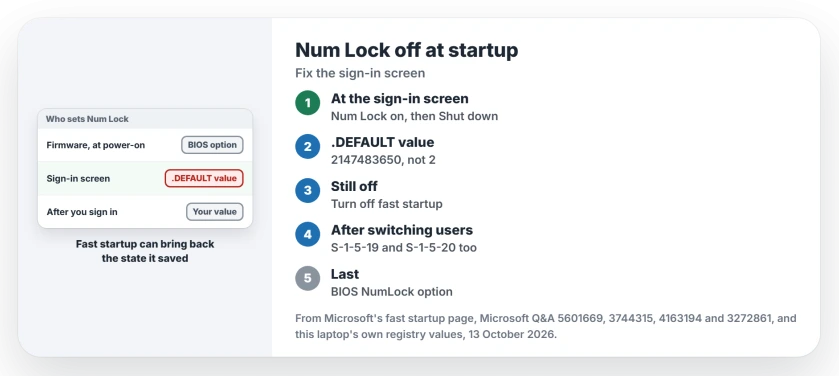
Status: the sign-in screen keeps its own Num Lock value, and fast startup can bring an old state back (this laptop's values read 13 October 2026).
Fast startup matters here.
Microsoft's page on fast startup says that when you shut down with it on, Windows logs off every user, but "the Windows kernel is loaded and the system session is running". That session is saved and loaded at the next start.
In our reading, the state you leave on the sign-in screen can come back with it, which is why a fix can work once and then stop.
Try this at the sign-in screen first
An owner's fix. In June 2026 a Windows 11 owner posted "what finally worked for me", after none of the answers there had helped. It held at the first sign-in, after locking, and when switching users.
First, pick your account on the sign-in screen. If Num Lock has gone off, press Num Lock so its light is on. Then, in their words, "DO NOT TYPE IN YOUR PASSWORD".
Use the power button on the sign-in screen and choose Shut down, then start the PC again; Num Lock should come up on.
Give the sign-in screen its own setting
The sign-in screen reads InitialKeyboardIndicators under HKEY_USERS, .DEFAULT, Control Panel, Keyboard. On Windows 11 it often holds 2147483648, the same as on this laptop.
Reported working by an owner. One wrote "What has worked for me is not to set initialkeyboardindicators to 2, but to add 2 to the default value". That makes 2147483650. The page shows "10+ people found this answer helpful", and a later post in the thread reads "Thank you so much! That worked!"
From an elevated Command Prompt, run this line and then restart:
reg add "HKU\.DEFAULT\Control Panel\Keyboard" /v InitialKeyboardIndicators /t REG_SZ /d 2147483650 /fI would try this value before the fast startup change, because it costs you nothing at boot. If you use the number pad for Alt codes too, our Alt codes guide covers the other half of that keypad.
When fast startup brings the old state back
Changed the value and nothing happened? Reported working by an owner. In one Windows 10 thread, after registry and BIOS changes failed, one change helped a poster: "disabling fast startup". It cost them "about 2 seconds" at boot.
Open Control Panel, then Power Options, and open the power button settings in the left column. Use the link for settings that are unavailable right now, untick Turn on fast startup and save.
You can also keep fast startup and use Restart once after any change. As our guide to restart and shut down explains, a restart skips that saved session.
Some PCs show no fast startup box at all. A Microsoft MVP told one IT admin that fast startup "isn't supported with your hardware" on theirs, so skip to the next step.
Off again after switching users?
If you share the PC, you may know this one. Someone who set up more than 20 Dell machines wrote "Anyone with a Windows 11 machine can replicate this feature". Their thread shows Same question (40+).
Confirmed by an owner. Another owner found eight copies of the value with a registry search and set the ones under .DEFAULT, S-1-5-19 and S-1-5-20 to 2.
Num Lock then stayed on through several switches between three accounts, and the change had "not broken the Steelseries software". Ours: the last two keys cannot even be read without administrator rights.
Check the BIOS last
I leave this for last, since it means a trip into the firmware menus. Your PC's firmware may have an option with a name such as Boot Up NumLock State. Turn it on, save, and test once with a full shutdown.
One owner found the reverse. With it on in the BIOS, Windows 11 turned Num Lock off at the first sign-in. With it off, Num Lock came up on.
And some PCs still refuse. The owner in the 100+ thread tried the registry, the BIOS and fast startup, and replied "I've done that. It doesn't work". For that case, the sign-in screen shutdown is the one left to try.
The Short Version
- The sign-in screen has its own Num Lock value; yours only applies after you sign in.
- First: turn Num Lock on at the sign-in screen and shut down from there.
- Set .DEFAULT's InitialKeyboardIndicators to 2147483650, as administrator.
- Still off? Turn off fast startup, or restart once after each change.
- Off after switching users: set the S-1-5-19 and S-1-5-20 copies too.
Where to Next
Which step kept Num Lock on for you, and on which PC? Drop me a comment; the cases where nothing worked help me most.

Isaac Smith is the founder and editor of PC Glance, a website that covers computers, laptops, and technology. He is a tech enthusiast and a computer geek who loves to share his insights and help his readers make smart choices when buying tech gadgets or laptops. He is always curious and updated about the latest tech trends.