

Your Inbox shows a (1), yet you have read every message, and the Unread filter shows nothing. I would search for that message before clearing anything. In the cases I read, it was still in the mailbox, only hidden from the folder view.
A 2013 Super User question about this phantom count has 216,684 views. In January 2026 an IT admin saw it with Microsoft 365, where the count showed unread mail over an empty list. Outlook on the web showed every message.
Where the invisible message hides
Microsoft documents a pipeline for new mail in Cached Exchange Mode that "uses the hidden ItemProcSearch folder in your mailbox to process messages prior to showing them in your Inbox". A new message stays hidden until that step finishes.
When the step fails, "after the incoming message is flagged as hidden, it does not get processed". Microsoft adds that messages "can become stuck in the pipeline due to unexpected conflicts or corrupt data".
So the count sees the message. The folder view does not.
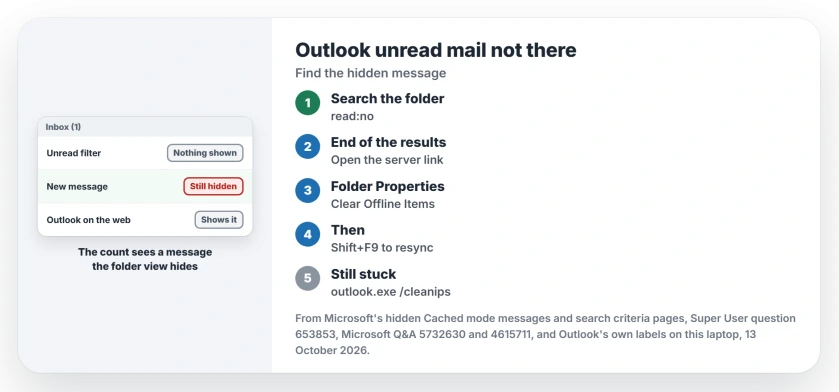
Status: matched against Microsoft's hidden-message article and owners' fixes on 13 October 2026. Search with read:no first, then resync the one folder.
Microsoft's article names Outlook 2007 to 2013. The 2026 case ran Microsoft 365, and a Microsoft support reply pointed to that same article.
1. Find it with one search
Click in the search box with the problem folder open, or press Ctrl+E. Type read:no and press Enter. Microsoft's search criteria page lists it as "Items that have not been read".
If a link to look further on the server appears at the end of the results, click it.
In the 2026 case it read View more on Microsoft Exchange, under the Unread filter. That same link shows up when Outlook keeps only recent mail offline, which our guide to missing older emails covers.
Open the message that turns up, so Outlook marks it read. Then clear the search.
If marking it read leaves the search display unchanged, compare Microsoft's stale-result issue before clearing offline items.
Reported working by several owners. One owner wrote "This worked for me and unlike the accepted answer you don't have to re-sync your folders". Another called it a "Nice and simple solution", and a third found it "revealed the phantom email", though that owner still had to restart Outlook before the (1) went away.
If even mail you can see never shows up in search, the index is broken instead. Our Outlook search guide covers that.
2. Nothing found? Clear the folder's offline copy
Right-click the folder, then pick Properties. On the General tab, choose Clear Offline Items and confirm, then press Shift+F9 with the folder still selected to resync it from the server. Give it a minute.
Microsoft lists these exact steps for hidden messages. Your folder looks empty for a moment, as the asker put it: "All items disappear - yikes!" It refills as it syncs.
The asker's own fix. They accepted this as the answer. One commenter found a twist. After the resync, "the unread message actually existed!" They marked it read, and the count was right.
3. Or start Outlook with /cleanips
Microsoft gives this switch first for messages stuck in that pipeline: close your Outlook, press Windows+R, type outlook.exe /cleanips and press Enter.
The Microsoft 365 admin found that "Rebuilding OST temporarily resolves it", and the count came back. Try the two folder steps before you rebuild the whole data file.
Is it an IMAP account?
Gmail, Yahoo and many internet providers connect by IMAP, and Microsoft's article covers Exchange accounts in Cached mode, not IMAP. In one 2024 thread, an IMAP owner found that Mark All as Read, used on the Inbox, made the number clear. It came back on some days, and the thread ended without a cause.
Ours: Outlook's own folder Properties box offers Show number of unread items and Show total number of items.
Switching to the total shows whether the folder holds more than you can see, and one Super User poster took it as proof of "a hidden item in that folder".
Did someone recall a message?
One answer blamed recalls: "someone on your network sent a message, then UN-sent it". That fits a work Exchange mailbox. I would still run the read:no search, since it shows you the actual item.
A meeting reminder that pops up behind your browser is a separate Outlook annoyance, solved by one reminder setting in each version.
The Short Version
- The count can include a message the folder view keeps hidden.
- Search the folder for read:no, then open the server results link.
- Still there? Folder Properties, Clear Offline Items, then Shift+F9.
- Or start Outlook with outlook.exe /cleanips.
- On IMAP, Mark All as Read clears the number, though it may return.
Where to Next
Did read:no turn up the hidden message, or did it need the resync? Leave me a comment; I am collecting which accounts this hits.

Isaac Smith is the founder and editor of PC Glance, a website that covers computers, laptops, and technology. He is a tech enthusiast and a computer geek who loves to share his insights and help his readers make smart choices when buying tech gadgets or laptops. He is always curious and updated about the latest tech trends.