

Outlook emails can stay unread because the Reading Pane isn't set to mark them, or because read status hasn't synced from another device. Check the pane's settings for PC previews. For messages opened on your phone, compare webmail.
Knowing which pattern you're seeing can save an unnecessary account repair. A preview setting changes what happens while you read in Outlook, but it won't fix read status that isn't syncing between the server and your PC.
In this guide
1. Tell a preview problem from a syncing problem
Choose one unread message with an easy-to-recognize subject and open it in the app where you normally read mail. Check that exact message in the same mailbox on the other device and in your signed-in webmail.
If reading the message in the Windows Reading Pane leaves it unread everywhere, start with the pane's settings. If webmail shows it as read but the Windows app doesn't, skip to the sync section.
Check the actual message, not only a conversation heading or the Inbox's unread total. Another unread message in the same conversation can make the group look unread even after you read one reply.
Also confirm which mailbox owns it. A personal account, a shared mailbox and a local archive can show similarly named folders. Comparing two different copies won't tell you whether read status is syncing.
An unread number with no matching unread message is a different display problem. Use the Outlook unread-count checks if that's what you're seeing.
2. Set the classic Reading Pane delay
For the classic Windows app, start on the View tab. In Layout, choose Reading Pane > Options. This dialog controls when a previewed message changes from unread to read.
Select Mark items as read when viewed in the Reading Pane. Enter the delay you want in Wait n seconds before marking item as read, then confirm the dialog.
Try a fresh unread message and leave it selected longer than that delay. Its unread formatting should change after the waiting period. Briefly clicking through several messages won't satisfy a longer delay.
If the pane marks messages only when you move to another message, inspect Mark item as read when selection changes in the same dialog. That behavior can feel like a failure if you expect the message to change while it stays selected.
Choose the behavior that fits how you work and test it with one message. One option waits until you've had time to read; the other marks the message as read when you move on to another one.
Microsoft's guide explains the Reading Pane controls and their timing. Classic Outlook's File menu distinguishes it from the newer app.
If the pane is turned off, a message-list preview isn't the same as reading in the pane. Double-click the email to read it separately or enable View > Reading Pane > Right or Bottom before testing the pane setting.
3. Set automatic reading behavior in the newer app
For new Outlook, open Settings > Mail > Message handling. Under Mark as read, choose how you want Outlook to handle the messages you view, then select Save.
Test the saved choice on a different unread message. Don't keep looking for classic Outlook's Reading Pane > Options dialog in this app; the setting has moved into the app's main settings.
For webmail, check its own message-handling settings as well. Other apps and your phone won't necessarily use the preview delay you saved in Outlook.
The Outlook view guide covers moving the Reading Pane if you're changing the layout too. Test the read-status behavior before rearranging the layout, so you know which setting affected it.
If new previews change correctly but a message you've opened on your phone stays unread on the PC, leave the preview delay alone. Check how read status reaches the desktop instead.
4. Use a manual read change to check the result
Right-click the affected message in Outlook and choose Mark as Read. In classic Outlook for Windows, selecting the message and pressing Ctrl+Q performs the same action.
Watch whether that message loses its unread formatting, then check it in webmail. If it changes to read there too, the desktop app can send a read-status change for that message.
If the manual change works and previewing doesn't, return to the app's mark-as-read settings. If the status won't stay read or disagrees between apps, record which copy changes and which one doesn't.
For a work mailbox, give IT that result along with the device and app names. Mention whether the phone uses Apple Mail or the Outlook app; a report that says only iPhone leaves out the app involved.
Avoid using Mark All as Read as a diagnostic step. It changes the state of messages you haven't reviewed and makes it harder to follow the one message you chose for comparison.
5. Check service health when mobile status stops syncing
The original report described a specific pattern: mail read in a native iOS mail app showed as read in webmail but remained unread in desktop Outlook. Moving and deleting messages still synced, so the connection wasn't completely broken.
The old incident was EX223434. The service team reported that it finished changing the service settings on October 8, 2020, at 5:00 PM UTC. That incident was resolved; your administrator needs to check for a current problem.
For the same pattern now, have your organization's administrator open Health > Service health in the admin center and check Exchange Online. Give them the time, affected mailbox and phone-to-web-to-desktop comparison.
I'd check that before rebuilding a profile when several coworkers report the same behavior. A company-wide service problem needs a service repair rather than different preview delays across the office.
One reply suggested Send / Receive > Update Folder, but the discussion doesn't confirm that it fixed the incident. Repeatedly refreshing the folder isn't a confirmed fix for that service problem.
When the unread state still won't agree
Report the affected account's syncing problem to your help desk. Give them your Outlook build, phone app version and one example message. Say whether manual read changes work in each direction and whether webmail stays correct.
For a personal account, use Outlook's in-app help with the same details. Tell support which app holds the wrong state instead of reporting a general email sync failure.
The Short Version
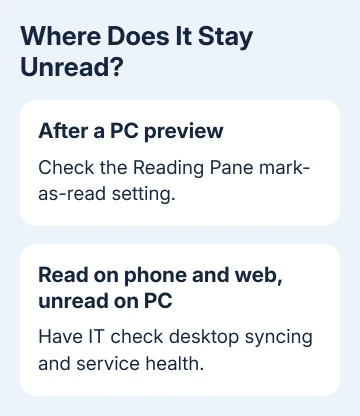
Fix the Reading Pane setting when PC previews don't mark mail. If webmail is correct but desktop Outlook disagrees after phone reading, check syncing and current service health instead.
Checked November 16, 2026.
 If you have any business, I can build it online






