
You right-click a file to extract it, and the 7-Zip entry you always used is gone. On Windows 11 it is still there, one click further down. I would check that first, because the fixes for a truly missing entry are different.
The missing menu drew 101,099 views to one Super User question from 2013. In December 2021, someone new to Windows 11 wrote on Microsoft Q&A that the new menu "does not offer the 7Zip".
The newest 7-Zip, 26.04, still works this way.
Where 7-Zip went on Windows 11
Windows 11's first right-click menu only holds commands written for it. Microsoft's page on extending that menu says apps must use IExplorerCommand, "registering the command with app identity".
Older tools add their entries the classic way, and those go to Show more options.
Ours: we read the 7-Zip 26.04 installer for 64-bit Windows without installing it, and it registers one classic handler for files, folders and directories, served by 7-zip.dll. Nothing in it gives 7-Zip an app identity.
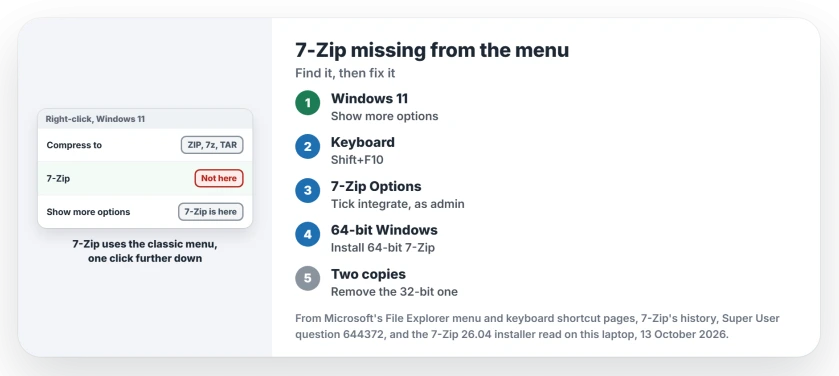
Status: checked 13 October 2026 against 7-Zip 26.04 and Windows 11 25H2. The entry sits under Show more options; a truly missing one is a setting, the wrong edition or two copies.
So right-click, choose Show more options, and the 7-Zip menu is there. Windows even carries a hint for it; this laptop's File Explorer language file holds the line "Show more options to see other things you can do with your files".
From the keyboard, select the file and press Shift+F10. Microsoft says the shortcut will "Display the context menu for the selected item", and Windows 11 shows the full menu that way.
Do you need 7-Zip for this one?
Maybe not. Ours: Windows 11 25H2's own menu offers Compress to, with ZIP File, 7z File and TAR File. That covers most archives you make. No 7-Zip needed.
Opening them is built in too, as our page on what a zip file is explains, though a password-protected archive is where 7-Zip still earns its place.
Missing from the full menu too?
Then the entry really is gone from your PC; on Windows 10, which only has the full menu, start here too. Work through these in order.
1. Tick the option in 7-Zip itself
Open 7-Zip File Manager as administrator. Then go to Tools, Options and open the 7-Zip tab, where the first box integrates 7-Zip into the shell context menu.
From the accepted answer. It explains the administrator part: "Otherwise 7-zip does not have the right to change anything". Already ticked? Our tip: untick it, apply, and tick it again.
2. Use the 64-bit 7-Zip on 64-bit Windows
On Windows 10, I would check this first. It fixed the menu for owner after owner in that thread.
The top answer reads "You are probably using the 32bit version on a 64bit OS", and the comments pile up thanks. One owner wrote "No reboot needed".
A commenter gave the reason, "64-bit processes can't load 32-bit DLLs", and File Explorer on 64-bit Windows is a 64-bit process that needs the 64-bit handler.
7-Zip's own history notes that its 64-bit edition gained "additional 32-bit shell extension DLL" in 2011, for 32-bit programs. Ours: the 26.04 installer still ships both 7-zip.dll and 7-zip32.dll.
3. Remove a second copy
An owner's fix. The asker found they had installed 64-bit on top of 32-bit: "there were 2 versions running - hence conflict". Another owner uninstalled the 32-bit one in Programs and Features, then chose Repair on the 64-bit one. A reply confirmed that it works.
4. Check which handler Explorer loads
If all of that looks right to you, a leftover 32-bit handler can still be the one switched on. One owner used NirSoft's ShellExView to switch off the 7-zip32.dll entry and switch on 7-zip.dll. Nothing else had worked for them.
Restart Explorer afterwards (or sign out), then test again.
Files in OneDrive?
Reported by an owner. Theirs vanished only inside a OneDrive folder, which may be your case too. The files there "must be stored locally (have the green checkmark)", they wrote. Right-click the folder, pick the option to always keep it on this device, then try again.
Want 7-Zip in the first menu?
7-Zip itself does not offer that. A Microsoft Q&A adviser suggested NanaZip from the Microsoft Store, "a fork of 7-ZIP that shows compression options in the new context menu as well". I would only switch if the extra click really bothers you.
Other entries can drop out of the same menu for other reasons, as with a missing Print option on PDFs.
The Short Version
- Windows 11: right-click, Show more options, or select the file and press Shift+F10.
- Windows 11 can already compress to ZIP, 7z and TAR from its own menu.
- Still missing: tick the integrate option in 7-Zip's settings, run as administrator.
- Install the 64-bit 7-Zip, and remove any 32-bit copy.
- In OneDrive, keep the files on the device first.
Where to Next
Was 7-Zip hiding under Show more options, or gone for real? Comment and tell me which step brought it back for you.

Isaac Smith is the founder and editor of PC Glance, a website that covers computers, laptops, and technology. He is a tech enthusiast and a computer geek who loves to share his insights and help his readers make smart choices when buying tech gadgets or laptops. He is always curious and updated about the latest tech trends.