
You are typing or turning up the volume, and suddenly Windows starts reading everything out loud. Narrator has switched itself on again.
I would turn off its keyboard shortcut first. One key combination starts it, and fingers find that combination by accident.
The Super User question about disabling that shortcut has 181,219 views since September 2012. Three Microsoft Q&A threads on Narrator returning are marked 100+.
One reply there sums them up: "MOST of us out here are aggravated by the regular random self activation of Narrator".
Stop it right now
Press Ctrl, Windows and Enter together. Microsoft says in its Narrator guide "To stop the narrator, press these keys once more".
No luck? Press Caps Lock and Esc. Microsoft lists Narrator key plus Esc as Exit Narrator, and "Both the Caps lock and Insert keys serve as your Narrator key by default".
Confirmed by owners: the Super User answer reads "Pressing the Capslock and the Esc keys at the same time brings up a window that allows you to Exit the Narrator", and a commenter replied "I was going crazy until I found your solution".
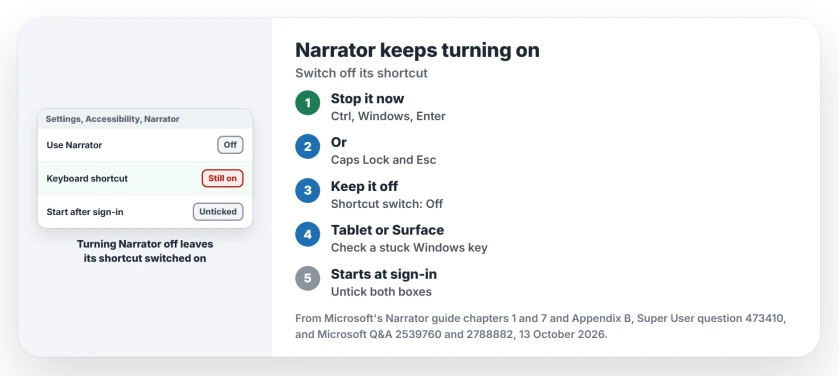
Status: Windows 11 25H2, looked up 13 October 2026. Stop: Ctrl, Windows, Enter. Keep it off: Keyboard shortcut for Narrator, then the two sign-in boxes.
1. Turn off Keyboard shortcut for Narrator
Open Settings, Accessibility, Narrator. Switch off Keyboard shortcut for Narrator. Ctrl, Windows and N opens it directly.
Microsoft's Narrator settings chapter says the switch lets you "start and stop Narrator using the Windows logo key + Ctrl + Enter on a keyboard, or the Windows button + Volume up button on a touch device". Off, both stop working.
A 2022 Super User answer pointed owners to it: "Windows 10 and Windows 11 have dedicated settings just for that". The same post added "So now it is super easy to turn this Narrator hotkey off".
On Windows 10 the switch has an older name, Allow the shortcut key to start Narrator. Ours: this laptop's Windows 11 25H2 Settings files still hold both labels.
Ours: on this laptop the Narrator settings key holds no shortcut value, so the shortcut sits at its default, which is on.
2. On a Surface or tablet: the volume button
Tablets use the Windows button with Volume up. A Q&A asker wrote "Narrator comes on every time I try to turn up my volume using the volume button on the side of my Windows Surface".
A volunteer moderator explained that "WindowsLogo+VolumeUp is how you launch narrator". Their reading was a Windows key stuck down, so every volume press counted as the shortcut.
If your keyboard's Windows key sticks after a spill, Ctrl and Enter alone will start Narrator. Our sticky keys guide covers the first half hour. Turning off the shortcut in step 1 stops the volume combination too.
3. It starts on its own when you sign in
Then a setting on your PC tells it to start. Open the same Narrator page and untick Start Narrator after sign-in for me. Then untick the box next to it, the one that starts Narrator before sign-in for all users.
Ours: neither box is ticked on this laptop, which leaves Narrator off at sign-in.
On older Windows, an accepted Q&A answer on a 100+ thread pointed to the startup list: "On the Startup tab, search for Narrator.exe". For one owner that msconfig route "worked best for me".
Task Manager holds that list now, on its Startup apps page. Look in your list for Narrator, and for any other accessibility tool that opens itself. The On-Screen Keyboard does the same trick, with its own settings to check.
Using a Mac keyboard with Windows?
Boot Camp maps the Command key to the Windows key, and Command sits next to the space bar, where your Alt key would be. The 2012 asker, on Boot Camp, wrote "I keep clicking Winkey+Enter which starts the narrator (which is really annoying!)".
That was Windows 8, before Ctrl joined the shortcut. Step 1's switch covers it now.
Can you remove Narrator completely?
Old answers do it by blocking Narrator.exe from running, through file permissions or the registry. The asker accepted the permissions route: "Patchy as hell, but best solution so far. Thanks!".
I would not go there now. A commenter warned the file trick "will need to be redone every time it is updated by Windows Update", and the Settings switch does the same job without touching system files.
The Short Version
- Stop it now: Ctrl, Windows logo key and Enter, or Caps Lock and Esc.
- Settings, Accessibility, Narrator: Keyboard shortcut for Narrator off.
- Tablet or Surface: the Windows button plus Volume up is the trigger; check for a stuck key.
- Starts at sign-in: untick both Start Narrator boxes, then check Task Manager's Startup apps.
- Leave Narrator.exe alone; the setting is enough.
Where to Next
What kept turning Narrator on for you? A comment with your PC or tablet model helps me see the pattern.

Isaac Smith is the founder and editor of PC Glance, a website that covers computers, laptops, and technology. He is a tech enthusiast and a computer geek who loves to share his insights and help his readers make smart choices when buying tech gadgets or laptops. He is always curious and updated about the latest tech trends.