

You copy a cell from Excel, paste it into Notepad, an email or a web form, and quote marks appear at both ends. They were never in the cell.
I would look inside that cell for a line break first. Excel only does this to text that holds one, or a tab, and no setting turns it off.
Microsoft Q&A marks the 2023 question on it 50+. Its top reply is a plea for a real fix, and over 40 people found it helpful. On Super User, a question asked in August 2011 sits at 266,587 views.
Why Excel wraps your cell in quotes
Excel puts a copied cell on the clipboard in several forms at once. The plain text form follows spreadsheet file rules. A value with a line break inside gets quote marks around it, so a program reading it knows where the cell ends.
An owner who tested this in 2020 put it plainly: "I found that Excel adds the quotes only to strings containing the non-printable characters 10 (line feed), 13 (carriage return) and 9 (tab)." Other hidden characters left the text alone.
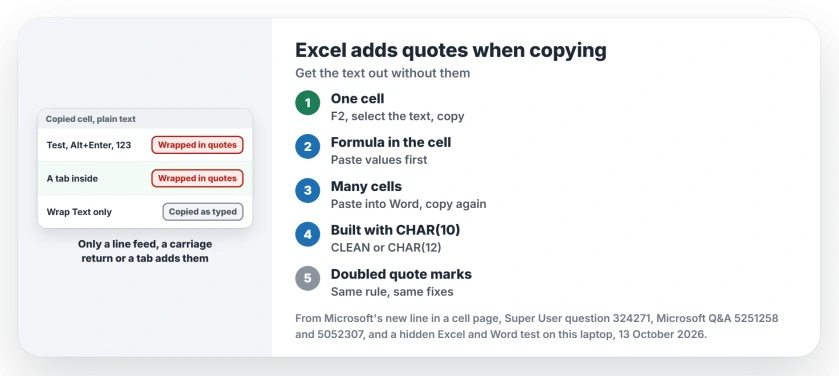
Status: a hidden Excel, build 20430, quoted every cell holding a line feed, carriage return or tab on 13 October 2026. Text copied from inside the cell came out clean.
Ours: I copied seven test cells in that hidden Excel. After each copy I read the clipboard. Each cell with a line feed, carriage return or tab came back wrapped in quotes. Plain text came back clean.
Wrap Text alone did nothing. A long sentence that only wraps because the column is narrow copied without quotes. So if your cell looks wrapped and still gets quotes, it holds a real break. You typed it with Alt+Enter, or a formula made it.
1. Copy from inside the cell instead
Double-click the cell, or select it and press F2 to edit it in place. Select all the text inside with Ctrl+Shift+Home, or drag across it with your mouse. Then press Ctrl+C. You now copy characters, not a cell. No quotes come with them.
One Super User answer used the bar at the top: "copy and pasting the code directly out of the text bar at the top". A commenter replied "This is perfect". They had pasted their formula result as a value into a spare cell first.
That step matters if your cell holds a formula, because inside the cell you would copy the formula itself. Paste the result as values into a spare cell, then copy from inside that one.
This handles one cell per copy. For a whole column, use the next fix.
2. Paste through Word on the way
Word reads Excel's richer clipboard form, the one that marks where each cell starts. Our test pasted a quoted cell into Word, then copied the pasted text again. The text came back with no quotes.
Confirmed by an owner on Super User: "Excel->Word->Notepad will give you the results that you want." A commenter added "So far, this works". Another said the same trick works with Office on a Mac too.
On the 2023 Q&A thread, a person who builds reports with formulas said the same: "When I paste into word and then into notepad, it works." They wanted a setting instead. There is none.
Word drops your cells into a small table. That is fine. Select the table, copy it, and paste where you need it. Breaks inside a cell survive as new lines.
3. Text built by a formula? Change what it joins with
Reports and labels often join their pieces with CHAR(10) to get a line break inside the cell. That is what triggers the quotes. Our test showed a formula result copies with quotes, just like typed text.
CLEAN removes the break, and the quotes go with it. Your lines then run together into one. It only helps when one line will do.
A 2026 Super User answer swapped CHAR(10) for CHAR(12), the form feed. Its author used Excel 365 version 2609 and Notepad 11.2607.14.0. Their lines stayed apart in Notepad with no quotes.
In our test, CHAR(12) also copied without quotes. Not every program shows a form feed as a new line, though, so a web form may not. Test it where you paste.
Microsoft says on its page on new lines in a cell that Alt+Enter starts a new line inside a cell. So a cell you typed holds the same break a formula makes, and it copies the same way.
Why do my own quote marks come out doubled?
Your text already had quote marks, and now each one shows up twice. Excel is following the same file rule: inside a quoted value, every quote mark is written twice. Our test cell held the words He said, then hi in quote marks, then a new line. The clipboard got this:
"He said ""hi""
next line"
The same cell without a line break copied as typed. Remove the break, or use one of the fixes, and your quote marks stay single.
If you paste whole columns into Excel rather than out of it, our page on pasted text splitting into columns covers that direction. Long ID numbers have their own trap, in why Excel turns them into E+.
The Short Version
- Quotes appear when your cell holds a line break, a carriage return or a tab.
- One cell: press F2, select the text inside, copy that.
- Many cells: paste into Word, copy again, paste where you need it.
- Formula text: CLEAN joins the lines; CHAR(12) in place of CHAR(10) kept them apart in our test.
- Doubled quote marks inside come from the same rule.
Where to Next
Quotes in a web form, a code file or an email? Comment with the place where they broke your paste. Which fix suits you depends on where the text lands, and I answer those.

Isaac Smith is the founder and editor of PC Glance, a website that covers computers, laptops, and technology. He is a tech enthusiast and a computer geek who loves to share his insights and help his readers make smart choices when buying tech gadgets or laptops. He is always curious and updated about the latest tech trends.