

You told Excel to replace the asterisk with nothing, clicked Replace All, and your cells went blank. Not just the asterisks, the whole contents, numbers included.
I would undo the damage first, then search for ~* instead of *. The tilde tells Excel you mean the actual star character, not a stand-in for any text.
Super User's August 2011 question about it has 166,995 views, and the one-character answer still holds in Excel 16.
Why * matched everything
In Excel's Find and Replace box, three characters are wildcards. The star is one. Microsoft documents them on its Find and Replace help page: "Use the asterisk (*) to find any number of characters".
Any number includes all of them, so * matches every cell's entire contents, and Replace All swaps each one for your empty Replace box.
The 2011 asker hit exactly this in Excel 2007, while editing a batch of formulas that used the star as a character to swap out.
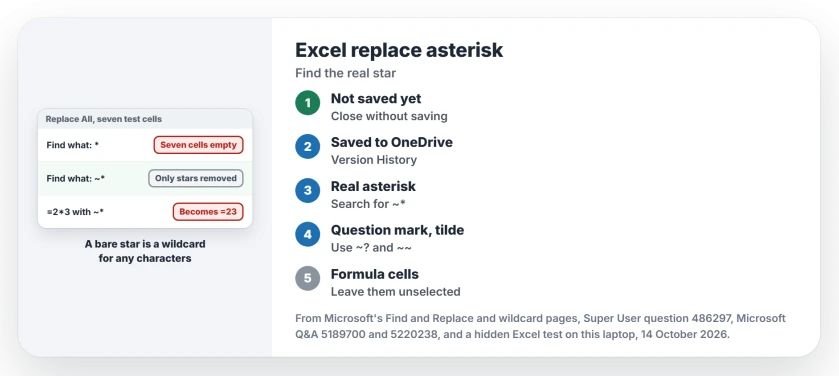
Status: Excel 16.0 build 20430, checked 14 October 2026. A bare * in Find what still wipes every cell in the range; ~* still removes only the stars.
Ours: in a hidden Excel we filled seven cells with text, a number and a formula, then replaced * with nothing. All seven came out empty, even Total, which held no asterisk at all.
Ticking Match entire cell contents changed nothing, because a star that matches everything also matches a whole cell.
First, get your data back
Do this before anything else. If you have not saved since, close the workbook without saving and open it again. That restores everything the Replace All touched. Nothing is lost.
If AutoSave is on for a OneDrive file, open File, Info, Version History and restore the copy from before the replace. That is the way back once Excel has already saved the change over your old copy.
Search for ~* instead
Press Ctrl+H, and in Find what, type a tilde followed by the asterisk: ~*. Leave Replace with empty, or type what you want instead, then click Replace All. Only the stars go.
The accepted answer gave exactly that, and a commenter put a plus sign in the Replace box. Their formulas changed the way they wanted, they reported, with the star swapped for a plus sign in every cell.
Ours: in the same seven test cells, ~* turned Part*A into PartA and 5* rating into 5 rating. Total, the number and the plain text did not change at all, exactly as you would want.
Careful: Replace also edits your formulas
Microsoft says Look in offers only Formulas on the Replace tab, in its words "only Formulas are available on the Replace tab". So Replace reads the formula, not the result you see. That catches people out.
In a formula, * means multiply. Ours: a cell holding =2*3 showed 6 before, and after ~* it became =23, showing 23, with no error to warn you.
Check the formula bar first. So select only the cells that hold the stars before you replace, and leave every formula cell out of the selection. I would never run it on a whole sheet of formulas, unless changing them is the point.
The same trap with ? and ~
A question mark stands for any single character. Ours: replacing ? with x turned every character in every cell into an x. To find a real question mark in your cells, search for ~? instead.
The tilde itself needs doubling when you search for it. A 2022 Q&A asker could not find a ~ used as a separator until someone suggested ~~. Their reply: "That makes no sense but it worked".
Ours agreed: a single ~ in Find what found nothing at all, while ~~ removed the tilde and left the rest of the text in place.
In a macro you write yourself, the same rule applies. A 2023 Q&A thread showed Range.Replace working once a tilde went in front of the star:
Range("C20:C23").Replace What:="~*", Replacement:="", LookAt:=xlPartA formula can do it too, and it needs no tilde. SUBSTITUTE reads the star literally, so this removes only the stars into a new column:
=SUBSTITUTE(A2,"*","")Ours: it turned Part*A into PartA. Total stayed as it was. With ~* inside SUBSTITUTE, nothing changed, so leave the tilde out there.
If the stray characters came in with pasted data, our page on Excel splitting a paste into columns covers that habit. Formulas showing as text instead of results are a separate fault, explained in our page on formulas that display as text.
The Short Version
- In Find and Replace,
*means any characters, so it matches every cell. - Not saved yet? Close without saving. Saved to OneDrive? Use Version History.
- Search for
~*to find a real asterisk,~?for a question mark,~~for a tilde. - Replace works on formulas, so
~*also strips multiplication signs. - SUBSTITUTE reads the star literally, so it removes the stars into a new column without a tilde.
Where to Next
Footnote marks, star ratings or an export's padding: what put asterisks in your sheet? I read every comment, so say which program made the file. I want to know which exports cause this most.

Isaac Smith is the founder and editor of PC Glance, a website that covers computers, laptops, and technology. He is a tech enthusiast and a computer geek who loves to share his insights and help his readers make smart choices when buying tech gadgets or laptops. He is always curious and updated about the latest tech trends.