
You copy files from your NAS or another PC, and Windows Security stops you with These files might be harmful to your computer. Then it asks again. And again.
Your files are fine. Windows has simply filed the other machine under the internet.
I would tell Windows that the machine is part of your local network, which takes one entry in Internet Options.
Super User's version comes from the site's co-founder, Jeff Atwood, in June 2010, and it has 371,494 views. A Microsoft Q&A copy has 700+ people with the same question.
Why Windows treats your own network as the internet
Windows sorts every place a file can come from into a security zone: your computer, the local intranet, trusted sites or the internet. Your files trigger the prompt when they sit in the internet zone.
The address you type decides the zone. Microsoft's support team wrote it down years ago, in a page about intranet sites seen as internet sites.
The rule is blunt: "If an FQDN or IP address contains a period, Internet Explorer identifies the Web site or share as in the Internet zone". Dots mean internet.
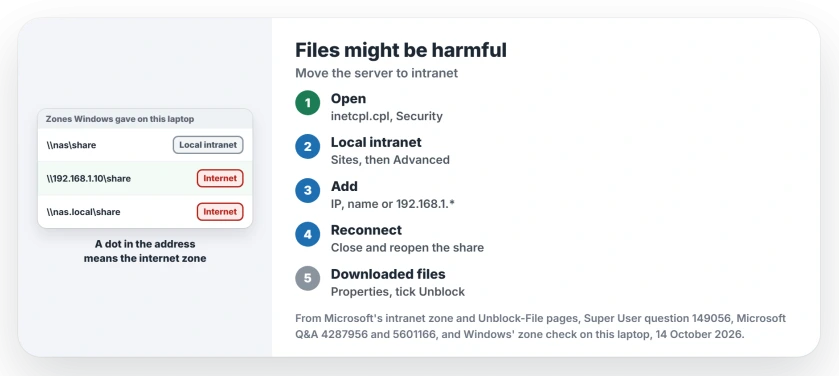
Ours: we asked Windows on this laptop which zone it gives each kind of path, using its own zone check, MapUrlToZone. Plain names stayed local. Anything with dots went to the internet.
| Path | Zone this laptop gave it |
|---|---|
\\server\share | Local intranet |
\\nas.local\share | Internet |
\\192.168.1.10\share | Internet |
\\wsl.localhost\Ubuntu | Internet |
\\wsl$\Ubuntu | Local intranet |
| A folder on C: | Local computer |
Status: as of 14 October 2026 on this laptop, shares opened by IP address still land in the internet zone, and Microsoft's Local intranet fix is unchanged.
1. Add the server to Local intranet
- Press Windows+R, type inetcpl.cpl, press Enter.
- Open Security, select Local intranet, then Sites.
- Select Advanced, type the address, then Add.
Close the boxes. Then disconnect and reconnect the drive, or close the share's window, since one commenter found the change only applies once the share is reopened.
The accepted answer is Atwood's own. Atwood wrote "This worked for me" after adding the server's IP address.
Use the address you open the share with. An IP address entry does nothing for a share you reach by name, as that answer warns, and a name does nothing for an IP address.
Wildcards save you typing: 192.168.1.* covers a whole home network. That tip came from a second owner on Windows 7, and Microsoft's page shows the same kind of range.
If the dialog insists on https addresses, untick Require server verification (https:) for all sites in this zone, then add yours.
2. Copying out of WSL? Add wsl.localhost
Files in your Linux distribution trigger the same prompt when you copy them out through \\wsl.localhost. Ours: that path landed in the internet zone here, while the older \\wsl$ form stayed local.
An owner posted the fix in October 2024: untick the https requirement in the Local intranet sites box and add wsl.localhost.
Copies going the other way can leave odd extra files, which we covered in the Zone.Identifier files that copies leave in WSL.
3. Files that came from the internet
Sometimes the prompt appears for files on your own drives, and then the files may carry an internet mark from when they were downloaded.
A Microsoft Q&A moderator explained it: the prompt shows up when Windows "sees the mark of the web" on a file. That mark survives a copy.
Right-click such a file, select Properties, tick Unblock and select OK. For a whole folder, PowerShell's Unblock-File is quicker. Microsoft says it "lets you open files that were downloaded from the internet".
Get-ChildItem -Path "D:\Downloads" -Recurse | Unblock-FileOnly do this for files you trust. The mark is there because the file came from somewhere else.
Your own D: drive gets the prompt?
This is the newest version of the fault, and you may be seeing it now. Since late 2025, owners report the prompt on Windows 10 or 11 for files on local drives and synced folders, and some checked that their files carry no internet mark at all.
One owner on Windows 11 Pro checked every zone setting, found them all at their defaults, and still got it inside a Dropbox folder on D:. The thread has no answer from Microsoft.
Your fix may be odd but simple. One owner changed the external drive's letter in Disk Management. The prompt stopped. A second owner replied that it worked perfectly for them too.
I would note what uses your old letter first. Shortcuts, backups and programs pointing at it will lose their way.
Ours: on this laptop, a temporary drive letter pointing at a folder on C: was put in the internet zone. So was a letter with no drive. Paths on C: itself stayed in the Local computer zone.
Should you switch the prompt off for everything?
One answer sets Launching applications and unsafe files to Enable for the whole internet zone. A commenter warned that it "leads to an unnecessarily vulnerable system", and I agree. Keep the zone at its default and list only your own machines.
If the share refuses you before any files move, the trouble is the share. Admin shares such as C$ turn local accounts away on another PC.
The Short Version
- The prompt means Windows filed the files' location under the internet zone.
- Shares opened by IP address or by a name with dots land there.
- Add the server to Local intranet in Internet Options, then reconnect.
- For WSL, add wsl.localhost the same way.
- Downloaded files carry their own mark: tick Unblock in Properties.
- A local drive that gets the prompt: one owner changed its letter, and another confirmed it.
Where to Next
Synced folders are the open question this year. If a Dropbox, OneDrive or Google Drive folder gives you this prompt, post the app's name as a comment. I am collecting which ones trigger it.

Isaac Smith is the founder and editor of PC Glance, a website that covers computers, laptops, and technology. He is a tech enthusiast and a computer geek who loves to share his insights and help his readers make smart choices when buying tech gadgets or laptops. He is always curious and updated about the latest tech trends.