
You start typing in Chrome's address bar, and an old page or an awkward search pops up first. You want that one suggestion gone, not your whole history.
I would highlight it with the arrow keys and press Shift+Delete. That only works on suggestions Chrome is allowed to delete, so the icon beside it tells you which way to go.
Removing a single autocomplete entry has been asked on Super User since August 2010, and that page alone shows 513,740 views, while two near-copies add 229,939 and 102,334.
Which suggestions Chrome will delete
Chrome's own code decides, one suggestion at a time. In Chrome 155, a page from your history can go when it has visits and your browser allows deleting history. So can searches Google sends back with a deletion address.
Bookmarks cannot. A comment in Chromium's code says a bookmark suggestion "is non-deletable because the only way to support this would be to delete the underlying object". Open tabs are not deletable either.
Ours: Chrome 155.0.8059.40 on this laptop carries the label Remove suggestion twice in its English language file. That is the tooltip on the X beside a deletable suggestion.
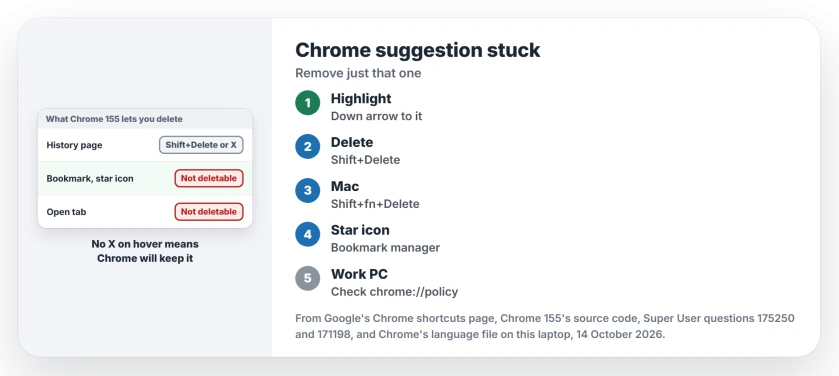
Status: Chrome 155's source and language file, read 14 October 2026. Shift+Delete and the X still remove history suggestions, and bookmarks still need the bookmark manager.
1. Highlight it, then press Shift+Delete
Type until the suggestion appears, then press the Down arrow until it is highlighted.
Use the keys, not the mouse. In Chrome's code, Shift+Delete removes whichever line the keyboard has selected, which may not be the one under your pointer.
Google says so on its Chrome shortcuts page, under "Remove predictions from your address bar". On Windows it is Shift+Delete. On a Mac, Google gives "Shift + fn + Delete".
Got a Mac with an external keyboard? Try the laptop's own keys. One commenter only got it to work with "FN-SHIFT-DELETE from my MacBook Pro keyboard directly", after their Bluetooth keyboard failed.
2. Or click the X
Point at the suggestion with the mouse. If Chrome may delete it, a small X appears at the end of that line, with the tooltip Remove suggestion.
Click it. The line disappears from the list straight away.
In Chrome 155's code the X shows only when the line is hovered or selected and the suggestion supports deletion. No X at all means step 3 or step 4 applies to you.
3. A star means a bookmark
A star beside the suggestion means it comes from your bookmarks, and Shift+Delete leaves it alone. Delete or edit the bookmark instead; Ctrl+Shift+O opens the bookmark manager.
Owners report this trap again and again on the Super User thread. One commenter admitted, "I didn't noticed the star icon", after Shift+Delete seemed to do nothing.
A page can be bookmarked and in your history at once. I find this the most confusing case. In Chrome's code that merged suggestion still shows the X, because one copy can go.
Removing it clears the history copy only, and the bookmark keeps the suggestion coming back. So delete the bookmark too.
4. Typed into a website's box instead?
Suggestions under a site's search box or sign-in field come from Chrome's saved form data, not the address bar. Highlight one with the arrow keys and press Shift+Delete the same way.
Sign-in fields are the exception. On the second Super User thread, Shift+Delete did nothing there while a password was saved.
One commenter confirmed the order that worked: "you must delete the saved password in settings first", then Shift+Delete in the field.
If Chrome then never offers to save a password for that site again, check its list of declined sites.
Why does it keep coming back?
Three reasons cover most cases. The page is also a bookmark, you visited it again, or your Chrome blocks deleting history.
History works in your favor for local names, though: once Chrome has opened one, it stops searching for that name.
That last one is a policy named AllowDeletingBrowserHistory, which a work or school administrator can set. Google's policy text says setting it to Disabled "means browser history and download history can't be deleted".
Chrome's code then marks history suggestions as not deletable, so neither Shift+Delete nor the X can work. Open chrome://policy to see if it is set on your copy.
I would check that page first on a work laptop. If the suggestion is a search engine you never picked, that is a different fault: a setting or extension that keeps changing it.
The Short Version
- Highlight the suggestion with the Down arrow, then press Shift+Delete, or Shift+fn+Delete on a Mac.
- Or hover over it and click the X, labeled Remove suggestion.
- A star means a bookmark. Remove it in the bookmark manager instead.
- In a sign-in field, delete the saved password first, then the entry.
- Still coming back? Check chrome://policy for AllowDeletingBrowserHistory.
Where to Next
Was yours a history page, a bookmark or a search? Name the kind in a comment, plus the icon beside it, and I will say whether Chrome lets that one go.

Isaac Smith is the founder and editor of PC Glance, a website that covers computers, laptops, and technology. He is a tech enthusiast and a computer geek who loves to share his insights and help his readers make smart choices when buying tech gadgets or laptops. He is always curious and updated about the latest tech trends.