
You open a site in Chrome and a red page says Your connection is not private. It may hit one site or every site. You cannot tell if the fault is theirs or yours.
I would look at the small code under the warning first. Three codes cover what owners keep running into, and two of them start on your own PC.
Over 200 readers clicked Same question under one Microsoft Q&A post about this warning. Super User's page on the AUTHORITY_INVALID code shows 801,073 views.
What the code under the warning means
Chrome prints the code in small type under the message. It always starts NET::ERR_CERT. The last word is your clue.
Ours: we loaded four of badssl.com's test pages in a throwaway copy of Chrome 154 on this laptop. Each one failed with its own code.
The expired certificate gave net::ERR_CERT_DATE_INVALID, the same code a wrong clock produces. One made out for a different site's name gave net::ERR_CERT_COMMON_NAME_INVALID instead.
A self-signed certificate and one from an untrusted root both gave net::ERR_CERT_AUTHORITY_INVALID. So DATE means a date, NAME means the name, and AUTHORITY means Chrome distrusts whoever signed it.
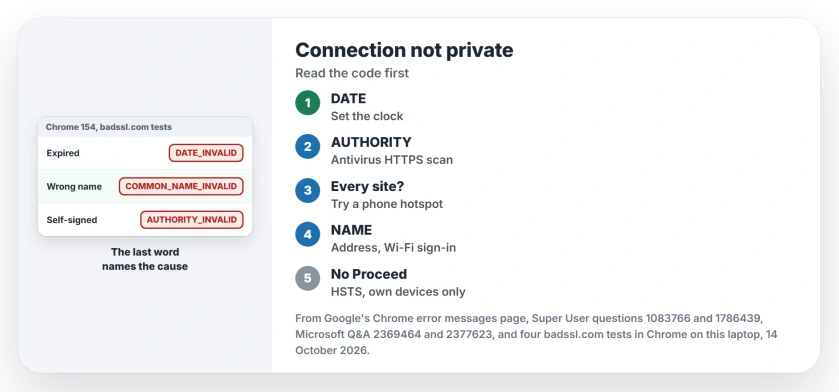
Status: four badssl.com test pages loaded in Chrome 154 on Windows 11, 14 October 2026. Each fault still shows its own code under the same red warning.
1. DATE_INVALID? Set the clock first
Google says you can get this error "if your computer or mobile device's date and time are inaccurate". Its Chrome error messages page lists it beside the clock warnings.
Chrome's own clock screen gives the reason. In its words, "the certificates that websites use to identify themselves are only valid for specific periods of time".
So a clock a year out breaks every secure site at once, even ones that worked yesterday. Your PC simply thinks each certificate has expired, or has not started yet.
On Windows, open Settings, Time & language, then Date & time, the page that also holds your time zone. Turn on Set time automatically and press Sync now. Reload the page.
Clock wrong again after every restart? Measure how far it drifts, since whole hours, stray minutes and a reset date each have their own cause.
Is your clock right, and only one site fails? Then that site's certificate has run out. Ours: badssl.com's expired page behaved exactly like that. Only its owner can renew it.
2. AUTHORITY_INVALID on every site? Find what sits in the middle
Something between you and the web is signing pages with a certificate Chrome does not trust. Google names antivirus software with HTTPS protection or HTTPS scanning first, since that feature opens each secure page to inspect it.
In Google's words, "The antivirus prevents Chrome from providing security." Open your antivirus. Switch off its web or HTTPS scanning, then reload.
Owners report the same culprit. Over 100 Q&A readers shared one asker's question, and that asker accepted an answer blaming their McAfee software.
A Microsoft support specialist had opened that same site with no warning at all. That is what pointed at the asker's PC.
Next, test the network. One asker on the 200+ post wrote, "When I connect to a hotspot, there is no problem."
Try your phone's hotspot. If the warning vanishes there too, your router, a filter from your provider, or a school or office network is the thing in the middle.
At work, Google says proxies that inspect HTTPS cause this exact code when their certificate is missing. That one is for your IT team, and Google's advice is to "contact your administrator for more information".
The Super User asker behind the 801,073 views had that setup in a virtual machine. They imported the company proxy's certificate into Chrome's Authorities list and accepted their own answer.
Their answer opens with a warning in capitals: "DO NOT DO THE FOLLOWING IF YOU DO NOT TRUST THE CERTIFICATE ISSUER". I would never import a certificate a website offers you.
Chrome even knows some of these programs. Ours: its English language file holds a separate screen for that case.
That screen can name the program, and one version of it says uninstalling that program usually fixes the problem.
3. COMMON_NAME_INVALID? Check the address and the Wi-Fi
The certificate belongs to a different name than the one in your address bar. Check your spelling of the address first.
Then look at your network. Google's first step for all of these errors is a sign-in page: "You need to sign in to Wi-Fi networks at places like cafes or airports."
Open a plain http address, such as example.com. The network's sign-in page should appear. Sign in, then try the secure site again.
No Proceed link at all? The site uses HSTS
Normally Advanced, then Proceed, lets you through. Chrome hides that link when a site has told it to demand a secure connection every time, a rule called HSTS.
Its warning then says you cannot visit right now "because the website uses HSTS". No setting brings the link back. That is deliberate.
Super User owners get past it on their own devices by typing thisisunsafe while the warning is open. Nothing appears as you type. One commenter confirmed it still worked on Chrome 154 in October 2026.
Keep that to a page you own, such as your router at home. On a bank, shop or email site, that warning is protecting you.
Your own router or NAS shows the warning?
Home routers, NAS boxes and printers often sign their own certificate. AUTHORITY_INVALID there is normal. Advanced, then Proceed, is fine on your own network.
To stop it for good, owners import the device's certificate into Trusted Root Certification Authorities on the PC they use.
The 2009 asker on Super User confirmed, "It works now when I imported to Trusted Root Certification Authorities like you said."
That question alone has 984,658 views. On an iPhone or a Mac, Safari words its warning differently, and Safari's version has its own checklist.
The Short Version
- Read the code under the warning first.
- DATE_INVALID: set the clock to automatic and sync it.
- AUTHORITY_INVALID on every site: switch off antivirus HTTPS scanning, then try a phone hotspot.
- COMMON_NAME_INVALID: check the address, then sign in to the Wi-Fi.
- No Proceed link: the site uses HSTS, so bypass it only on your own devices.
Where to Next
Copy the code from under your warning into the comments, and say whether other sites open fine. With those two details I can usually tell which of the three causes you have.

Isaac Smith is the founder and editor of PC Glance, a website that covers computers, laptops, and technology. He is a tech enthusiast and a computer geek who loves to share his insights and help his readers make smart choices when buying tech gadgets or laptops. He is always curious and updated about the latest tech trends.