

Your mouse freezes for a second, Windows plays its unplug sound and then the connect sound, and the pointer comes back as if nothing happened.
I would start with power saving, because Windows can suspend a single USB port to save energy. Your mouse is the device you notice first when it naps.
This one has sat on Super User since October 2009, and that page stands at 876,858 views. On Microsoft Q&A, a gamer's 2022 post about a wired mouse dropping mid-game has 400+ people with the same question.
What the drops look like on this laptop
Windows logs every USB device that vanishes, and our log shows this laptop's gaming mouse dropping 61 times between May 2025 and October 2026.
Some of those are plain unplugs. A burst is different. Nine came in under two minutes on 25 April 2026, all on one port of a USB hub.
The hub stayed up for 58 of the 61 drops, which points at the mouse, its cable or its port. Unsure which device makes your sound? The device log names it.
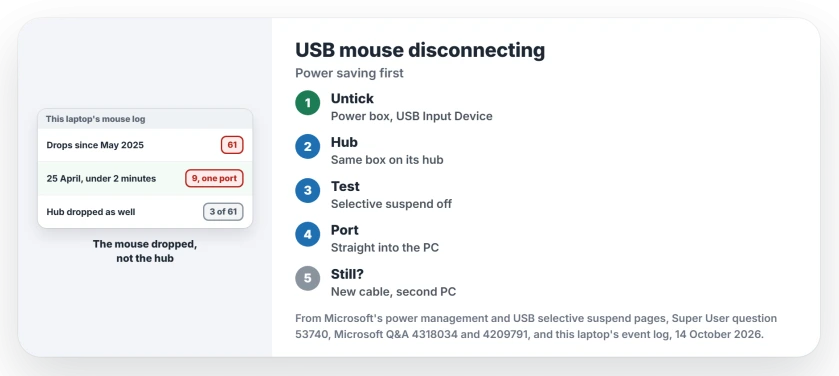
Status: this laptop's own mouse log, power plan and Power Management boxes, looked at 14 October 2026, with nothing changed.
1. Stop Windows switching the mouse off
Press Win+X and choose Device Manager. Open View and pick Devices by connection, so you can see what hangs off your mouse.
Find the USB Input Device that holds your HID-compliant mouse, and open its Properties at the Power Management tab. Untick the first box there, the one that lets Windows cut its power to save energy.
Do the same for the hub your mouse sits on, a USB Root Hub or a Generic USB Hub. Microsoft's troubleshooting page, written for Windows Vista and still on Learn, puts that box on the hub's Power Management tab.
The top answer on the 2009 question did exactly what you just did, at 87 votes. Its author added the USB Input Device step, in their words: "this worked for me". A hub owner cleared the same box and wrote "all is quiet".
Ours: every one of those boxes on this laptop was ticked, the default. Our gaming mouse also shows up as three USB Input Devices, one for the mouse, one for a keyboard and one for its media keys. I would clear all three.
2. Switch USB selective suspend off, plugged in
In Control Panel, open Power Options, and choose Change plan settings, then Change advanced power settings.
Expand USB settings, then USB selective suspend setting. Set Plugged in to Disabled and click OK.
One owner whose USB mouse and keyboard kept dropping did this in December 2020. The same afternoon they wrote: "I have plugged all the USBs but still i am not facing the issue".
Microsoft's driver documentation pushes the other way. Microsoft states that selective suspend comes enabled, and its page strongly recommends against disabling it, since it saves your laptop's battery.
So I treat it as a test, and switch it off only on a desktop or while plugged in. Leave On battery alone. Ours: the active plan here had it Enabled for both.
3. Plug it into the PC itself, then swap the cable
Plug your mouse into a port on the PC, one you have not used before, rather than into a hub, dock or monitor. A hub shares its power and its bandwidth between everything on it.
Ours: our mouse sits behind a USB 2.1 hub with an RGB keyboard. Every rapid drop happened on port 3 of that hub, and the mouse now uses port 2.
Owners report the same thing. A Q&A asker's USB mouse and keyboard dropped when their webcam came on in a video meeting, and unplugging the webcam stopped it.
Another owner uninstalled every USB Root Hub and saw the fault return. Then they wrote: "I ended up getting a new USB cable to actually solve the problem".
Then test your mouse on a second computer. If it drops there too, the mouse is the fault. One owner had a Logitech mouse replaced under warranty twice, and blamed pulling on the cord.
Two HID-compliant mouse entries?
Windows lists every pointing device it has met. Some register twice. One owner found two HID-compliant mouse entries, disabled the first, and reported "no disconnects yet" two weeks later.
A commenter under that answer said theirs was similar. An old mouse they no longer used was still listed, so they removed it.
Ours: three HID-compliant mouse entries are in use on this laptop: the gaming mouse, the touchpad and the RGB keyboard, which reports a mouse of its own. Four more are remembered from other ports.
Extra entries are normal. Disable one only when Devices by connection shows it under your same mouse, and keep your touchpad or a second mouse handy first.
Windows says Unknown USB Device instead? Its exact wording leads to the fix.
When the usual steps change nothing
On that 400+ thread, the asker had already cleared the power box and uninstalled the USB root hubs. Driver rollbacks and system file scans followed, and afterwards the asker still wrote: "the mouse is still disconnecting and reconnecting".
Two mice failing on one PC led another Q&A asker to order a new power supply. They posted no result. I would test your mouse elsewhere before you buy anything.
The Short Version
- In Device Manager, untick the power saving box on the mouse's USB Input Devices and on its hub.
- Turn USB selective suspend off while plugged in, as a test.
- Plug the mouse straight into the PC, then try another port and another cable.
- Remove a stale duplicate mouse entry only when you can see which is which.
- If the mouse drops on a second computer too, replace it.
Where to Next
Did one of these stop your drops, or none? Name your mouse and what it plugs into in a comment. My next suggestion depends on both.

Isaac Smith is the founder and editor of PC Glance, a website that covers computers, laptops, and technology. He is a tech enthusiast and a computer geek who loves to share his insights and help his readers make smart choices when buying tech gadgets or laptops. He is always curious and updated about the latest tech trends.