
You set the USB stick first in the boot order, restart, and Windows loads as if the stick were not there. Or the boot menu lists it, and picking it does nothing.
Before you change anything else, I would check two things. Which boot entry did you pick, and how was the stick written?
The 2013 Super User question has 763,252 views. Its top answer names one firmware switch.
Why a stick that works in Windows gets skipped
Windows reads almost any stick. Your PC's firmware is pickier, because it starts in one of two modes, UEFI or the older BIOS.
Microsoft says the boot menu can show one stick twice, as "UEFI USB Drive and BIOS USB Drive". In its words, "Each command uses the same device and media, but boots the PC in a different firmware mode".
So a stick written for one mode can be invisible in the other. Your boot order can be right while the PC still finds nothing it can start.
Status: Microsoft's firmware, flash drive and Secure Boot media pages checked 15 October 2026. The test laptop runs UEFI with Secure Boot on, and no stick was plugged in.
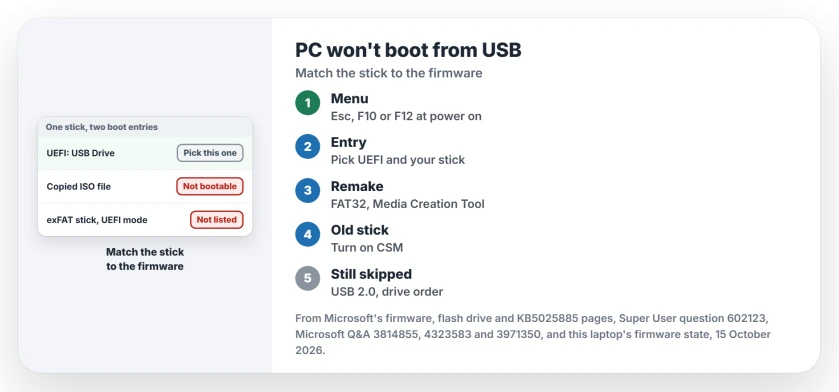
1. Open the one-time boot menu and pick the UEFI entry
Microsoft's flash drive guide does not touch the boot order at all. You "press the key that opens the boot-device selection menu for the computer, such as the Esc/F10/F12 keys".
I would start tapping it the moment you press power. One owner needed Esc on their laptop even after setting USB first in the BIOS.
In the menu, pick the line that starts with UEFI and names your stick. Microsoft's own advice favors that mode, "as it includes more security features than the legacy BIOS mode".
Already in Windows? Hold Shift as you select Restart, then open Troubleshoot and Advanced options. UEFI Firmware settings sits there.
2. Stick missing from the menu? Check how it was made
A copied ISO file is not enough. A Q&A moderator told one asker: "If all you did is copy an ISO file of some operating system to a USB flash drive, that's not sufficient".
Mounting the ISO in File Explorer does not help either. An adviser explained that a mounted ISO "cannot be used to boot your PC up from".
The file system matters too. Microsoft's flash drive steps pick FAT32, so the same stick starts on both kinds of firmware. Its Secure Boot article repeats it: "be sure to format the drive by using the FAT32 filesystem".
An owner with an exFAT stick made on a MacBook found their B550 board would not list it at all. The stick appeared only after, in their words, "changing the bios mode from UEFI to CSM".
It then stopped at a message asking for a proper boot device. An adviser in that thread doubted an exFAT stick could ever count as a boot device.
So remake it with the Media Creation Tool, which writes it for you, and if the tool cannot see your stick, that has its own fixes. In Rufus, choose GPT for a UEFI PC; a commenter working on a 2008 BIOS PC had to switch it to MBR.
3. An old or Linux stick? Turn on CSM
The 36-vote Super User answer opens with the fix: "You need to enable booting from non-EFI devices". It names the setting too, the Compatibility Support Module, called CSM in most firmware menus.
Finding it can take a step first. The same answer warns that "This option is sometimes hidden until you disable Secure Boot". A commenter's switch hid behind Fast Boot, "+1 as that was my issue too".
Microsoft says some PCs "will only allow you to boot to BIOS mode by manually disabling the UEFI security features". Its route is Security, then Secure Boot.
I would put both back when the job is done, Secure Boot on and CSM off. UEFI installs of Windows want CSM off.
4. Listed but ignored? Swap sockets, then check the drive list
Two smaller fixes have owners vouching for them. An owner who made their stick on a USB 3 port could only start it from a USB 2 port. A reader confirmed: "Plugging it into a USB 2 port worked".
On older boards the stick can show up as a hard drive, listed after the internal one. One owner wrote that their stick "was not considered as a removable device", so they moved it up the hard drive order and it started.
Readers confirmed it as late as 2021. If nothing else works, load the firmware defaults. After a reset, one owner's board "could identify my USB in a whole different way".
Can a Secure Boot update stop an older stick?
Yes, in one case. Microsoft added a known issue on 30 September 2026: "Older external boot media might not start".
It needs two steps on your PC: a security update from April 2026 or later, then the PCA 2011 revocations switched on.
After that, Microsoft states, older external boot media can stop starting.
Microsoft's workaround is to update that media to the latest security update. Ours: Windows here reports its 2023 Secure Boot certificate update as done. The revocation is what blocks old sticks.
The Short Version
- Use the one-time boot menu, often Esc, F10 or F12, and pick the UEFI entry for your stick.
- Not listed? A copied or mounted ISO will not start. Remake the stick as FAT32.
- Old or Linux stick: turn on CSM, which may need Secure Boot or Fast Boot off first.
- Still skipped: a USB 2.0 socket, the hard drive order, then the firmware defaults.
- Revocations switched on after the April 2026 update? Update older sticks.
Where to Next
Got your stick going? Leave a comment naming the step that did it and the make of your PC. If setup starts and then fails at the end, that error has its own page.

Isaac Smith is the founder and editor of PC Glance, a website that covers computers, laptops, and technology. He is a tech enthusiast and a computer geek who loves to share his insights and help his readers make smart choices when buying tech gadgets or laptops. He is always curious and updated about the latest tech trends.