
You hear it again. The second hard drive in your PC spins down, then whirs back up a minute later, though you never opened a file on it.
I would not blame the drive. Something in Windows or a program you installed is reading it, and Windows can show you which one.
A Microsoft Q&A question from a reader with ten drives that keep waking shows 60+ on Same question. The Super User version has 79,357 views.
What wakes a sleeping drive
Every disk has an idle timer in your power plan, and on its disk settings page Microsoft says the timeout "Specifies the period of inactivity before the disk is automatically powered down".
Once down, any read wakes it. A program, a service, a shortcut Explorer checks or the page file can all do it.
The 2013 Super User asker timed it. With a one-minute timer, the drive went down and woke again "after around 20 s".
Ours: this laptop's power plan turns a hard disk off after 30 seconds, plugged in or not. On a PC with a spinning drive, a timer that short means many more spin-ups.
Status: I looked at the disk timer, page file and desktop shortcuts of this 25H2 laptop on 15 October 2026. It has one SSD, so no drive woke during the checks.
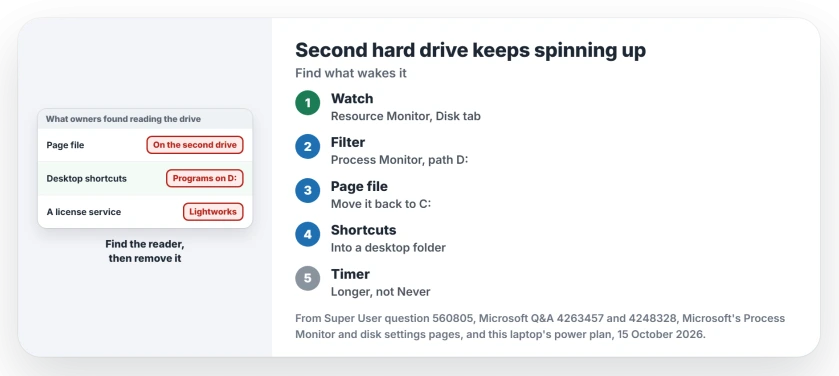
1. Watch the drive in Resource Monitor
Press Windows key + R, type resmon and press Enter. Open the Disk tab.
Under Disk Activity, select the File column header. A 2021 owner sorted it so files on D: rose to the top the moment anything touched them.
Keep it open until the next spin-up. The program beside the file is your suspect.
2. No name? Filter Process Monitor by the drive letter
Microsoft's Process Monitor shows "real-time file system, Registry and process/thread activity", so set one filter, Path begins with D:, and you see only your second drive.
One commenter found it at once. In their words, Windows had decided "to put the pagefile on my 2nd HDD instead of SDD".
Move your page file back to C: if so. The temporary paging file page walks through the Virtual memory box.
Ours: the page file here sits at C:\pagefile.sys, on the only drive.
3. Shortcuts that point at the drive
The 2021 owner on Windows 10 20H2 spotted a pattern in Resource Monitor: the files opened on D: were exactly the programs with shortcuts on their desktop.
Explorer or System read them now and then. The owner moved those shortcuts into one folder on the desktop and reported the drive "does not seem to" spin up since. If yours point at D:, try the same.
Ours: none of the 20 desktop shortcuts here point off drive C:, so this cause could not appear on this laptop.
4. A third-party service you never use
The asker's accepted answer came from stopping services one at a time, and the waking ended once they removed Lightworks, a video editor tied to the license service they had traced it to.
A second owner had the same pattern on a new 4 TB drive, with only System touching it. They wrote: "Removed Lightworks and the mysterious drive access is gone".
You may not have Lightworks. The method still works: open Services, stop third-party services one by one and listen after each.
Should you set the timer to Never?
One Microsoft Q&A owner did after the November 2021 update. Setting the timer to Never seemed to stop the spin-ups when either drive was accessed.
They still worried. In their words: "I have no idea if that will fry my HDD" by keeping it awake.
I would lengthen the timer instead. Every spin-up costs a few seconds and a load cycle, and one owner counted a cycle at least every 20 seconds.
This sets 20 minutes when plugged in:
powercfg /change disk-timeout-ac 20A drive that keeps spinning after shutdown is a different fault. The external drive spinning page covers USB ports that stay powered.
The Short Version
- A sleeping drive wakes because something reads it.
- Sort Resource Monitor's Disk tab by file and wait for the next spin-up.
- Or filter Process Monitor for paths that begin with your drive letter.
- Check the page file, desktop shortcuts on that drive and third-party services.
- Lengthen the Turn off hard disk after timer rather than setting it to Never.
Where to Next
Page file, shortcut, service or something stranger: what was waking your drive? Leave it in the comments, because I am collecting the readers people actually find.

Isaac Smith is the founder and editor of PC Glance, a website that covers computers, laptops, and technology. He is a tech enthusiast and a computer geek who loves to share his insights and help his readers make smart choices when buying tech gadgets or laptops. He is always curious and updated about the latest tech trends.