
People on your calls say you sound far away, and Sound settings shows two or three bars of input with the slider at maximum. Plug in a headset and your voice is fine again.
I would not book a repair yet. In the Ask Different thread about it, owners traced the quiet microphone to software more than once, and Safari was the culprit for several.
Asked on Ask Different in February 2024, that complaint has 18,461 views; an older 2015 question adds 7,144 views and a cause that is plain dust.
Is it the microphone or the software?
Open System Settings, then Sound, then Input, and watch the input level while you speak. Then brush a fingertip across the microphone hole.
That test came from a reply on the thread: "Slide your finger over the hole and the Mic indicator should go to 100". On the asker's 2017 MacBook Air the hole sits on the left side.
It passed for the asker: "Sliding my finger over it indeed takes the mic indicator/input level to 100%". Their microphone worked. Something was still turning their voice down.
Ours, from that test: a meter that leaps under your finger shows the microphone itself works. A meter that barely moves points at the holes. No Mac was tested for this page.
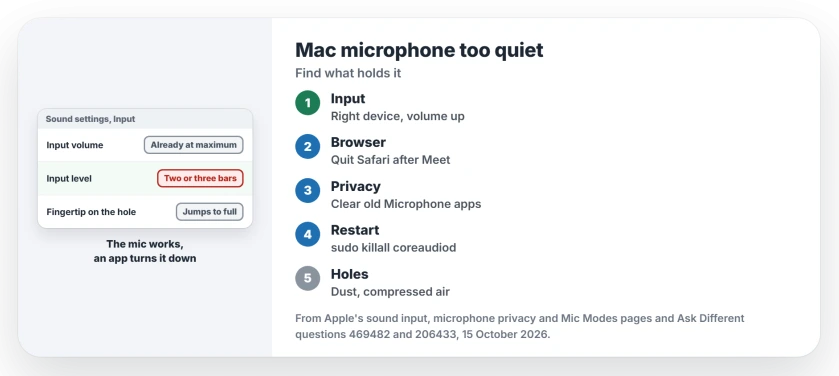
Status: built from Apple's macOS 27 sound input, microphone privacy and Mic Modes pages plus owner reports from 2015 to 2024. No Mac was available to test, 15 October 2026.
1. Check which microphone your Mac is using
In Sound, then Input, pick the device you mean to use. Apple lists several possible inputs, including "your iPhone microphone". Your Mac may be listening through another device.
Your choice can also slip back. Apple's page for a Mac that switches audio devices says that with a display attached, "your selection may revert to the headset". Unplug the headset, then choose again.
2. Raise the input volume
The slider sits under the device list. Apple says to use it for quiet speakers: "If you are recording someone who is speaking softly, increase the input volume so your Mac can better capture the person's voice".
If yours was already at the top, as the asker's was, the fault lies further along.
3. Quit the browser your last call ran in
More replies confirmed this fix than any other. The owner who posted the main answer later blamed "some apps using the microphone".
For them it followed Google Meet in Safari. Their cure was short: "I just need to exit Safari and restart". Another reader wrote "killing safari did solve my problem, and yes I had a google meeting".
A third found it held after the call. In their words, "Killing safari did it for me as well, even though I was not running any meeting anymore". Quit the whole browser with Command-Q.
You can spot the holder from the menu bar. "The Recording Indicator light in Control Center shows when your computer's microphone is in use or has been used recently", Apple says.
4. Clear old apps from the Microphone list, then shut down
The same owner's first fix went further. In Privacy and Security, then Microphone, they turned access off for every app, chose Shut Down, then pressed the power button.
Apple's own instruction for that list is "Turn access to the microphone on or off for each app in the list". Switch your call apps back on after the restart rather than waiting for them to ask.
A reader found a ghost in theirs: "I had an old application (Webex) which I had removed, but somehow its entry was still found". Switching it off fixed their volume in Teams and Zoom, so look in your own list for apps you deleted long ago.
If an app you need never reappears there, the Mac camera list page shows how to make it ask.
5. Restart the Mac's audio service
An owner fixed it from Terminal: "There is a terminal command to sudo killall coreaudiod and this worked for me". Your Mac restarts it on its own.
sudo killall coreaudiodExpect a short gap in your sound. Another owner warned that "Killing coreaudiod fixes it briefly". They had to restart every app using audio afterwards. The Tahoe crackling page uses the same restart for a different audio fault.
When an alert your Mac cannot play shows up as a white flash instead, the screen flash page starts from that restart too.
Should Voice Isolation be on?
Mic Modes sit in your menu bar while an app that supports them, such as FaceTime, uses the microphone. Apple's wording is "To filter out background sounds, select Voice Isolation", and "To revert to the standard mic mode, select Standard".
None of the owners here blamed Voice Isolation for a low level, but I would still switch your call to Standard once and compare. It takes seconds.
Dust in the microphone holes
The 2015 asker had a MacBook Air that was quiet from day one. Looking closely, they found "the little holes are blocked with dust or something like that". Cleaning them fixed it. Look at yours under a bright light.
They used a needle. I would not copy that. A reader suggested compressed air, and another reply warned "do not stick metal objects in it".
On your Windows PC, the slider that matters has another name. The Windows microphone page covers Microphone Boost.
The Short Version
- Brush a finger across the microphone hole while you watch the input level.
- Check the right input is chosen in Sound settings, and raise its volume.
- Quit the browser that ran your last call, especially Safari after Google Meet.
- Turn off old apps in the Microphone list and do a full shutdown.
- Restart coreaudiod from Terminal, or clean the holes with compressed air.
Where to Next
Safari, Chrome, Zoom or something else: which app was holding your microphone down? Leave a comment, because I am counting the culprits.

Isaac Smith is the founder and editor of PC Glance, a website that covers computers, laptops, and technology. He is a tech enthusiast and a computer geek who loves to share his insights and help his readers make smart choices when buying tech gadgets or laptops. He is always curious and updated about the latest tech trends.