
You want a monitor in portrait, but the Rotation menu is gone from Displays in System Settings on your Mac. Another screen still has it, which makes it stranger.
I would check how that screen is connected before anything else. A dock or hub that runs on DisplayLink moves the setting somewhere else.
The Ask Different question on the missing menu has 13,817 views. A second one, about a Mac that forgets the rotation overnight, has 11,606.
Why the menu goes missing
Apple's rotation page opens with a hedge: "Depending on your display model, you may be able to rotate the image on your display". When the menu is there, it sits next to Rotation in Displays. You confirm the change in a dialog.
The 2023 asker had two external screens. One went straight into the MacBook Pro, the other through an Anker hub.
In their words, "in Display Settings, I no longer have the option to specify that I've got this screen rotated". The hub screen was the one that had lost it.
Ours: nothing was tested here. This PC has no Mac attached, so Apple, Plugable and owners carry each step.
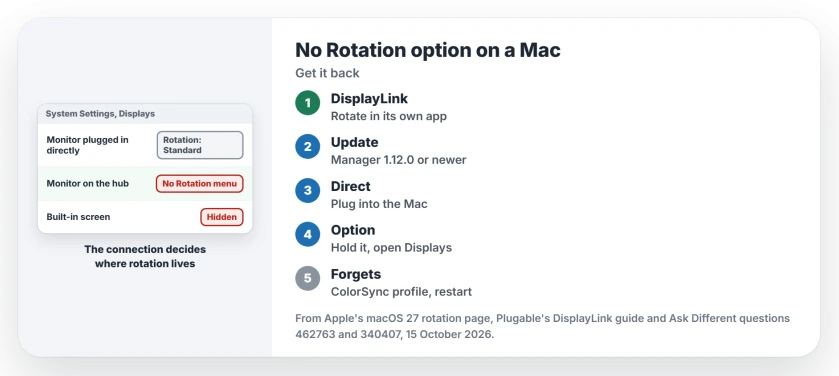
Status: from Apple's macOS 27 rotation page, Plugable's DisplayLink rotation guide for Ventura to Tahoe and owner fixes from 2018 to 2023. Put together 15 October 2026, without a Mac.
1. A DisplayLink hub? Rotate it in DisplayLink Manager
That hub used DisplayLink, which drives screens through its own app. The accepted answer said that if you open the DisplayLink Manager app, "it should give you the option to choose the rotation for the display".
The asker was on macOS 13.5 with DisplayLink Manager 1.9.0. They agreed: "But this is the best solution for my setup". The app's icon sits in your menu bar while it runs.
Plugable, which sells DisplayLink docks, explains the split. On older Apple silicon setups the control lives inside the app. With macOS 13 or newer and DisplayLink Manager 1.12.0 or newer, rotation moves back to Displays.
So your lasting fix is an update. Plugable's advice is to "Install the latest DisplayLink Manager version available for your version of macOS".
On macOS 14 or later the app also needs screen recording permission. Without it, the screen does not work at all.
Docks bring other display faults too, such as an HDMI adapter that stays black on a DisplayPort output.
2. Plug the screen straight into the Mac
The asker found a second route. With the same monitor connected directly and Option held, as in step 3, "the rotation button has appeared".
That points at the hub, not the monitor. Keep that screen on a direct port if your Mac has one spare, and the hub for the rest.
3. The built-in screen? Hold Option on the way in
Apple's page never mentions your laptop's own screen. One owner found rotation "hidden on some displays, including the built-in Retina display on my 2021 MacBook Pro".
Their trick: hold Option, choose System Settings from the Apple menu, and keep holding while you click Displays. The asker confirmed "That did do the trick for my built-in display, but not for the external one".
Some Macs refuse it. Another reader wrote "I am unable to do this on my MacBook m2". Those reports come from macOS 13, and I could not check whether macOS 27 still shows the hidden menu.
Mirrored screens lose it too
A mirrored pair shares one picture. Plugable's checklist asks you to confirm the screen is "not being mirrored in a way that prevents separate rotation controls from appearing".
Set your screens to extend the desktop instead. Then look for Rotation again.
The Mac forgets the rotation overnight?
That is the second question. The asker came back after a night away to find "the normally pivoted display is back to default, and the default display is now rotated by 90 degrees".
The top answer opened ColorSync Utility, chose the screen under Devices and set your current profile to match the factory one.
An owner confirmed that "running the profile repair in ColorSync Utility did this automatically + a restart, and this was fixed!".
Not every owner had that luck. One reply said "This solution didn't work for me", and a plain restart fixed it for them instead.
Two identical monitors bring a race of their own. One answer explains that "macOS doesn't care about their serial numbers", so your two screens can swap places at connection.
An owner who moved one screen to DisplayPort and one to HDMI saw the swap far less often. Different cables give the Mac a way to tell them apart.
A screen that wakes without its menu bar has a separate cause, covered on the second display menu bar page.
The Short Version
- Apple says rotation depends on the display model; a DisplayLink hub hides the menu.
- On a DisplayLink hub, rotate in DisplayLink Manager or update it to 1.12.0 or newer.
- A screen plugged straight into the Mac shows Rotation again.
- For the built-in screen, hold Option while you open Displays.
- Mirrored screens share one rotation; switch to extended.
- Forgotten rotation: repair the ColorSync profile and restart.
Where to Next
Which dock or hub hid your Rotation menu? Your comment with its brand gives me one more data point for the hub list I keep.

Isaac Smith is the founder and editor of PC Glance, a website that covers computers, laptops, and technology. He is a tech enthusiast and a computer geek who loves to share his insights and help his readers make smart choices when buying tech gadgets or laptops. He is always curious and updated about the latest tech trends.