
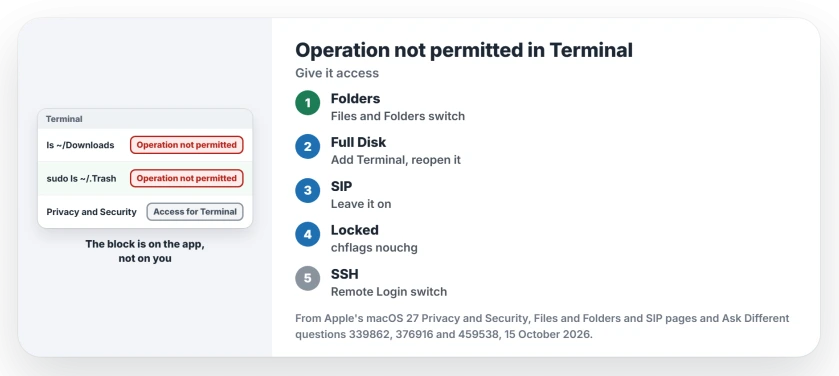
You run ls on your Downloads folder or the Trash in Terminal, and your Mac answers Operation not permitted. Adding sudo changes nothing.
I would give Terminal the access in Privacy & Security and leave System Integrity Protection alone. That opens your own folders without weakening the Mac.
Three Ask Different questions about the message have 85,465, 43,714 and 13,381 views between them.
Why sudo does not help
The block sits on the app, not on you. Apple says some apps "can access files and folders in your Desktop, Downloads, and Documents folders", and you decide which ones.
Terminal is the app asking. So root inside Terminal gets the same refusal.
The 2019 asker hit it on the Trash: "ls ~/.Trash and sudo ls ~/.Trash just give ls: .Trash: Operation not permitted". The 2018 asker hit it on a system folder that worked in High Sierra but not in Mojave.
Ours: none. There was no Mac to run Terminal on here, so each fix names where it came from.
Status: compiled 15 October 2026 from Apple's macOS 27 Privacy & Security, Files & Folders and Remote Login pages, its System Integrity Protection article and owner fixes from Mojave to Monterey.
1. Allow the folder under Files & Folders
The first time Terminal touches Downloads, macOS should ask; the top answer from May 2023 says "you should be shown a prompt". Refused it once? Switch the folder on for Terminal in Privacy & Security, Files & Folders.
Apple's Files & Folders page lists the same switches, one set per app. You turn each location on or off.
Using a shell installed with Homebrew? One reader also had to allow the shell itself, "in my case /opt/homebrew/bin/bash".
2. Give Terminal Full Disk Access
The Trash is not in that list. Neither are the system's own databases.
For those, the answer with 117 votes is short: "You have to give the Terminal.app Full Disk permissions in the security settings". Apple says Full Disk Access lets an app reach "all files on your computer, including data from other apps".
In System Settings, go to Privacy & Security and open Full Disk Access, then click the add button and choose Terminal in Applications, Utilities.
Then quit and reopen Terminal. macOS asks you to. One owner needed that step, but not a restart of the whole Mac.
Another confirmed the same fix: "Works for me on latest Monterey". A third listed the Trash without reopening.
I would switch Full Disk Access off again when the job is done, since Apple's own description shows how much it opens.
An update can quietly drop an app's access as well, without any warning on screen. Photos and Passwords refusing to open was one such case, fixed the same way.
Scripts that type for you need a different list again: when System Events refuses to let an app send keystrokes, re-add that app under Accessibility.
3. Leave System Integrity Protection on
The 2018 question's accepted answer said to switch SIP off. A later reply called that "massive overkill, and completely unnecessary to solve the problem".
Readers agreed: the Full Disk Access answer outscored it by 91 votes to minus 1.
Apple explains what SIP does: it "restricts the root user account and limits the actions that the root user can perform on protected parts of the Mac operating system". That covers /System, /usr, /bin, /sbin and /var.
So writing into those places stays blocked even when you use sudo, and that is by design. Apple lists /usr/local and /Library among the paths your installers can still write to.
I would never turn SIP off just so you can read a folder. Full Disk Access does that job without it.
Only one file refuses?
If the file is yours and sits outside those places, it may be locked. One owner cleared the lock flag in the folder that held the stubborn file:
chflags -R nouchg .The dot means the current folder. So cd into the right one first.
Connecting over SSH?
Remote sessions need their own permission. Apple's Remote Login page says to turn on "Allow full disk access for remote users" when remote users need the whole disk.
On older systems, one owner gave Full Disk Access to sshd-keygen-wrapper alongside Terminal instead. Sharing folders with other Macs has a similar switch, covered on the macOS 27 file sharing page.
The Short Version
- Operation not permitted in Terminal is a privacy block on the app, so sudo does not help.
- For Desktop, Documents and Downloads, switch the folder on for Terminal in Files & Folders.
- For the Trash or system databases, add Terminal to Full Disk Access and reopen it.
- Leave System Integrity Protection on; it blocks writes to /System and /usr by design.
- Over SSH, turn on Allow full disk access for remote users in Remote Login.
Where to Next
Which folder gave you the error, and did Files & Folders cover it or did you need Full Disk Access? Your comment helps me sort which folders need which switch.

Isaac Smith is the founder and editor of PC Glance, a website that covers computers, laptops, and technology. He is a tech enthusiast and a computer geek who loves to share his insights and help his readers make smart choices when buying tech gadgets or laptops. He is always curious and updated about the latest tech trends.