
You start up in macOS Recovery and choose to reinstall macOS. You click your disk, and a small box refuses it with com.apple.BuildInfo.preflight.error error 10. The installer will not take that disk.
I would look at how the disk is formatted before anything else. The owner who solved it had used Mac OS Extended, and erasing the disk as APFS let the install go ahead.
The Ask Different question about the error has 10,015 views.
What error 10 is checking
Your screen shows the full message: "The operation could not be completed (com.apple.BuildInfo.preflight.error error 10.)". Preflight, as the name suggests, is a check that runs before the install proper begins.
The asker in 2023 was installing Ventura 13.5 through Internet Recovery, after partitioning the disk in Disk Utility, formatting it Mac OS Extended (Journaled) and naming it Macintosh HD.
Apple's Disk Utility guide sets out the split. APFS is "The file system used by macOS 10.13 or later", while Mac OS Extended is "The file system used by macOS 10.12 or earlier".
Ventura is macOS 13. So the installer wanted APFS, and refused the older format at the check.
Ours: none. I could not run Recovery on a Mac for this page, so every step you read comes from Apple or an owner.
Status: sourced 16 October 2026 from Apple's Disk Utility guide (macOS 26 and 27 editions), its erase, reinstall and install error pages and two Ask Different questions from 2019 and 2023.
Erase the disk as APFS
In their words: "What finally worked for me was going back to Disk Utility and then reformatting the disk using APFS instead". The installer then took the disk.
Erasing wipes the disk, as Apple warns: "Erasing a storage device deletes everything on it". Move anything you need to another drive first. Or have a backup ready.
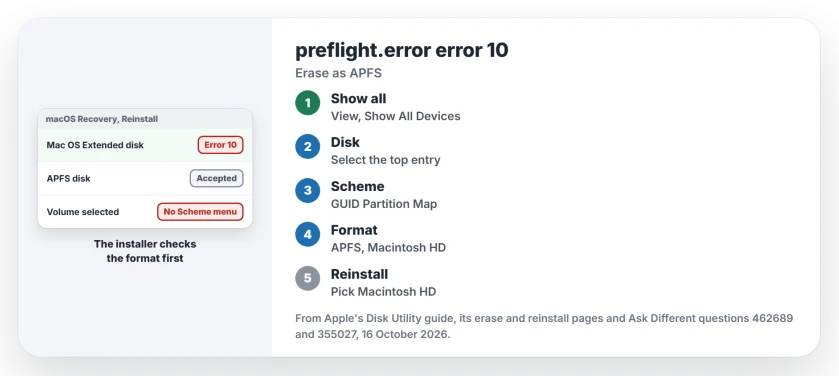
From the Recovery window, open Disk Utility. Apple's erase steps start with "Choose View > Show All Devices". Then select the disk itself, the top entry, rather than a volume indented under it.
Click Erase. For the scheme, Apple says to "choose GUID Partition Map". Set the format to APFS and name the disk Macintosh HD, the name Apple's own erase pages use.
For Apple silicon Macs, Apple's erase page lists APFS alone; for an Intel Mac it says "APFS or Mac OS Extended (Journaled), as recommended by Disk Utility". For a current macOS, I would pick APFS on either.
Reinstall to Macintosh HD
Quit Disk Utility. Choose the reinstall option again. Pick Macintosh HD as the target.
If the installer offers a Macintosh HD - Data volume too, Apple's reinstall page says to choose Macintosh HD. And "If the installer doesn't see your disk", Apple's answer is to erase the startup disk in Disk Utility first.
No APFS in the Format menu?
First make sure the whole disk is selected. Apple's erase page notes: "If the Scheme pop-up menu isn't available, make sure you selected the storage device you want to erase". With the disk selected, you can set GUID Partition Map, the scheme Apple recommends for all current Macs.
A 2019 asker ran into the rule from another direction, in an older Recovery with no APFS choice at all. A Mojave update had refused their drive with "This Mac can only install macOS on APFS-formatted drives".
The accepted fix took a while: clone the Mac to an external drive, start up from it, erase the internal drive as APFS, then clone back. The asker followed up with "I followed this procedure and it worked as advertised".
Another owner went the long way round. They erased as Mac OS Extended and installed the older macOS that Recovery offered. Then they upgraded. The newer installer converted the disk to APFS by itself.
Still error 10 on an APFS disk?
I found no owner fix past the format. Apple's general install error page is the next stop, and it says to check your internet connection and repair the disk in Disk Utility. On Apple silicon or T2 Macs, it adds reviving the firmware.
Internet Recovery also needs the right network. Apple says it wants a broadband connection that uses DHCP, and some sign-in networks can stop it.
If the install finishes but setup then stops at Remote Management, an organization still holds the record for that Mac, and only a release clears it.
If the message names the installer rather than your disk, an installer macOS calls not valid is a different check with its own fix. Failures partway through an upgrade are on the Tahoe install failed page.
The Short Version
- Error 10 showed up when the target disk was Mac OS Extended; erasing it as APFS let the installer accept it.
- Apple says APFS is the file system of macOS 10.13 and later, and Mac OS Extended of 10.12 and earlier.
- In Recovery's Disk Utility: View, Show All Devices, the top disk, Erase, GUID Partition Map, APFS, Macintosh HD.
- Then reinstall to Macintosh HD, not the Data volume.
- No APFS on offer, or still failing? Select the whole disk, then work through Apple's install error page.
Where to Next
Which macOS were you installing when error 10 appeared, and on which Mac? I have one solved case so far, so your comment fills a real gap.

Isaac Smith is the founder and editor of PC Glance, a website that covers computers, laptops, and technology. He is a tech enthusiast and a computer geek who loves to share his insights and help his readers make smart choices when buying tech gadgets or laptops. He is always curious and updated about the latest tech trends.