

Your Mac is wired to a gigabit router, yet every speed test stops near 100 Mbps. Sometimes it starts at full speed and drops a few minutes later. That makes macOS look guilty.
I would check one line in Network settings before you buy a new dock or cable. It shows whether the link from your Mac is the slow part, and that splits this fault in two.
The Ask Different question from October 2021 that blamed macOS for a 100 Mbps cap has 36,864 views. Its answer was not on the Mac at all.
The cap that was not the Mac
The asker had a 2019 16-inch MacBook Pro on Big Sur 11.6, wired through a gigabit dock. After 5 to 30 minutes of use, "the speeds drop to 118 Mbps / 118 Mbps". Two other docks did the same.
The accepted answer was flat: "MacOS does not come with such a restriction." The asker kept testing. In their words, "It was not the Macbook but my router doing some QoS". A borrowed Windows machine on their network was capped as well.
Ours: none. Without a Mac that has an Ethernet port, I took the checks from Apple's Gigabit Ethernet page and owners on Ask Different.
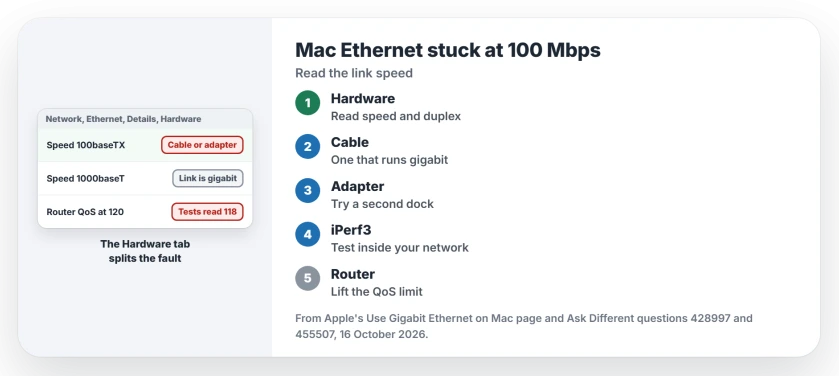
Status: Apple's Use Gigabit Ethernet on Mac page checked 16 October 2026; the router limit is the 2021 asker's own finding, tested against a second computer.
Read the speed your Mac agreed
Open System Settings and click Network. Click your Ethernet service, then Details, then Hardware. A dock's port may show up under the dock's name.
Look at the speed and duplex. The 2021 asker saw 1000 with duplex there, and the answer drew the line: with that reading, "then you do have a 1 Gbps link". A reading of 100 means the link itself came up slow.
The same reading is in Terminal. Swap en7 for your port's name; networksetup -listallhardwareports lists them all.
ifconfig en7 | grep mediaShows 100? Swap the cable, then the adapter
Apple's Gigabit Ethernet page says gigabit "requires a special Gigabit Ethernet cable". An old or damaged cable can drop the link to 100 even when it looks perfect.
One owner's advice was blunt: "I'd replace the network cable with a known good one." Another wrote that hidden damage of that kind "affected me once". Borrow a cable that already runs at gigabit on another computer.
Then the adapter: a 2023 owner on an M1 Pro found an Amazon Basics USB-C hub slow. In their words, "Changing the adapter with the same Ethernet cable increases speed back to 100 Mbps."
I would test a second adapter before blaming the Mac's port. One more owner warned that some USB-C Ethernet adapters lean hard on the processor. Watch Activity Monitor during a big copy.
Should you set the speed by hand?
Apple says the Configure menu on that Hardware screen can be set to Manually, with a speed picked from a menu. It also warns: "Unless your network administrator has given you specific settings, use the automatic settings."
The 2023 owner tried it anyway: "I tried manually configuring the speed, but it doesn't work and defaults to autoselected." A manual speed cannot make a weak cable carry gigabit. I would leave it on Automatically.
Shows 1000 but tests slow? Test inside your network
That was the 2021 case. The answer suggested iPerf3, which measures speed between two computers on your own network. No internet server sits in the way.
The asker got about 940 Mbps between two MacBook Pros, while speed tests still read 118. Then they plugged the Mac in at each level of the network. The modem gave full speed, and the router gave 118.
Their TP-Link Deco had a QoS setting "which is set at 120 Mbps". It kicked in when enough devices were busy. Look in your router's app for QoS, bandwidth control or device priority, and lift the limit.
Why does my phone get more on Wi-Fi?
The asker's phone reached 200 to 300 Mbps on Wi-Fi while the Mac crawled. That looked like proof against the Mac. But in their words "my phone was registered as a higher-priority device", so the router let it through. Our test of Ethernet against Wi-Fi shows what each should give when nothing caps them.
Uploads slow but downloads fine?
That is a different fault on macOS 27, tied to a network feature called ECN. Our page on slow Mac uploads covers it, with the Terminal check for that setting.
The Short Version
- Network, your Ethernet service, Details, Hardware shows the speed your Mac agreed.
- 100 there? Swap the cable first, then the adapter or dock.
- Leave Configure on Automatically; a manual speed did not stick for one owner.
- 1000 there but slow tests? Test with iPerf3 inside your network.
- A router QoS limit at 120 Mbps gave one owner exactly 118.
Where to Next
Did your Hardware tab say 100 or 1000? Post that reading with your dock's model in a comment. I will list the docks that cap.

Isaac Smith is the founder and editor of PC Glance, a website that covers computers, laptops, and technology. He is a tech enthusiast and a computer geek who loves to share his insights and help his readers make smart choices when buying tech gadgets or laptops. He is always curious and updated about the latest tech trends.