
Adjusting your MacBook's keyboard brightness should be simple, yet F5 and F6 may do something completely different from what you expected. Backlit models still have a software control.
I'll show you the built-in slider, how to keep it handy, and the settings that make the keys dim by themselves.
Move the slider in Keyboard settings
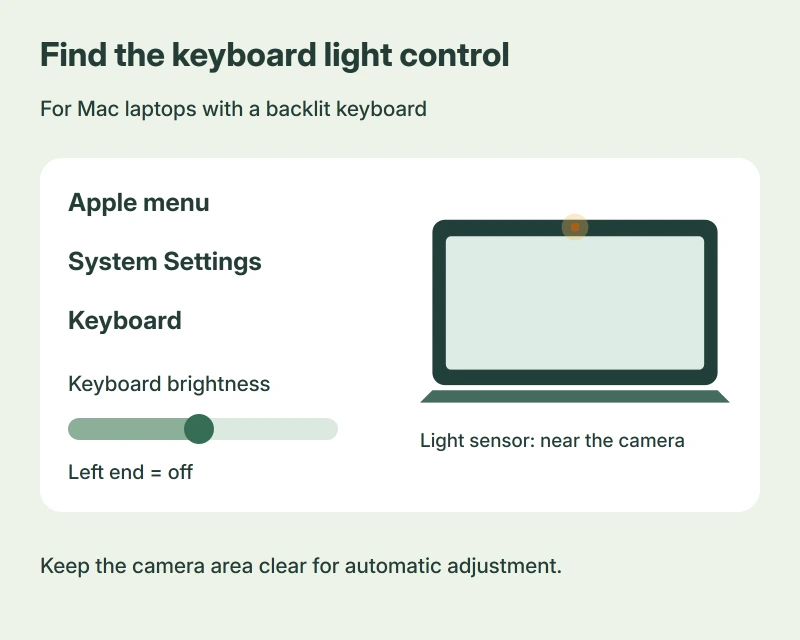
In the Apple menu, choose System Settings, then Keyboard, and drag the Keyboard brightness slider right for brighter keys or left to dim them.
Want the lighting completely off? Take that slider to its left end, as Apple's keyboard backlighting guide explains.
Your laptop needs a backlit keyboard. A brightness setting cannot add lighting to hardware that doesn't have it.
Status: Apple guides for macOS 27, Tahoe 26 and Sequoia 15 checked 17 October 2026. The M1 Air brightness question has 182,025 Ask Different views.
Why F5 and F6 no longer dim the keys
The owner asking that question had a 2020 M1 MacBook Air without keyboard-brightness keys. Pressing F5 or F6 didn't change the backlight, which made the missing control feel like a fault.
The accepted answer pointed to Control Center. No keyboard remapping was part of that answer.
Look at your own function row. Apple says models with dedicated keyboard-brightness keys can still use those, so the right shortcut depends on the keyboard you have.
If you also use a Windows laptop, its keyboard lighting controls follow different rules. A Windows Fn combination isn't a substitute for the Mac slider.
Add brightness to Control Center
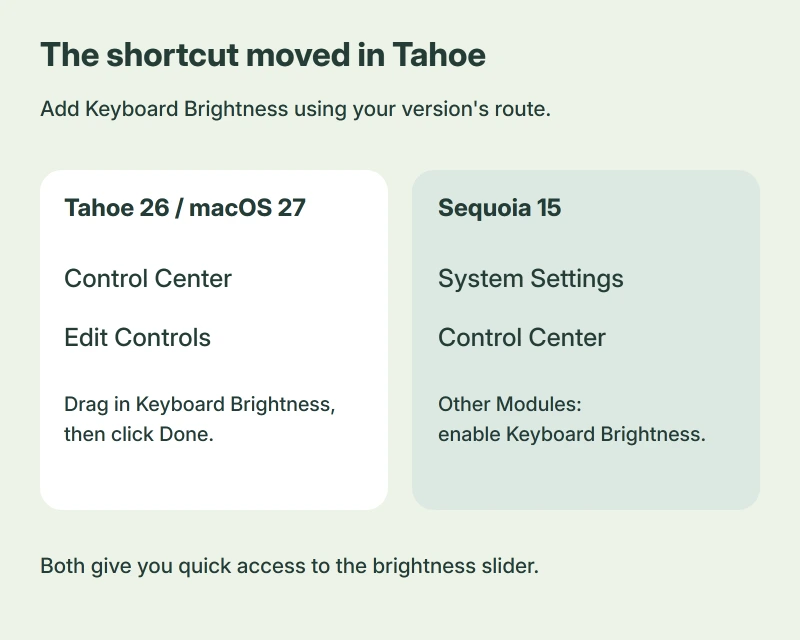
On Tahoe 26 and macOS 27, open Control Center from the menu bar, then click Edit Controls; find Keyboard Brightness, drag it into the panel, and click Done.
Now its brightness control is close at hand. Apple documents that slider as another way to change the same keyboard backlighting.
I would keep it within easy reach if you move between bright rooms and a dark desk. It saves reopening Settings each time you want a small adjustment.
On Sequoia 15, the customization lives elsewhere: System Settings, Control Center; under Other Modules, enable Keyboard Brightness for Control Center, or add it to the menu bar.
An owner on Ventura 13.1 also had to enable Show in Control Center before the button appeared. Their later comment explains why the original answer didn't match their screen.
Let the room lighting adjust it
In Keyboard settings, turn on Adjust keyboard brightness in low light if you want automatic adjustment. Apple states that the light sensor sits near the camera along the upper edge of your display.
Keep that area uncovered. If something sits across the camera area, move it before judging how the automatic brightness responds in your room.
I would decide between manual brightness and the automatic option based on what bothers you. That changing level can be intentional.
Stop the light staying on while you pause
The inactivity timer is a separate choice. In Keyboard settings, find Turn keyboard backlight off after inactivity and choose the delay you prefer.
That controls the keyboard lighting while you aren't typing. It doesn't manage the Mac's sleep behavior.
If the whole computer refuses to sleep, use the Mac sleep troubleshooting page. Changing how long the keys glow won't fix that problem.
Do you need a keyboard-remapping app?
Not for the controls described here. One owner did restore F5 and F6 brightness actions using Karabiner-Elements on Big Sur 11.2.1, but they also had to change the automatic-brightness setting.
Their instructions were specific to that setup. The built-in slider gives you a simpler starting point without adding another app that handles your keystrokes.
If your MacBook has a Touch Bar, Apple's Sequoia guide describes expanding its Control Strip to reach the brightness buttons. That route is specific to Touch Bar models.
The Short Version
- Keyboard settings holds the brightness slider and its fully-off position.
- Add a quick control using the route for your macOS version.
- Automatic adjustment and the inactivity timer handle different situations.
Where to Next
Which MacBook do you have, and was its light control easy to find? Tell me if the slider is missing completely, rather than just absent from Control Center.

Isaac Smith is the founder and editor of PC Glance, a website that covers computers, laptops, and technology. He is a tech enthusiast and a computer geek who loves to share his insights and help his readers make smart choices when buying tech gadgets or laptops. He is always curious and updated about the latest tech trends.