
You try to update your mouse driver in Windows 11, but Device Manager says nothing newer is available. That feels unhelpful when the pointer still misbehaves.
I'll walk through the Windows update route, the mouse entry in Device Manager, and the maker's software. Start with the route Windows already provides.
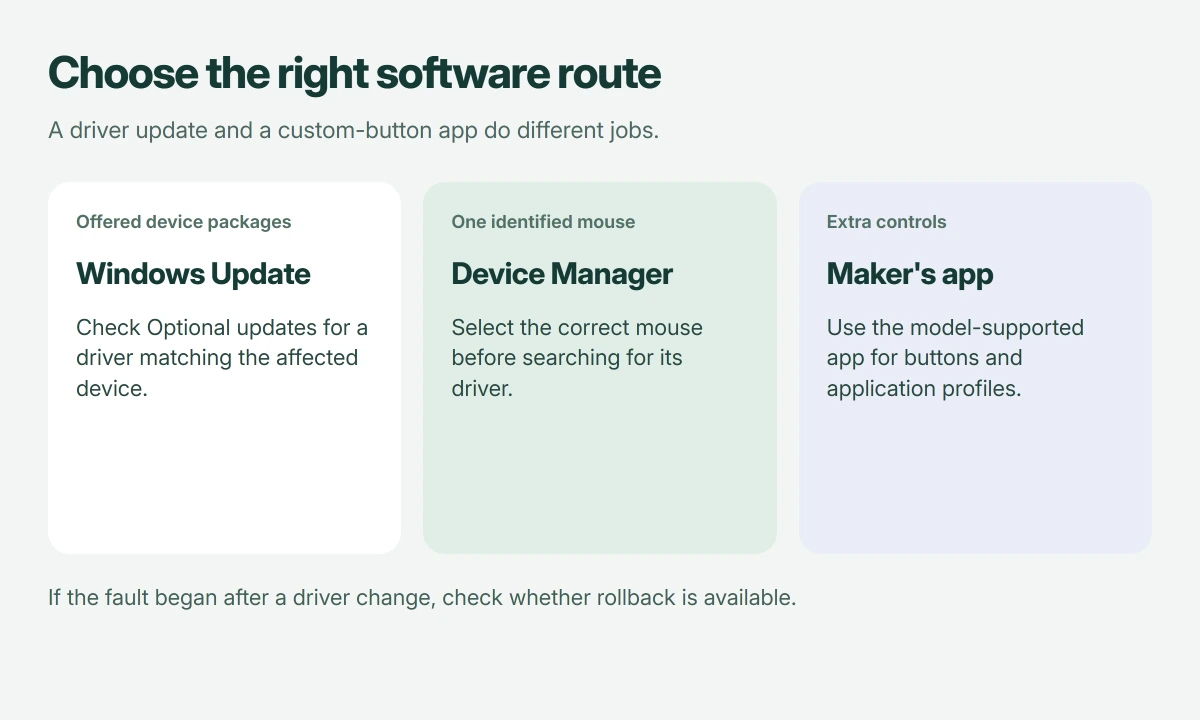
Check Windows Update for a matching mouse update
In Settings > Windows Update, choose Check for updates. Then open Advanced options > Optional updates and expand Driver updates, if that section appears.
Microsoft documents that optional drivers need manual selection in its hardware-update instructions. Select a listed update matching your troublesome device, then choose Download and install.
Status: Windows 11 mouse-driver routes checked 18 October 2026 against Microsoft and Logitech documentation. No driver, firmware or mouse utility was installed during research.
Restart afterward and test the troublesome action. An empty list offers nothing to install.
I wouldn't select unrelated drivers. Our driver-update advice explains why a particular fault is a better starting point than a long list of version numbers.
Find the actual mouse entry in Device Manager
Open Start, type Device Manager, and open it. Expand Mice and other pointing devices and identify your mouse. It may appear under a generic HID name.
Leave unidentified entries alone. A touchpad or another pointing device can be listed too; check the device's properties and the manufacturer's identification guidance first.
Right-click the chosen mouse, select Update driver, then Search automatically for drivers. Microsoft says Device Manager can search for a suitable update in its driver-management guide.
If that search finds nothing, use your mouse manufacturer's model-specific support page rather than taking a similarly named driver from an unrelated download site.
Extra buttons need the maker's supported software
A pointer that moves normally while its custom buttons stop working gives you a different reason to check software. Look up the model's supported configuration app and Windows 11 compatibility.
For example, Logitech's Options page lists supported mice and features such as button customization and app-specific settings. It also identifies models supported by Options+.
Its job is configuring supported controls. A different Logitech model, or a mouse from another brand, may require another app or no extra app at all.
I would take the download from the product's official support page, then check its button assignments after installation before making any more changes in Windows.
If your issue is speed changing between apps, our changing-sensitivity guide covers profiles and DPI settings. Repeating the driver search won't explain a profile deliberately choosing another speed.
A new driver made it worse: try the previous one
If your mouse trouble began immediately after a driver change, open that mouse's Properties > Driver in Device Manager. Choose Roll Back Driver if the button is available, following its prompts.
Microsoft states that returning to the previous driver can resolve problems introduced by an update, but administrator permission is required, so involve IT on a managed PC.
If rollback is unavailable, don't force an arbitrary older package onto the device. Give the manufacturer the mouse model, installed driver version, and the behavior that changed.
Still faulty: check the connection and the mouse itself
Microsoft's mouse troubleshooting page recommends checking power, trying a different USB socket, and connecting directly instead of through a hub.
Check your wireless mouse's battery too. Our wireless-mouse setup page separates Bluetooth pairing from a USB receiver, which avoids searching the wrong settings.
Finally, try the mouse on another computer with any required software installed. Microsoft advises replacement may be needed when it fails there too, so a driver download isn't always the answer.
The Short Version
Check offered drivers in Windows Update, then the correct mouse entry in Device Manager. Use the supported maker's app for extra controls. If the change caused trouble, consider rollback; if the fault follows the mouse, check hardware.
Where to Next
Is your pointer frozen, your scrolling erratic, or just one custom button missing? Tell me the mouse model and whether it uses Bluetooth, a receiver, or a cable. That helps me choose the next check.

Isaac Smith is the founder and editor of PC Glance, a website that covers computers, laptops, and technology. He is a tech enthusiast and a computer geek who loves to share his insights and help his readers make smart choices when buying tech gadgets or laptops. He is always curious and updated about the latest tech trends.