
Chrome keeps freezing, leaving tabs and menus stuck while the rest of your work waits, and another unfinished form is at risk.
I'll work through Google's supported checks, starting with the session you already have open. We'll save profile removal for a decision that actually needs it.
1. Close the busy tab or recover a stuck session
If Chrome still responds, save your work and close tabs you aren't using. Pause downloads and quit other busy apps, as Google recommends in its Chrome freeze and crash guidance.
For one troublesome tab, open Chrome's menu and choose More tools > Task Manager. Select the unwanted task and use End Process; Google warns that unsaved work in that task is lost.
Status: Google's desktop Chrome troubleshooting reviewed 18 October 2026. Applies to Windows and macOS; cache clearing is a website check, not a universal freeze repair.
If the whole browser refuses input, Google's Windows route is Task Manager > Processes, select Google Chrome, then End task. On a Mac, use Command + Option + Esc, select Chrome and choose Force Quit.
Give Chrome a quieter session this time. Reopen Chrome with only the page you need for the comparison, rather than immediately restoring the entire session that froze.
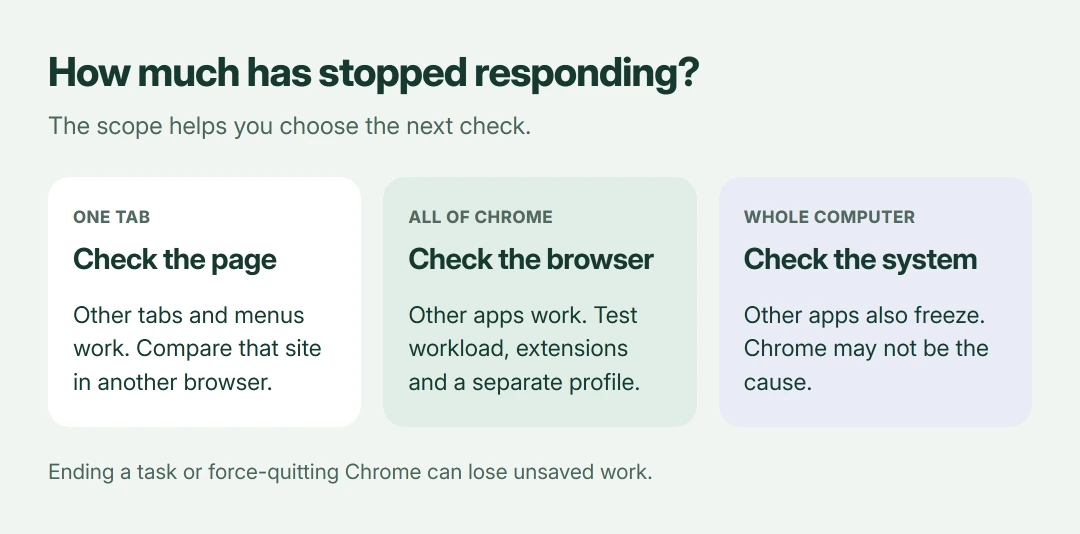
I would note the scope before changing settings. If the entire computer stops responding, Chrome may simply be the app you were using when the wider fault occurred.
2. Install the available Chrome update
Use Help > About Google Chrome. Google's update instructions explain the check and the Relaunch button when an update is ready.
Finish the relaunch after saving your work. Until that happens, you're still testing the previous browser session even when Chrome has downloaded an update and says it's ready.
Restart your computer if Chrome still hangs. Google includes a computer restart because other running programs can interfere with the browser.
3. Test without your extensions
Google says extensions can cause crashes and recommends adding them back individually after removal. For a reversible first check, disable them in Extensions > Manage Extensions, available through Chrome's menu.
Try that task with all extensions disabled. If the freeze stops, re-enable them separately and repeat that task until you find which add-on brings it back.
Leave that add-on disabled, or remove it. Google's Chrome speed guidance also documents turning off extensions you don't need.
Incognito alone isn't a complete extension test. An extension explicitly allowed in Incognito can still run there, so check its permissions before treating that window as a clean comparison.
4. Try the graphics acceleration switch
Google's steps for crashes include turning off hardware acceleration when the browser and graphics hardware aren't working together properly.
Open Settings > System in current Chrome. The switch there is labeled Use graphics acceleration when available, which controls this hardware-assisted drawing behavior.
Switch it off and use Relaunch. Google's help uses hardware in the older name for this same setting, while current builds show graphics in the label.
Test the same video or page again. If it makes no difference, restore the setting rather than accumulating changes you no longer need.
If your page briefly appears and then turns white while Chrome's controls keep working, our blank-page drawing fix covers that more specific behavior.
5. Clear cached files when one site is affected
Try another browser with that site. Google states that a page failing in multiple browsers may have a website or network problem, rather than a Chrome problem.
For a Chrome-only loading issue, Google's cache guidance supports deleting stored site information. Open the Chrome menu and select Delete browsing data.
Select Cached images and files. Choose the time range you want, leave other categories unchecked unless you intend to remove them too, then choose Delete data.
Treat cookies as a separate choice. Deleting them can sign you out and reset website preferences, so leave them selected only when you intend those changes as part of the test.
6. Compare with a separate Chrome profile
Google's crash page identifies profile problems as one possible cause. I would compare a fresh profile before following its more disruptive reinstall-and-delete-data route.
Use the profile icon, then Add Chrome profile, following Google's profile instructions. Continue without signing in if offered, and test without restoring extensions or account settings.
Keep your original profile in place. Google warns that deleting it removes its locally stored passwords, bookmarks, history and settings.
A working fresh profile narrows the problem to something associated with the original profile. It doesn't prove which extension, setting or saved site data caused the freeze.
7. Follow the error or report the repeatable freeze
If Chrome now shows Aw, Snap! with a code, our Chrome crash-code guide separates memory errors from other named failures.
For freezes that persist after these checks, Google's next route is its help community with crash reporting enabled where applicable. Record the Chrome version, operating system, affected page and the action that triggers the hang.
A freeze may leave no crash report. Say whether a new profile and the graphics switch changed anything, so the next person helping you can use those results.
The Short Version
Reduce the active workload, update Chrome, and compare with extensions disabled. Test graphics acceleration, use cache clearing for site-specific trouble, and try a separate profile while keeping your original data.
Where to Next
Does one tab freeze, every Chrome window stop, or the whole computer lock up? Tell me which it is and whether the fresh profile behaves differently. That distinction matters more than the number of times you've restarted.

Isaac Smith is the founder and editor of PC Glance, a website that covers computers, laptops, and technology. He is a tech enthusiast and a computer geek who loves to share his insights and help his readers make smart choices when buying tech gadgets or laptops. He is always curious and updated about the latest tech trends.