
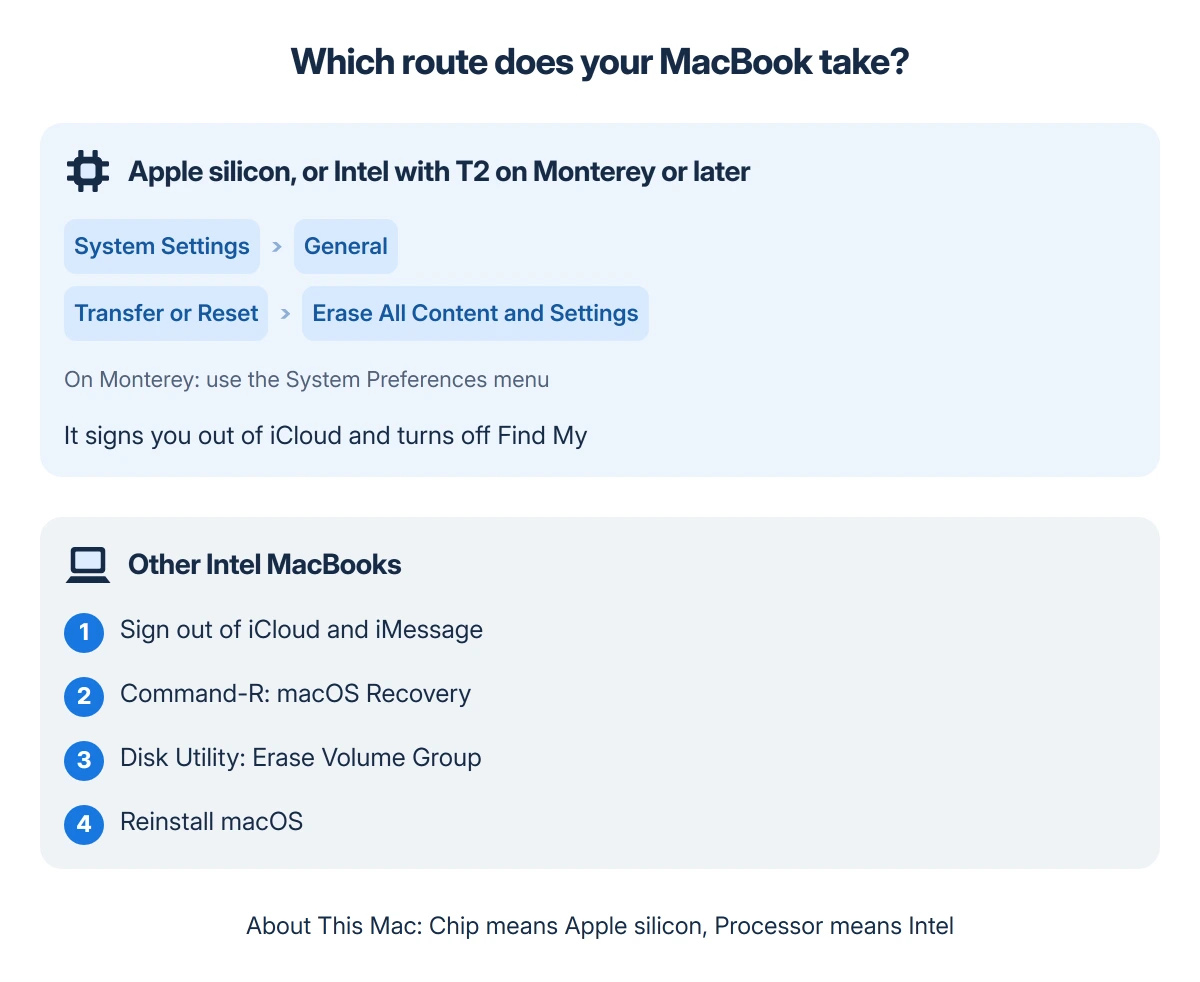
A MacBook with Apple silicon or Apple's T2 chip, on macOS Monterey or later, resets with Erase All Content and Settings, found in System Settings > General > Transfer or Reset from Ventura on.
That one command also signs you out of iCloud and turns off Find My. Older Intel MacBooks lack it: sign out of iCloud first, then erase the disk and reinstall macOS from Recovery. Back up before either route.
Find out which route your MacBook takes
Click the Apple logo at the top left and pick About This Mac. Apple says a Mac with Apple silicon shows a line labeled Chip, such as M1 or M4, while an Intel Mac shows Processor instead.
An Intel MacBook can still have the T2 chip. Apple's list covers MacBook Air and MacBook Pro models introduced from 2018 through 2020, minus the two M1 models of 2020.
Status: written 19 October 2026 from Apple's erase, Recovery and Activation Lock pages, for macOS 26 Tahoe and macOS 27. No Mac was erased to test these steps.
To check for T2, hold Option, choose Apple menu > System Information, then select Controller or iBridge in the sidebar. "Apple T2 chip" on the right means the easy route is open once the Mac runs Monterey or later.
Before you erase anything
Back up with Time Machine, or move your files to the new Mac first. Then have two passwords ready: your Mac login password and the password for your Apple Account.
An Apple silicon Mac on macOS Tahoe 26 or later that has had a repair needs one more check, Apple says. Look in System Settings > General > About, where Parts & Service appears only after a repair.
A Restart & Finish Repair button there means the repair is unfinished, and Apple wants that done with Repair Assistant before the erase.
A message that other volumes need erasing first can mean Windows was installed with Boot Camp. Apple's answer is to remove Windows and its partition with Boot Camp Assistant, then start again.
Erase All Content and Settings, step by step
- Open System Settings > General > Transfer or Reset.
- Click Erase All Content and Settings.
- Type your login password, click Unlock, then Continue.
- Type your Apple Account password, then click Erase All Content & Settings.
Apple warns that a prompt may offer to sign you back in to your Apple Account; ignore it and carry on. The Mac restarts, may ask you to switch on a Bluetooth keyboard or mouse, and needs Wi-Fi or a cable to activate.
The erase is done when the Mac shows its Hello screen and the setup assistant. If you are selling it, stop there and switch it off by holding the power button, which leaves it as it came out of the box.
On macOS Monterey the command sits in the System Preferences menu in the menu bar, not inside the window. One owner on MacRumors searched the icons for it before another pointed to the menu.
An owner who reset an M4 MacBook Air on macOS Tahoe 26.5.1 in June 2026 summed it up as "Worked seamlessly!". The command erases your data and keeps the installed macOS, and an adviser in that thread puts it at under five minutes.
Erase an older Intel MacBook from Recovery
Without the button, Apple's manual route starts with signing out, while macOS still starts:
- On Mojave or earlier, iTunes first: Account > Authorizations > Deauthorize This Computer.
- iCloud: System Settings > [your name] > Sign Out on Ventura or later, System Preferences > Apple ID > Overview > Sign Out on Monterey back to Catalina, or System Preferences > iCloud > Sign Out before that.
- iMessage: Messages > Settings (or Preferences) > iMessage > Sign Out.
Then erase and reinstall:
- Shut down, switch on and hold Command-R until the Apple logo or a globe appears.
- Open Disk Utility, select Macintosh HD, click Erase, then Erase Volume Group.
- Quit Disk Utility and choose Reinstall macOS.
Keep the name Macintosh HD and the format Disk Utility suggests; on some Macs the button simply reads Erase. At the setup assistant, press Command-Q to shut down instead of continuing.
Apple then suggests resetting NVRAM on an Intel Mac, which our NVRAM reset page walks through.
Reinstalling macOS alone is not a factory reset. Apple states that it keeps your apps and data, and a MacRumors owner who tried it on Monterey found every app and setting still in place half an hour later.
The keys decide which macOS comes back
On an Intel Mac, Command-R reinstalls the current version of the macOS you last installed. Option-Command-R offers the newest macOS that fits the Mac, and Shift-Option-Command-R the one it shipped with, or the nearest still offered.
A MacRumors moderator told the owner of a 2012 MacBook Air that plain Command-R normally starts the Recovery on the disk, while Option-Command-R forces the internet version.
When neither worked, that owner made a USB installer on the same Mac with Apple's createinstallmedia tool, and "Thankfully it worked."
The Disk Utility route on Apple silicon
If Erase All Content and Settings will not run, shut down, then keep the power button down and release it when the startup options load. Choose Options > Continue.
In Disk Utility select Macintosh HD and click Erase, or Erase Volume Group if that button shows, then confirm with Erase Mac.
The Mac restarts, asks for a language and activates over Wi-Fi or a network cable. Choose Exit to Recovery Utilities, then Reinstall macOS.
Erase Macintosh HD as one volume group, as Apple's steps do, instead of deleting it and its Data volume by hand. An owner who deleted them on a 2023 MacBook Pro got "Erase mac failed" and could not reinstall.
Apple replaced that logic board, though an adviser in the thread put the failure down to hardware rather than the deleting.
A buyer who erased a used M1 MacBook Pro in Disk Utility still found the previous owner's Safari passwords afterwards. One adviser on MacRumors guessed that the data volume had never been erased.
Erase Assistant says iCloud is still syncing
Erase All Content and Settings can stop on a warning that iCloud is still syncing, even after a day online.
One owner with an M1 MacBook Air got past it by signing out of iCloud first and letting the sign-out finish: "That worked, thank you," in their words.
Turning iCloud Drive off first can stall too. One owner on Ventura 13.5.1 had that dialog stuck, then opened a Finder window and clicked iCloud Drive in the sidebar, and iCloud Drive finished turning off.
Recovery says the server could not be contacted
Apple ties most Recovery errors at the spinning globe to the network. Its fixes: connect by Ethernet instead of Wi-Fi, try each key combination, use a different network, or try again later.
Older Intel Macs, around the High Sierra years, show "the recovery server could not be contacted" on a working network too, and the clock is one suspect.
On a Mac that still started, the accepted answer on an Ask Different question with 51,990 views is the asker's own: set the time zone automatically, then sync the clock in Terminal.
sudo ntpdate -u time.apple.comSetting the time did not help every owner, though, including one on MacRumors who had just erased an A1278 MacBook Pro.
Another owner in that thread got past the error with a USB installer made on a second Mac, started with Option held down.
A third, on a 2011 MacBook Pro, set the date back to 2018 in Terminal and stayed offline before the USB installer would run.
Apple's bootable installer page gives the createinstallmedia command for most macOS versions back to El Capitan.
After the reset
Take the Mac off your Apple Account, too. An accepted answer on Ask Different says erasing an iPhone does not remove it from the account's device list, and another, for an M2 Mac, says to remove it from the iCloud site to finish the job.
If a Mac you already sold still asks for your Apple Account, Apple's fix is to sign in at iCloud.com/find, select that Mac and click Remove.
A new owner may see your old Mac name in Terminal. An answer on Ask Different with 42 votes says that is unlikely to be data left on the Mac: the router remembers the old name.
A second answer says to set all three of the Mac's names with scutil, not HostName alone:
sudo scutil --set HostName NewName
sudo scutil --set ComputerName NewName
sudo scutil --set LocalHostName NewName
When the erase still will not finish
Apple's line is plain: if Disk Utility cannot see the internal disk, or reports that the erase failed, the Mac might need service.
Book Apple Support or an Apple Store visit. One owner who made the volume mistake got their Mac back with Apple Configurator on a second Mac. Activation Lock help from Apple needs your proof of purchase.
A Mac that refuses to start at all needs our MacBook won't turn on guide before any of this. Apple's erase and factory settings page keeps the current wording of the one-command route and links the older one.
The Short Version
- Check About This Mac: Chip means Apple silicon; an Intel MacBook from 2018 through 2020 may have the T2 chip.
- Apple silicon or T2 on Monterey or later: Erase All Content and Settings, under System Settings > General > Transfer or Reset (the System Preferences menu on Monterey).
- Other Intel MacBooks: sign out of iCloud and iMessage, then Command-R, Disk Utility, Erase Volume Group, Reinstall macOS, and Command-Q at setup.
- Stuck on iCloud syncing: sign out of iCloud first. Recovery server error: try Ethernet, check the clock, then a USB installer.
- Afterwards, remove the Mac from your Apple Account's device list.
Where to Next
Selling it, passing it to family, or starting over yourself? The route is the same, and only the finish differs: a Mac for someone else stays at the Hello screen.
Seeing a message these steps do not cover? Post its exact wording and the model year as a comment, since the route depends on the year.

Isaac Smith is the founder and editor of PC Glance, a website that covers computers, laptops, and technology. He is a tech enthusiast and a computer geek who loves to share his insights and help his readers make smart choices when buying tech gadgets or laptops. He is always curious and updated about the latest tech trends.