
A Chromebook's Network not available message during setup does not always mean its Wi-Fi is disconnected. If websites work in Guest mode but account setup still fails, check ChromeOS updates before resetting the router repeatedly.
An older Google-confirmed onboarding incident used this wording. That incident was resolved in 2023, so the same message today needs fresh checks rather than an assumption that Google's old outage is still active.
Test internet access outside account setup
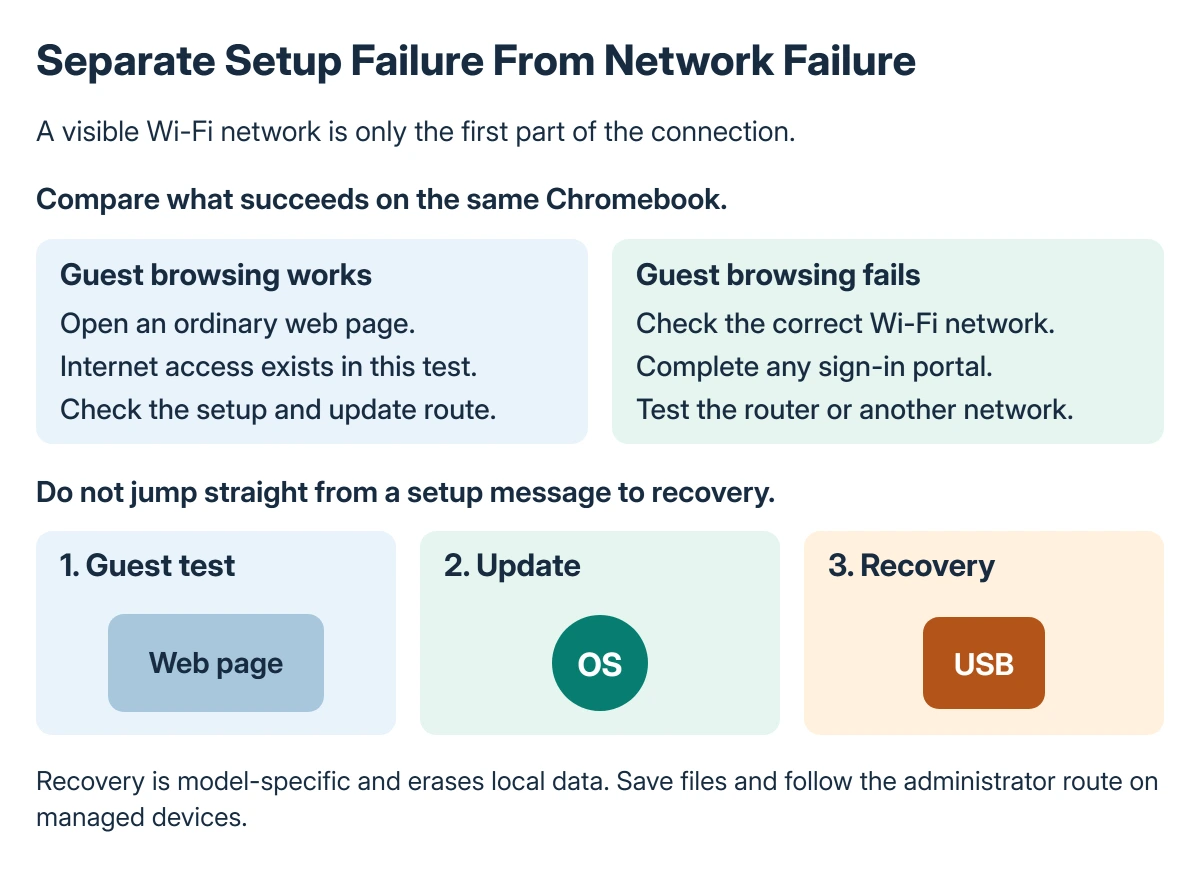
Restart the Chromebook and try setup again. If Browse as Guest is available, open a normal website there. Also check whether another device can use the same network.
Working web access in Guest mode shows that the Chromebook can reach the internet through that connection. It does not prove that account setup or its ChromeOS installation is current.
Status: ChromeOS setup reports from 2023 and Google's current update and recovery instructions reviewed 22 October 2026. The historical incident is not presented as an active outage.
Google says to compare network access and use its connection troubleshooting. For a network requiring a sign-in page, complete that page before retrying account setup.
If other devices cannot get online either, involve the network owner. If only setup fails while Guest browsing works, continue with the software checks.
Check ChromeOS from the working Guest session
Open Settings from the time area, then select About ChromeOS. Choose Check for updates when it is available and complete any requested restart.
Keep the Chromebook on power while it updates. Google's steps for ChromeOS updates also suggest Wi-Fi or Ethernet when a mobile connection cannot download the update.
Return to account setup afterward. Note the ChromeOS version and whether an update was actually installed; a button saying the device is current is not evidence that the setup problem has gone away.
For work or school equipment, stop at the administrator if updates or enrollment are controlled. Recovery is not a method of removing organization management.
What owners actually confirmed
In the Google Community setup discussion, one owner could browse as a guest but could not finish setup. They reported success after creating recovery media with the exact model identifier.
Other reports describe USB recovery succeeding, but a later owner still failed after a restart and an update check. Those mixed results support trying recovery after the earlier checks, not promising that a restart fixes every case.
The community announcement saying the incident was resolved belongs to that 2023 discussion. It does not establish the cause of a new Chromebook's error in 2026.
Back up before considering recovery
Google states that recovery erases the Chromebook's internal storage, including Downloads, while reinstalling ChromeOS. Copy accessible local work elsewhere first. The recovery USB is erased when it is prepared too.
Use the Chromebook backup and reset guide to distinguish local files from cloud copies. Recovery reinstalls the operating system; Powerwash resets local user data and settings.
Google recommends recovery after other troubleshooting fails or support recommends it. Ask the manufacturer or administrator first if existing files are inaccessible and irreplaceable.
Use the exact recovery model
Follow Google's recovery instructions. A normal Chromebook enters recovery with Esc + Refresh, followed by Power; some models use Maximize instead of Refresh. Tablets have a different button sequence.
Choose Recover using internet connection if offered. Otherwise, use a working computer with Chrome, Chromebook Recovery Utility and a USB drive of at least 8 GB.
Take the model identifier from the recovery screen. Create media for that identifier, then choose Recover using external disk on the affected Chromebook and follow its prompts.
After recovery, retry setup before restoring everything. If a display fault is also present, the Chromebook screen checks address that separately rather than treating every blank screen as a network problem.
If setup still fails, give support the model identifier, ChromeOS version and whether Guest browsing works. Do not repeat erasing resets while support is assessing the same failure.
The Short Version
Compare Guest browsing with setup. If internet works, check ChromeOS updates and restart before considering recovery. The old onboarding announcement does not prove a current outage.
Recovery is an erasing reinstall. Use the exact device identifier, preserve local work first and involve the administrator for managed devices.
Where to Next
Keep the failed setup screen and version details for the manufacturer. They help distinguish an outdated installation, enrollment restriction and connection failure.

Isaac Smith is the founder and editor of PC Glance, a website that covers computers, laptops, and technology. He is a tech enthusiast and a computer geek who loves to share his insights and help his readers make smart choices when buying tech gadgets or laptops. He is always curious and updated about the latest tech trends.