
Organizing photos on a Mac works best with albums for selections and folders for groups of albums. In Photos, select a set of pictures and choose File > New Album with Selection, then give the album a useful name.
A photo can belong to several albums. There is no need to export duplicate copies just to group the same picture by holiday, person and project.
Start with a small set of named albums
Open Photos, choose pictures for one event or subject and select File > New Album with Selection. Name the album in the sidebar, then press Return.
For an empty collection, use File > New Album first. Add pictures later by dragging selected items onto that album in the sidebar or using Add To from their Control-click menu.
Status: Photos organization commands checked in Apple's macOS 27 guides on 22 October 2026. Albums, folders and Smart Albums were reviewed; no library was changed.
Apple documents these commands in its album guide. Start with a few broad names that help you find pictures, then subdivide when there is a real need.
If Photos is still loading or repairing its collection, finish the updating-library checks before reorganizing large selections. Album changes are not a repair for a library that cannot open.
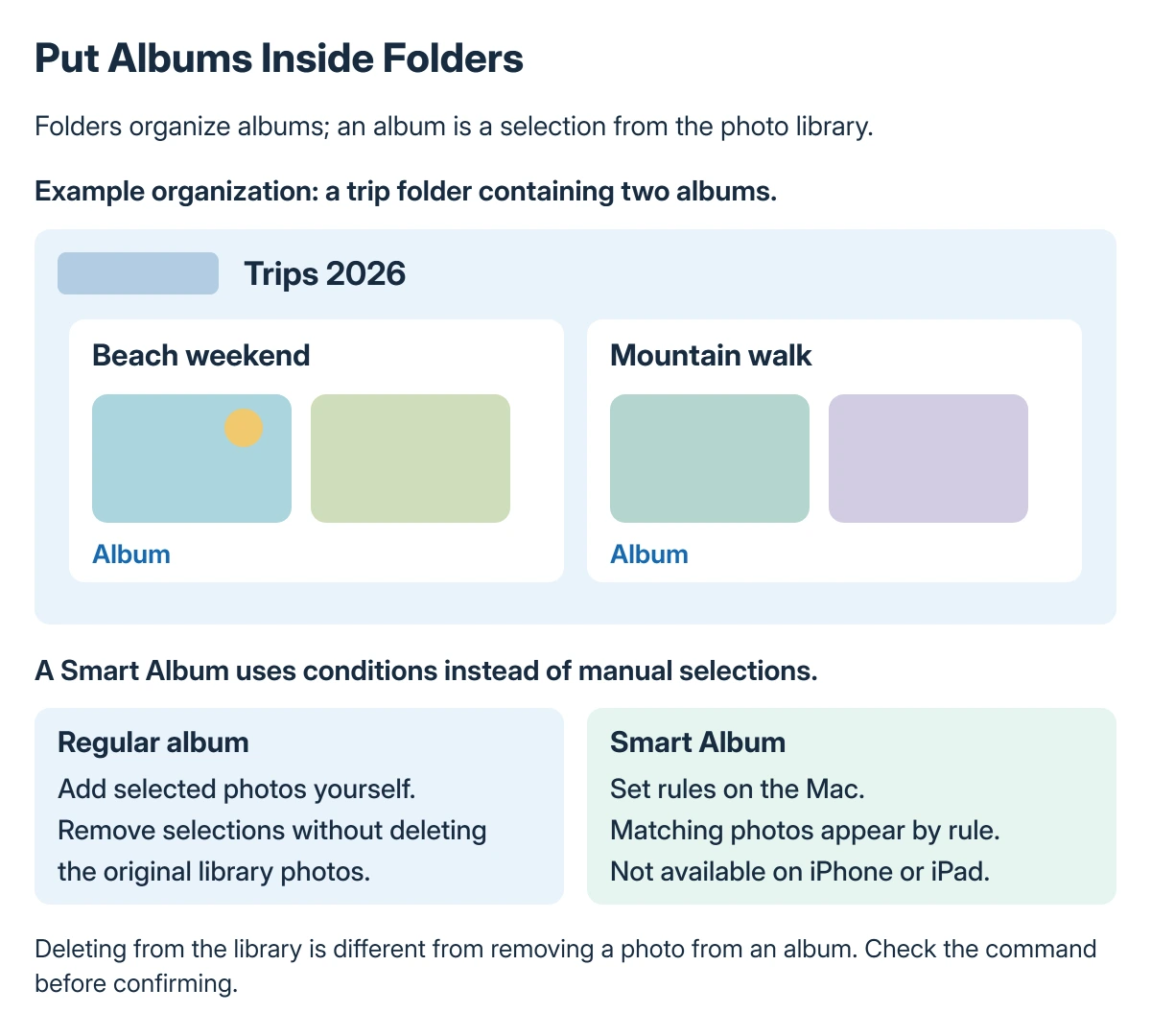
Put related albums into a folder
Hold the pointer over Albums in the sidebar, open its More menu and select New Folder. Name it, then drag the related albums into it.
For example, a Travel folder can hold separate albums for different trips. Apple says folders can contain other folders too, but Shared Albums cannot be moved into them.
To take an album out, Control-click it and choose Move Album Out Of with the folder's name. Reorder albums within a folder by dragging them in the sidebar.
These are folders inside Photos. They organize the app's albums rather than rearranging the internal files of its library package in Finder.
Choose manual sorting inside an album
Open the album and use View > Sort for title order, oldest first or newest first. For an order that tells a story, drag the pictures into the sequence you want.
Select a representative picture and use Image > Make Key Photo when the album's cover makes it hard to recognize. Renaming an album and choosing its cover are separate changes.
Keep the library view and a manually arranged album distinct. An album's chosen order is not a reason to edit the pictures' capture dates.
Let a Smart Album collect matching pictures
Choose File > New Smart Album, name it and set its conditions. Apple lets criteria use categories such as Photo, Title or Date.
With multiple conditions, Match any includes items meeting at least one condition. Match all requires the complete set. Read the result before making the rules more complicated.
Apple states that Mac-created Smart Albums do not appear in Photos on iPhone or iPad. Use a normal album when the collection needs to be available there too.
To change the rules later, Control-click the Smart Album and choose Edit Smart Album. Pictures enter and leave its result as the conditions change.
Remove the organization without deleting the pictures
Inside a normal album, select a picture and use the Image menu's remove-from-album command or the Delete key. Apple's guide says this removes album membership while leaving the picture in the library and other albums.
Deleting an album also leaves its pictures in the library. Deleting a folder removes that folder and the albums it contains, so inspect its contents before confirming.
These changes do not provide the same storage savings as deleting original pictures. If space is the problem, use the Photos storage checks before removing content you want to keep.
If a collection is missing unexpectedly, stop making further changes and ask Apple Support to assess the library and its iCloud state. Preserve the available library backup.
The Short Version
Use albums for selected photos, folders for related albums and Smart Albums for rule-based collections. Sorting within an album does not require changing capture dates.
Removing an album is different from deleting its pictures. Mac Smart Albums also have an iPhone and iPad availability limit.
Where to Next
Try the structure with one event first. Confirm that the album, folder and any other devices show what you expected before applying it across the library.

Isaac Smith is the founder and editor of PC Glance, a website that covers computers, laptops, and technology. He is a tech enthusiast and a computer geek who loves to share his insights and help his readers make smart choices when buying tech gadgets or laptops. He is always curious and updated about the latest tech trends.