

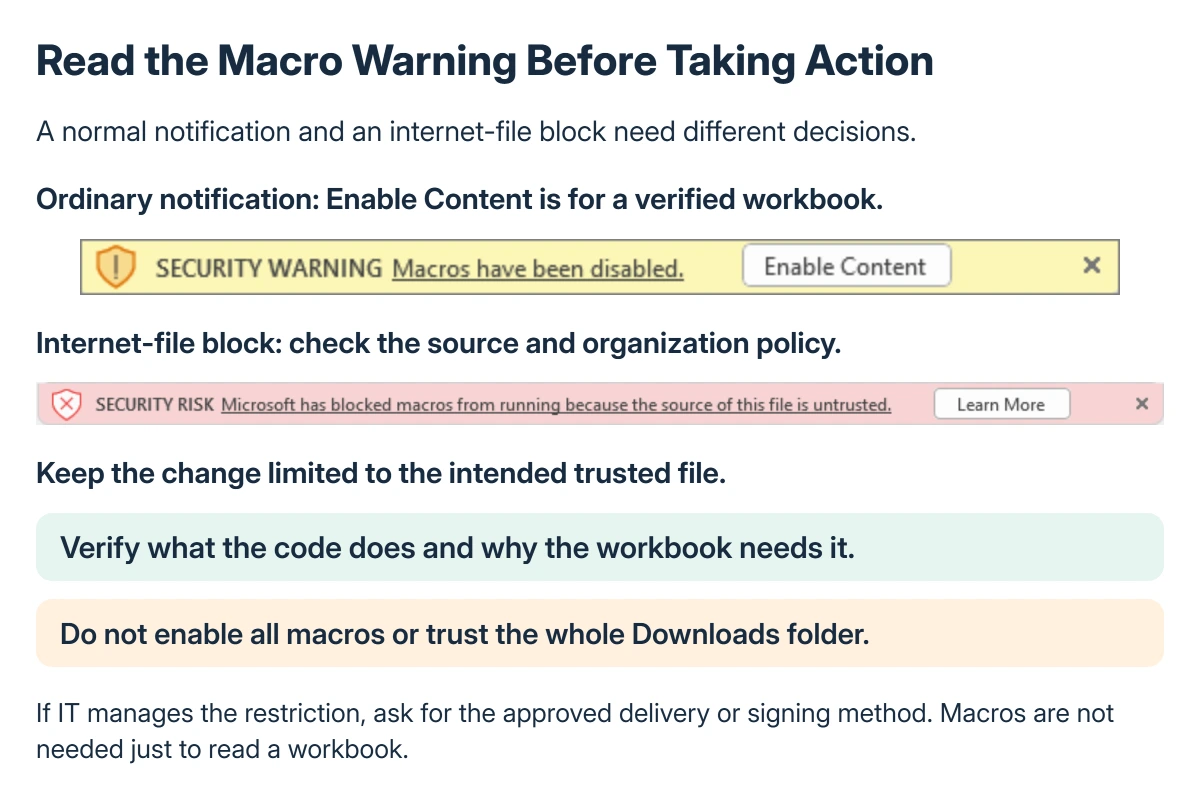
Excel macros can be enabled for a specific trusted workbook when their purpose is understood. On Windows desktop Excel, an ordinary macro warning can offer Enable Content, followed by confirmation that the document should be trusted.
A red internet-file security block is a different case. Check the message before changing settings, and leave macros disabled when the workbook's code or origin cannot be verified.
Read the warning before choosing a setting
Open the intended workbook and check the message displayed. Microsoft says macros are not required just to view or edit an Office file, so enabling code should serve a known task.
Confirm with the workbook author what the macro does and which action should run it. A familiar sender name alone does not establish that an attachment's code is safe.
Status: Windows Excel macro-trust and internet-file blocking guidance reviewed 22 October 2026 in Microsoft documentation. No workbook code was inspected, trusted or executed here.
Microsoft documents the document-specific route in its macro-settings guide. It does not recommend turning on every macro globally to silence a warning.
Enable the known workbook when prompted
For the ordinary Security Warning on a verified workbook, select Enable Content. If a Security Warning dialog asks to make the document trusted, choose Yes only for the intended file.
This trusts that document, rather than making every future attachment eligible to run. Check that the file name and location are the ones you verified before confirming.
Test the specific function the author described. If it produces an error, preserve that error for them; permitting the code does not guarantee that its logic or external dependencies work.
Find the case-by-case macro setting
In Windows Excel, open File > Options > Trust Center > Trust Center Settings > Macro Settings.
Microsoft describes Disable VBA macros with notification as the option that keeps macros disabled while presenting an alert, allowing individual decisions. Other choices can suppress alerts or restrict execution to signed code.
Keep the setting consistent with the workbook's requirements and organization policy. An ordinary trust prompt does not require enabling all VBA, Excel 4.0 macros or access to the VBA project model.
These controls belong to Excel. Microsoft states that changing them does not change every Office app's macro policy. A macro-based Word heading-number repair needs Word's own allowed method.
If macros are blocked because the file came from the internet
Microsoft's internet-macro guidance describes a separate block for downloaded files and some network locations. An ordinary Enable Content warning has a different trust path.
For a single file whose code and source have been verified, Microsoft's documented Windows option is the Unblock checkbox on the file's Properties > General tab, when that checkbox is present.
Close the workbook first, apply the authorized change and reopen the file.
Use the approved delivery or signing method for a work workbook and involve IT if policy controls the block. Do not mark an entire Downloads folder as trusted just to make one file run.
When there is no permission to change it
An organization can lock its macro settings through administrator policy. Ask them for the approved workbook version or publisher rather than trying unrelated security switches.
If Excel opens an extra blank window after a macro workbook loads, the Personal Macro Workbook checks address that separate startup behavior. Enabling more code is not its repair.
For an authorized macro that still cannot run, give its author the Excel version, exact warning or error, file location and the action being attempted. Do not share workbook credentials in the support request.
The Short Version
Verify the workbook and its code, then use Enable Content for an ordinary document-specific warning. Use notification-based decisions rather than globally permitting every macro.
An internet-file block and an organization policy need their own approved handling. Viewing a spreadsheet does not require enabling its macros.
Where to Next
Run only the expected task and check its output before relying on it. If the workbook's purpose is unclear, get an explanation from its author before enabling code.

Isaac Smith is the founder and editor of PC Glance, a website that covers computers, laptops, and technology. He is a tech enthusiast and a computer geek who loves to share his insights and help his readers make smart choices when buying tech gadgets or laptops. He is always curious and updated about the latest tech trends.