
Insert a handwritten signature in Word as a picture using Insert > Pictures. First create a clear image of the signature, crop away the surrounding blank paper and place it at the intended point in the document.
A signature picture, a blank signing line and a certificate-based digital signature are different features. Choose the one the document actually requires before preparing the file.
Prepare a clear signature image
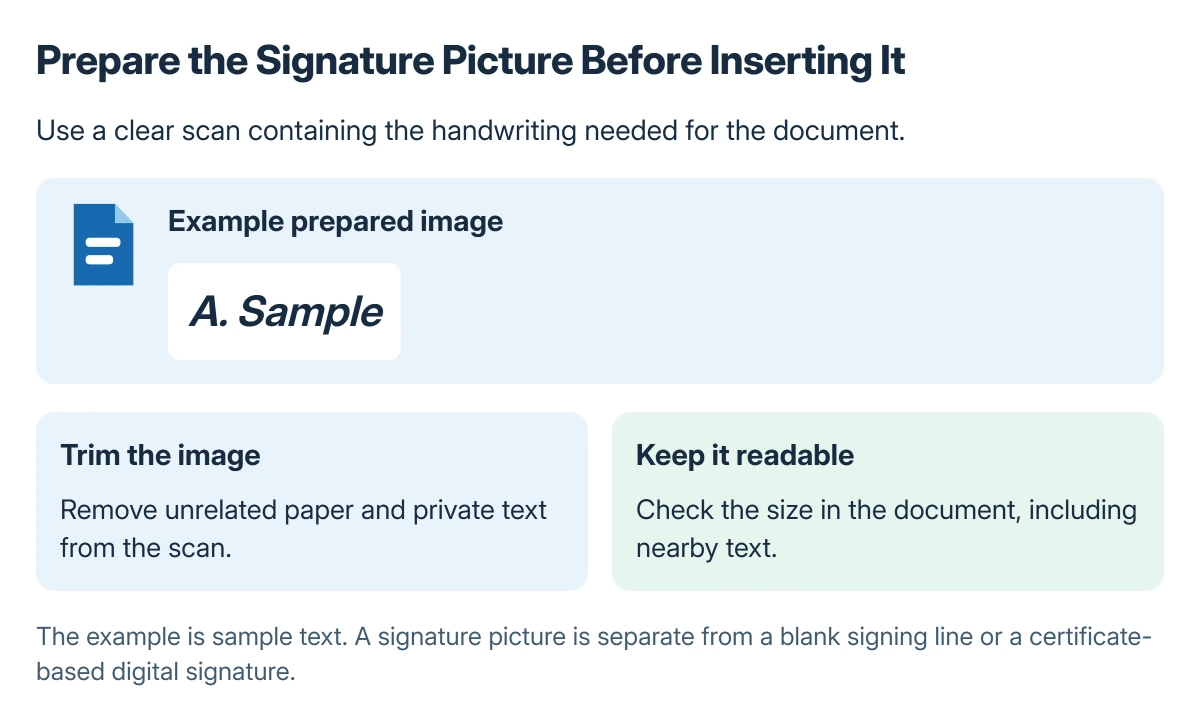
Sign a plain piece of paper and scan it to a common image file, such as PNG or JPG. Microsoft documents that approach in its Word signature instructions.
Keep that file somewhere appropriate for a reusable signature. It should not contain unrelated private text or a large border of unused paper around the handwriting.
Status: Microsoft's Word signature-picture, reusable-block and signing-line instructions checked 22 October 2026. Windows and Mac routes differ; no document or signature was made locally.
iPhone document scanning saves a PDF. For this Word picture procedure, prepare a PNG or JPG of the signature instead.
Insert and crop the picture in Word
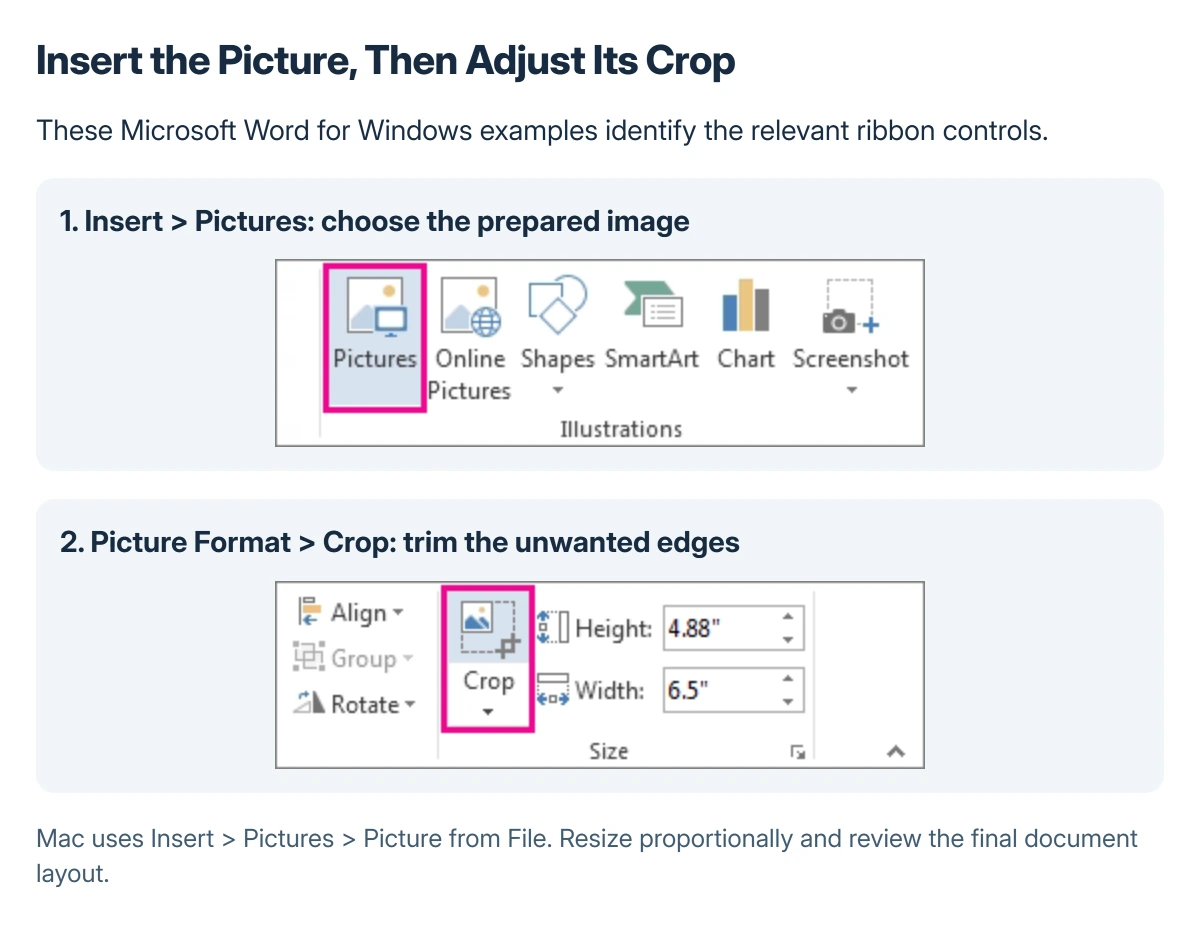
Place the cursor at the intended location and choose Insert > Pictures. Select the image file, insert it and use Picture Format > Crop when further trimming is needed.
On Mac, Microsoft's route is Insert > Pictures > Picture from File. After selecting the image, use Picture Format to crop it and inspect the result at the document's normal viewing size.
Used with permission from Microsoft.
Resize the image proportionally so the handwriting is readable and does not cover adjacent text. Inspect the page after the picture is placed rather than judging only the original image file.
Save a reusable block when the same details recur
Type any accompanying name or job title beside the inserted signature and select that content with the picture. Microsoft says Windows Word can save the selection with Insert > Quick Parts > Save Selection to Quick Part Gallery.
Name the entry, choose AutoText as its gallery and confirm it. Later, insert that saved block through Quick Parts > AutoText instead of assembling it again.
On Mac, the documented route is Insert > AutoText > New after selecting the picture and its accompanying text. Use the same menu's AutoText command to insert the saved entry.
For formatting around the closing paragraph, the Word line and paragraph spacing guide handles the text layout. Empty paragraphs are a poor substitute for placing the signature block deliberately.
Add a signing line when a blank place is needed
In desktop Word for Windows, choose Insert > Signature Line > Microsoft Office Signature Line. Enter the suggested signer details and confirm the setup.
Microsoft states that this inserts a signing line with an X marking the intended signing position. It does not insert the handwriting image created in the earlier steps.
A picture alone does not add a certificate-based digital signature. If the recipient requires that feature or a particular signing service, confirm its accepted workflow before sending a picture of handwriting instead.
Review the final copy before sharing
Check the exported or printed layout, including the signature's size and the text immediately around it. A usable image can still be poorly positioned after moving text onto another page or changing its font.
If insertion is unavailable, check whether this is desktop Word or the browser, and whether editing is allowed. Give the document owner or Microsoft Support the required feature and any restriction shown.
The Short Version
Prepare a clear signature image and insert it with Word's Pictures command. Crop and size it in the document, then check the finished page.
Use AutoText for a reusable picture-and-text block. A signing line and a digital signature serve different purposes from pasting a handwritten image.
Where to Next
Send the document only after confirming the recipient accepts that signing method. Keep the reusable image and the signed copy organized so a draft is not mistaken for the final version.

Isaac Smith is the founder and editor of PC Glance, a website that covers computers, laptops, and technology. He is a tech enthusiast and a computer geek who loves to share his insights and help his readers make smart choices when buying tech gadgets or laptops. He is always curious and updated about the latest tech trends.