
Add error bars in Excel by selecting a supported chart and choosing Chart Elements > Error Bars. Then select the error type or open More Options to supply the values the chart should represent.
The default bars are not automatically the right statistical choice. Decide whether the chart needs a percentage, standard deviation, standard error or separately calculated custom amounts before formatting them.
Add bars to the intended data series
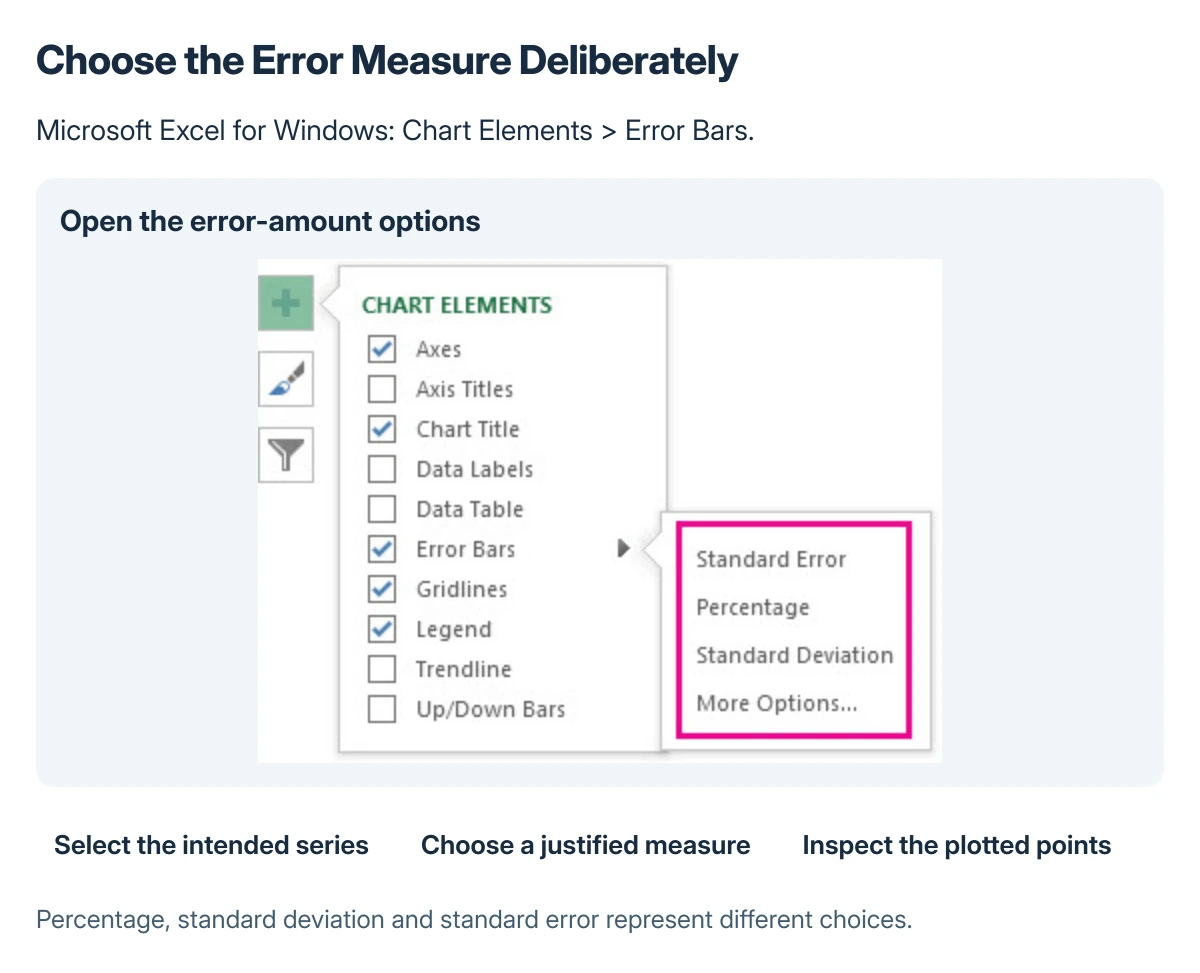
In desktop Excel for Windows, click the chart, open the Chart Elements button beside it, and select Error Bars. Use the adjacent arrow for predefined choices or More Options.
Microsoft documents those controls in its error-bar guide. With several series, select the intended series and confirm which points receive the bars.
Status: Microsoft's desktop Excel error-bar controls checked 22 October 2026. Statistical meaning must come from the data method; no chart or workbook was tested.
Microsoft supports error bars in 2-D area, bar, column, line, scatter and bubble charts. Scatter and bubble charts can include both horizontal and vertical errors; inspect the selected direction before changing it.
For the initial chart and source selection, start with creating an Excel chart from labeled data. Adding bars cannot correct a chart that plots the wrong series.
Choose the amount rather than accepting a default
Percentage makes the error amount a proportion of each plotted value. Standard Deviation and Standard Error use different calculations, so choose the one required by the analysis being presented.
A trend between an old and a new value needs a separate percentage-change calculation. That result is not automatically an uncertainty amount for error bars.
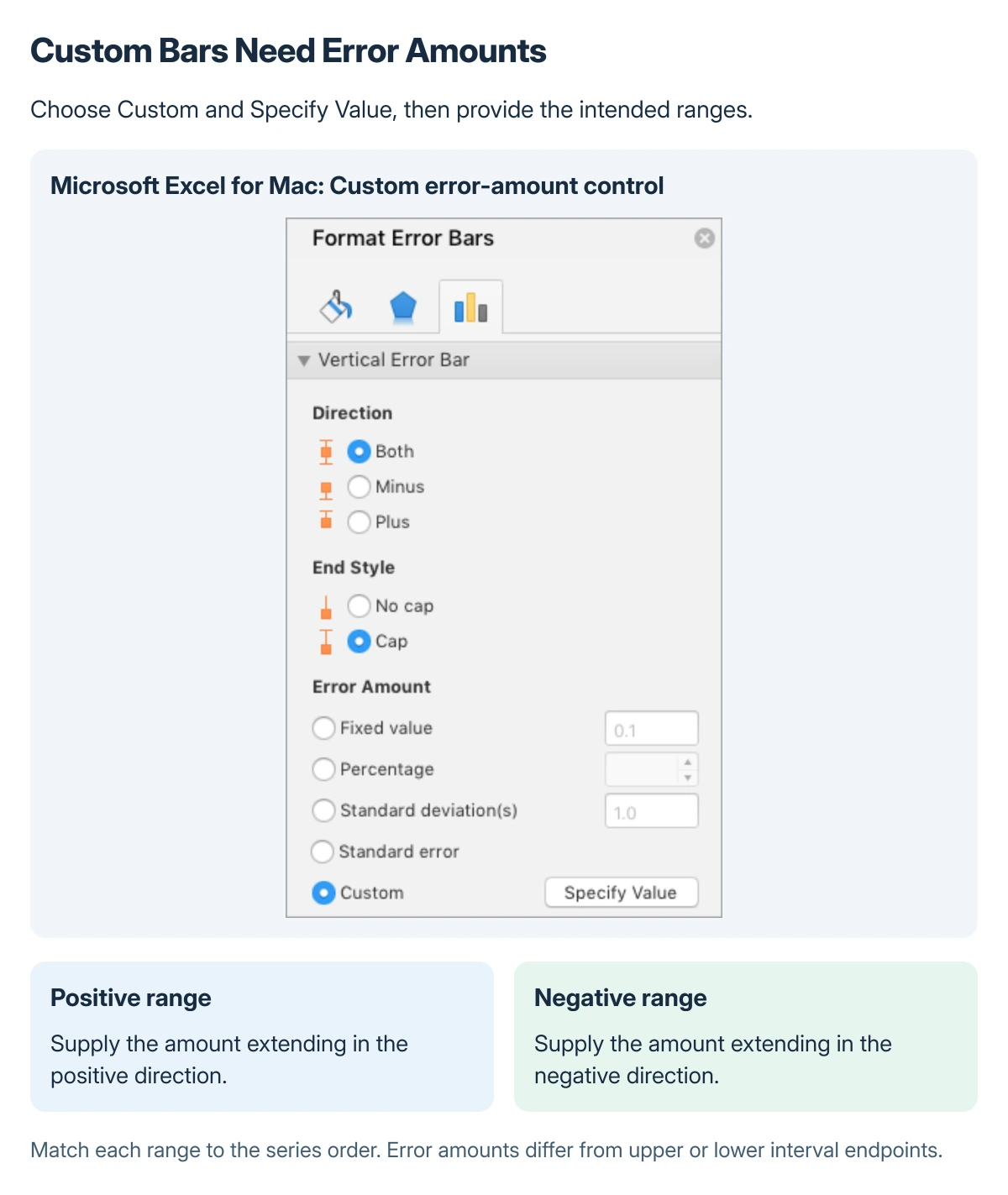
Microsoft says the Format Error Bars pane also controls direction and end style. Those appearance choices do not change what the underlying error amount means.
For a report, name the chosen measure in the chart's caption or accompanying explanation. A reader should not have to infer it from the size of the bars.
Supply different custom amounts for each point
Open More Options and select the appropriate error-bar options. Under Error Amount, choose Custom > Specify Value.
Microsoft states that positive and negative amounts can come from ranges in the same workbook. Clear each existing value before selecting the intended error-amount range, then confirm.
In Excel for Mac, select the series and use Chart Design > Add Chart Element > More Error Bars Options to reach Custom. The supplied Mac example identifies that control.
Used with permission from Microsoft.
Example: plotted means of 10, 20 and 30 with custom errors of 1, 2 and 3 need the error amounts entered in the corresponding order. Those are example inputs, not a claim about the uncertainty of real measurements.
Do not substitute upper endpoints such as 11, 22 and 33 for those error amounts. Review each point against the source calculation, including whether the positive and negative errors are intentionally different.
Unexpected date-like source values need Excel's number-to-date conversion checks. Verify the stored values before styling the chart.
Correct or remove unwanted bars
Use the same error-bar controls to change the amounts. In Windows Excel, clear Error Bars in Chart Elements to remove them; Undo also reverses an immediately mistaken addition.
If a required control is absent, check the chart type and Excel edition against Microsoft's supported instructions. Ask the report's author or analyst which error measure is appropriate when the data method is unclear.
The Short Version
Select the chart and intended series, add Error Bars, then choose the correct measure. For custom bars, supply positive and negative error amounts in point order and verify the result against the calculations.
Where to Next
Read the chart without its surrounding worksheet. Its labels and caption should explain both the plotted values and what the error bars represent.

Isaac Smith is the founder and editor of PC Glance, a website that covers computers, laptops, and technology. He is a tech enthusiast and a computer geek who loves to share his insights and help his readers make smart choices when buying tech gadgets or laptops. He is always curious and updated about the latest tech trends.