
Calculate percentage change in Excel with (new value - old value) / old value, then format the result as a percentage. With the old value in A2 and the new value in B2, enter =(B2-A2)/A2 in the result cell.
The original value is the denominator. Reversing the comparison changes that denominator, so a rise and its later reversal do not normally have equal percentage magnitudes.
Enter the two values and calculate their difference
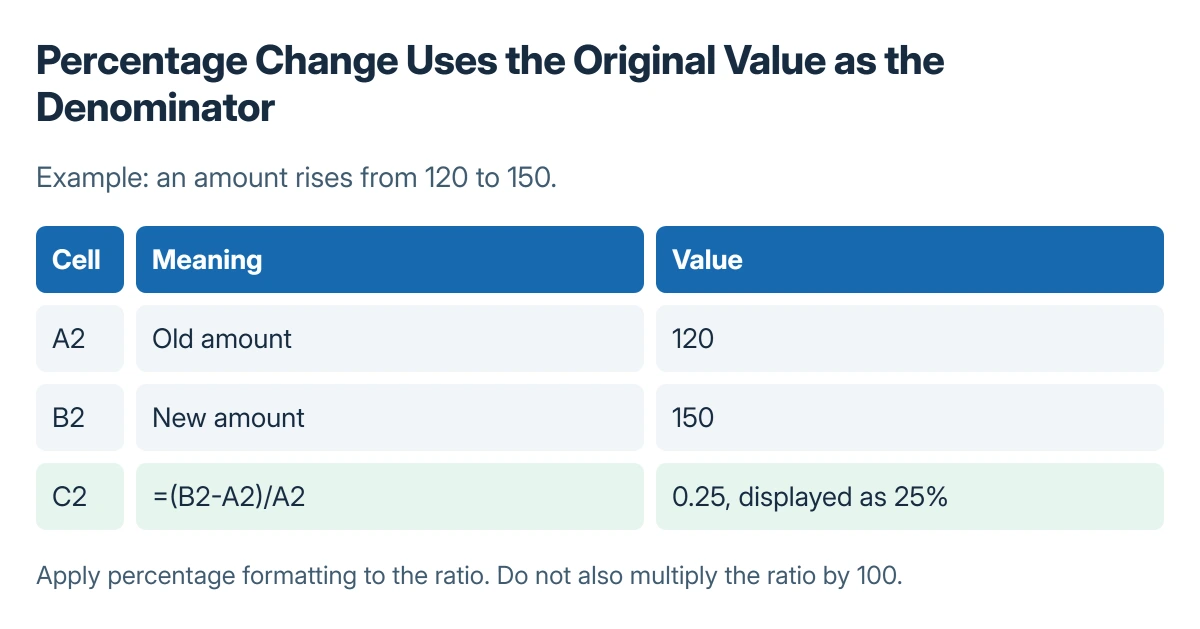
Put the original amount in A2 and the replacement amount in B2. In C2, type =(B2-A2)/A2 and press Enter. The parentheses make the subtraction one part of the numerator.
Microsoft documents subtracting the original amount from the new amount, then dividing by the original, in its percentage calculations guide. Confirm which column contains the starting amount before copying the formula.
Status: percentage formulas documented by Microsoft, checked 23 October 2026. The numerical examples were checked arithmetically; no workbook was opened.
For example, 120 to 150 gives (150-120)/120, which equals 0.25. The result is positive because the new amount is larger than the original.
Apply percentage formatting once
Select C2, then use Percent Style in the Home tab's Number group. Adjust the displayed decimal places if the result needs more precision.
Microsoft says percentage display is applied after entering the calculation. The underlying ratio 0.25 displays as 25%; it should not first be multiplied by 100 when percentage formatting will also be applied.
To compute other rows, fill the formula downward and inspect the first copied row. The row references should move to the corresponding original and new values.
Interpret decreases, zero and percentage points correctly
The reverse move, 150 to 120, is (120-150)/150, which equals -20%. Microsoft states that a negative result represents a percentage decrease in its worked decrease example.
An original value of zero makes this formula undefined. Report that starting condition explicitly rather than replacing every division error with 0%, which could falsely indicate no change.
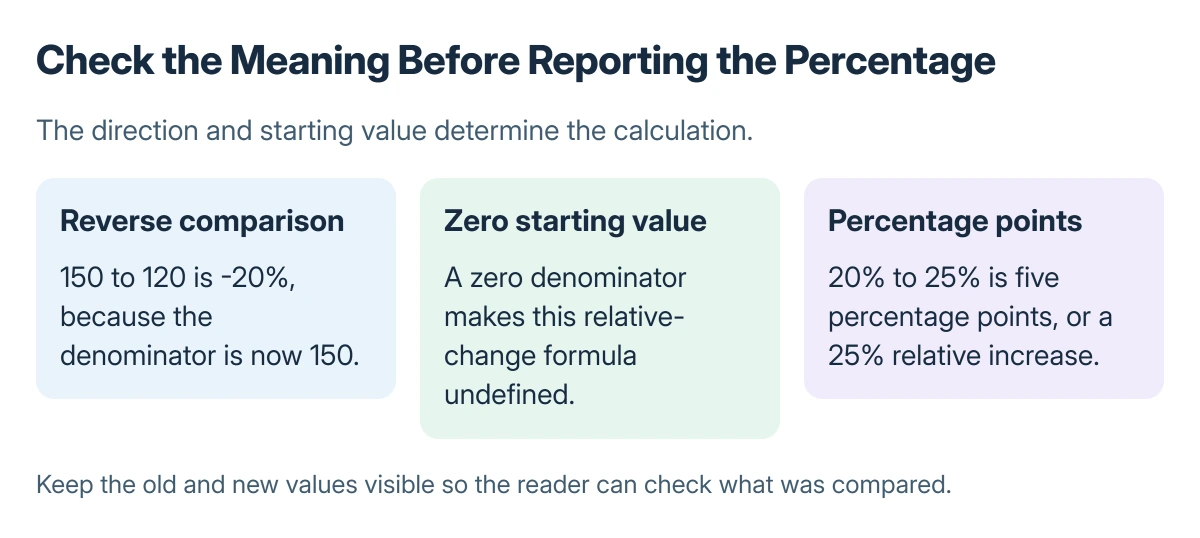
A change from 20% to 25% is 5 percentage points, or a 25% relative increase. Label the chosen measure so a reader does not mistake one for the other.
Check the comparison before presenting it
Inspect a known row manually and confirm the old and new amounts. When a long worksheet makes headings hard to track, keep the identifying row visible. Use a chart of the calculated results only after checking the underlying comparison.
For a zero or missing starting value, preserve the actual old and new amounts in the report. That gives the next reader information the percentage alone cannot provide.
The Short Version
Subtract old from new, divide by old, and apply percentage display. Keep the original value in the denominator, handle a zero starting value explicitly, and distinguish relative change from percentage points.
Where to Next
For an unexpected result, check the comparison direction, source values and number format before changing the formula. A displayed percentage is only as meaningful as its starting amount.

Isaac Smith is the founder and editor of PC Glance, a website that covers computers, laptops, and technology. He is a tech enthusiast and a computer geek who loves to share his insights and help his readers make smart choices when buying tech gadgets or laptops. He is always curious and updated about the latest tech trends.