

A cell showing 12.35 can still contain 12.3456. Excel can shorten the display while retaining extra digits for calculations. Increase the displayed decimal places before changing the value or formula.
If the additional digits do not return, check how the number was entered or calculated. A ROUND formula and the workbook's precision setting can affect the value itself.
Increase the cell's displayed decimal places
Select the affected cells. In Home > Number, click Increase Decimal until the required digits appear. Microsoft documents this control in its guide to stopping rounded displays.
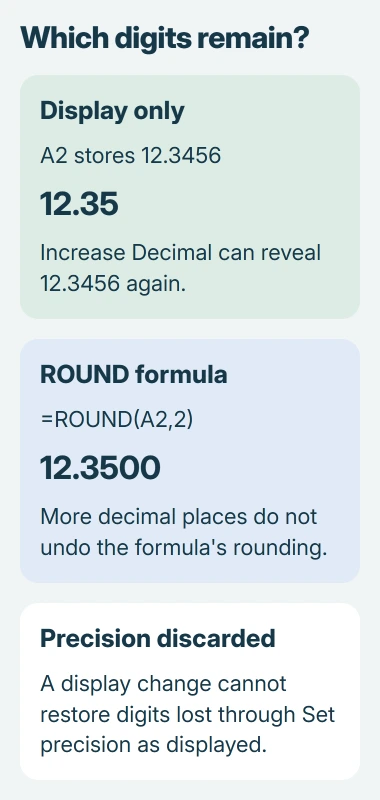
For a direct example, enter 12.3456 in an unused cell. Showing two decimal places produces 12.35; displaying four shows 12.3456 again. Widen the column if its contents cannot fit.
Status: Microsoft number-format and precision guidance checked November 2, 2026. Examples illustrate documented behavior; they were not run in an Excel session.
In desktop Excel, Format Cells > Number also lets you set the desired decimal-place count. Microsoft gives this option in its Mac rounding guide.
For a directly typed number, select the cell and compare the formula bar with the displayed cell. For a calculated result, the formula bar shows its formula, so inspect that formula and the cells it uses instead.
Check whether the formula deliberately rounds
A formula such as =ROUND(A2,2) returns a result rounded to two decimal places. If A2 holds 12.3456, the result is 12.35. Formatting that result to four decimal places shows 12.3500, not the original extra digits.
Microsoft says the ROUND function changes the result according to its second argument. Change that argument only if the calculation actually requires a different precision.
Use A2's full value when the calculation requires it, rather than a rounded intermediate result. Keep any rounding required for an invoice, measurement or report; that decision depends on the calculation's purpose.
A percentage is also affected by its display format. When working with a percentage-change formula, check the percentage's decimal places before assuming the underlying calculation is wrong.
Leave Set precision as displayed off
Excel has a separate workbook option called Set precision as displayed. On Windows desktop Excel, find it under File > Options > Advanced, in When calculating this workbook.
Microsoft states that enabling this option changes stored values to match the displayed precision. Leave it disabled when trying to reveal decimal digits.
If this option is enabled, duplicate the workbook before disabling it. Turning it off cannot reconstruct digits already discarded. Recover the missing precision from an earlier workbook or the original data.
Microsoft's calculation settings documentation explicitly warns that the original values cannot be restored simply by returning to full precision.
Check the original data when digits remain missing
Inspect the source used to enter or import the number. If the supplied value was already 12.35, changing Excel's display cannot turn it into 12.3456. Request the unrounded data when the calculation needs that precision.
Long account or tracking numbers are a separate problem. Excel's numeric storage has a 15-significant-digit limit; use the long-number import guidance for identifiers that must remain exact.
If a short numeric value still changes unexpectedly in a new workbook, record its input, formula, format and resulting display. Give Microsoft Support that reproducible example, or ask the workbook's creator to check it.
The Short Version
Increase Decimal reveals digits that the cell still stores. It cannot reverse a ROUND result, recover precision discarded by a workbook setting or restore detail that was absent from the source data.

Isaac Smith is the founder and editor of PC Glance, a website that covers computers, laptops, and technology. He is a tech enthusiast and a computer geek who loves to share his insights and help his readers make smart choices when buying tech gadgets or laptops. He is always curious and updated about the latest tech trends.