

A formula to identify missing numbers in Excel compares your list with the full sequence you expect. Use a COUNTIF column in older Excel, or SEQUENCE with FILTER in Excel 2021, 2024 and Microsoft 365 to return the missing numbers together.
Start by deciding which numbers should be there. A list running from 1 to 22 needs a different check from invoice numbers that should run from 1001 to 1400, even when the last invoice hasn't arrived yet.
In this guide
Set the first and last expected numbers
Put the existing numbers in A2:A401, with a heading in A1. This example allows 400 entries. Change the last row in every formula if your list is longer; entries outside that range won't be counted.
Use a spare sheet if the workbook already has information beside the list. That gives the expected numbers and their results room without overwriting the data next to your list.
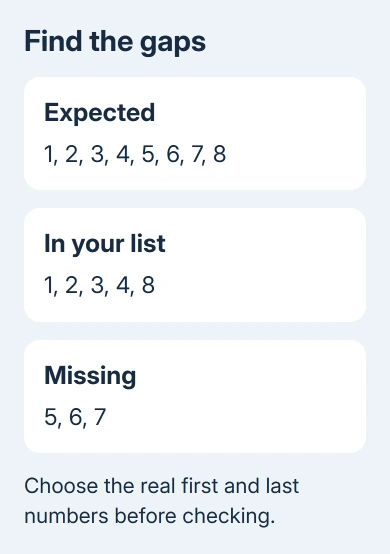
Decide whether you want gaps between the smallest and largest numbers in your list, or gaps across a range you've been assigned. For an assigned range, write down its starting and ending numbers before building the formula.
For example, an existing list ending at 397 won't reveal missing 398, 399 and 400 if the formula uses MAX to choose its endpoint. Those final numbers only appear as missing when 400 is part of the expected range.
These methods compare whole numbers that increase by one. They aren't a check for missing dates, decimal measurements or codes with letters. If your identifiers start with zeros, keep those separate from the numbers you're checking.
Build a helper column that works in older Excel
This is the route I'd use when the workbook must open in Excel 2013, 2016 or 2019. It also works in newer desktop editions without requiring a macro or a special array-entry shortcut.
- Enter Expected in B1 and Missing? in C1.
- Put the first expected number in B2. For a sequence beginning at one, enter 1.
- Enter
=B2+1in B3 and fill it down until column B reaches your final expected number. - In C2, enter
=IF(COUNTIF($A$2:$A$401,B2)=0,B2,""). - Fill C2 down alongside all the expected numbers in B.
Each visible number in C is absent from column A. A blank result means COUNTIF found that number at least once. Duplicates in A don't create an extra missing number, since the check asks whether the count is zero.
The dollar signs keep the original list fixed as you fill downward. B2 has no dollar signs because each result must check the expected number on its own row. Removing the fixed references can make later rows check the wrong cells.
Microsoft's COUNTIF instructions describe how the function counts matching cells. The IF around it displays only the numbers with no match.
For a compact view, select the B and C headings and their data, choose Data > Filter, and open C's filter. Exclude blank results. Keep both columns together when filtering so the expected number stays beside its result.
If the numbers don't appear, check the formula in one row where you know a gap exists. The Excel formula calculation checks cover a formula that stays unchanged or displays as text.
Return one clean list in newer Excel
In Excel for Microsoft 365, Excel 2021 or Excel 2024, enter this in an empty cell outside an Excel table. It checks every whole number from 1 through 400 against A2:A401:
=FILTER(SEQUENCE(400),COUNTIF(A2:A401,SEQUENCE(400))=0,"None missing")SEQUENCE creates the expected numbers. COUNTIF counts each one in your existing list, and FILTER returns those whose count is zero. The results spill, meaning Excel fills neighboring cells from one formula.
Leave the cells underneath empty. A #SPILL! result means Excel can't place the full output in the available area. Put the formula in a clear column or clear the blocking contents after checking what they contain.
For numbers 1001 through 1400, replace both instances of SEQUENCE(400) with SEQUENCE(400,1,1001). The first argument is the number of values, rather than the last value. That produces 400 expected numbers beginning at 1001.
If only internal gaps matter, use this version to check from the smallest existing number to the largest:
=LET(n,SEQUENCE(MAX(A2:A401)-MIN(A2:A401)+1,1,MIN(A2:A401)),FILTER(n,COUNTIF(A2:A401,n)=0,"None missing"))Use it with a list that contains numbers. If every cell is empty or contains text, Excel has no useful smallest and largest numbers to compare. The fixed-range formula is clearer when you already know where the list should start and end.
Check the result against a small known example
Try a separate sample containing 1, 2, 3, 4, 8, 9, 10, 11, 13, 15, 17, 18, 19, 20 and 22. With expected values 1 through 22, the missing list should be 5, 6, 7, 12, 14, 16 and 21.
An older Microsoft community thread used that example, and owners confirmed that a custom VBA function worked. You can now use built-in formulas without a macro, or the helper column if your Excel version lacks the newer functions.
A #NAME? error on SEQUENCE, FILTER or LET can mean your edition lacks that function. Use the helper method instead. Some regional installations require semicolons instead of commas between arguments.
If a number looks present but appears in the missing list, check its cell for spaces or extra characters, then check the formula's range. Make a duplicate before editing your source data. Cell formatting can hide differences too.
For long identifiers, the Excel long-number guide explains why digits can change when a number exceeds Excel's precision limit. A missing-number formula can't restore digits already lost.
If results still disagree with the list, give your spreadsheet administrator a small sample with private details removed, the exact formula and the expected first and last numbers. They can check it without needing your whole workbook.
The Short Version
Generate the expected numbers, then use COUNTIF to find zero matches. Older Excel uses a helper column; newer Excel can return a compact list with FILTER and SEQUENCE. Set your own endpoints to catch gaps at either end.
Checked November 16, 2026.






