

An Outlook email group saves recipients as a contact list in the new Windows app or web browser, or as a contact group in classic Outlook. Reuse it when addressing later messages.
A Microsoft 365 Group provides additional collaboration features, including shared resources. Choose a contact list when the task is simply reusing email recipients.
Create the list in the new app or a browser
Open People in Outlook's side panel. Select a contact to include, then choose Add to list > New contact list from the ribbon or the contact's shortcut menu.
Microsoft documents the People workflow on its contact-list instructions. Name the list and complete the creation prompts offered by that Outlook version.
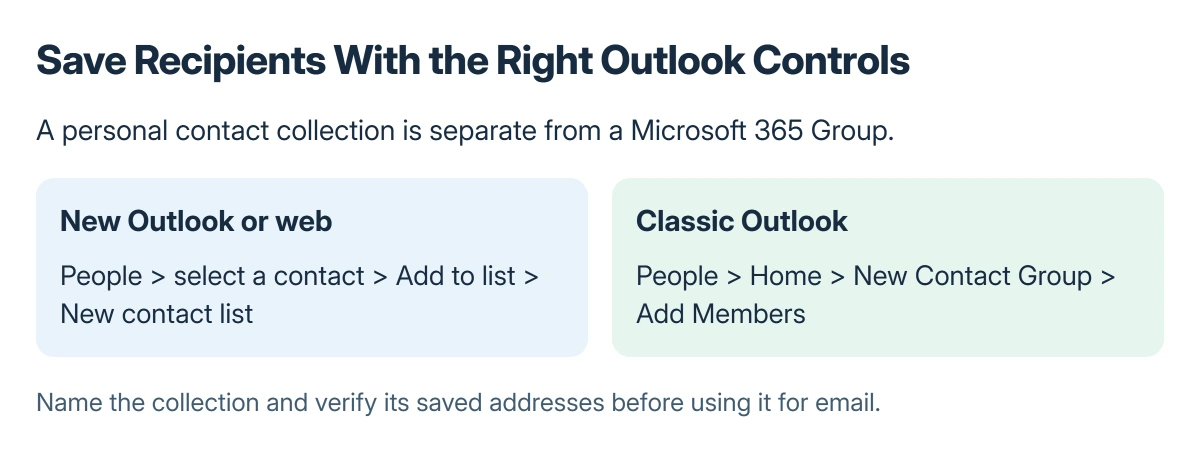
Status: Microsoft's new, classic and web Outlook contact-list guidance checked 22 October 2026. A personal recipient list is separate from a Microsoft 365 Group; no contacts or email were created.
To adjust the saved list, open All contact lists, select it, and choose Edit. Add the remaining contacts or addresses, review their spelling and select Save.
Give the collection a specific name that distinguishes it from individual contacts and similarly named teams. Check its members before using it for a real message.
In classic Outlook, create a Contact Group
Open People, then choose Home > New Contact Group. Enter a group name and choose Add Members.
Microsoft says classic Outlook can add members From Outlook Contacts, From Address Book, or as a New E-mail Contact. Choose the appropriate source, add the intended people and confirm the selection.
Select Save & Close. Reopen the saved group if needed to inspect the membership; a familiar group name alone does not confirm that the addresses inside it are correct.
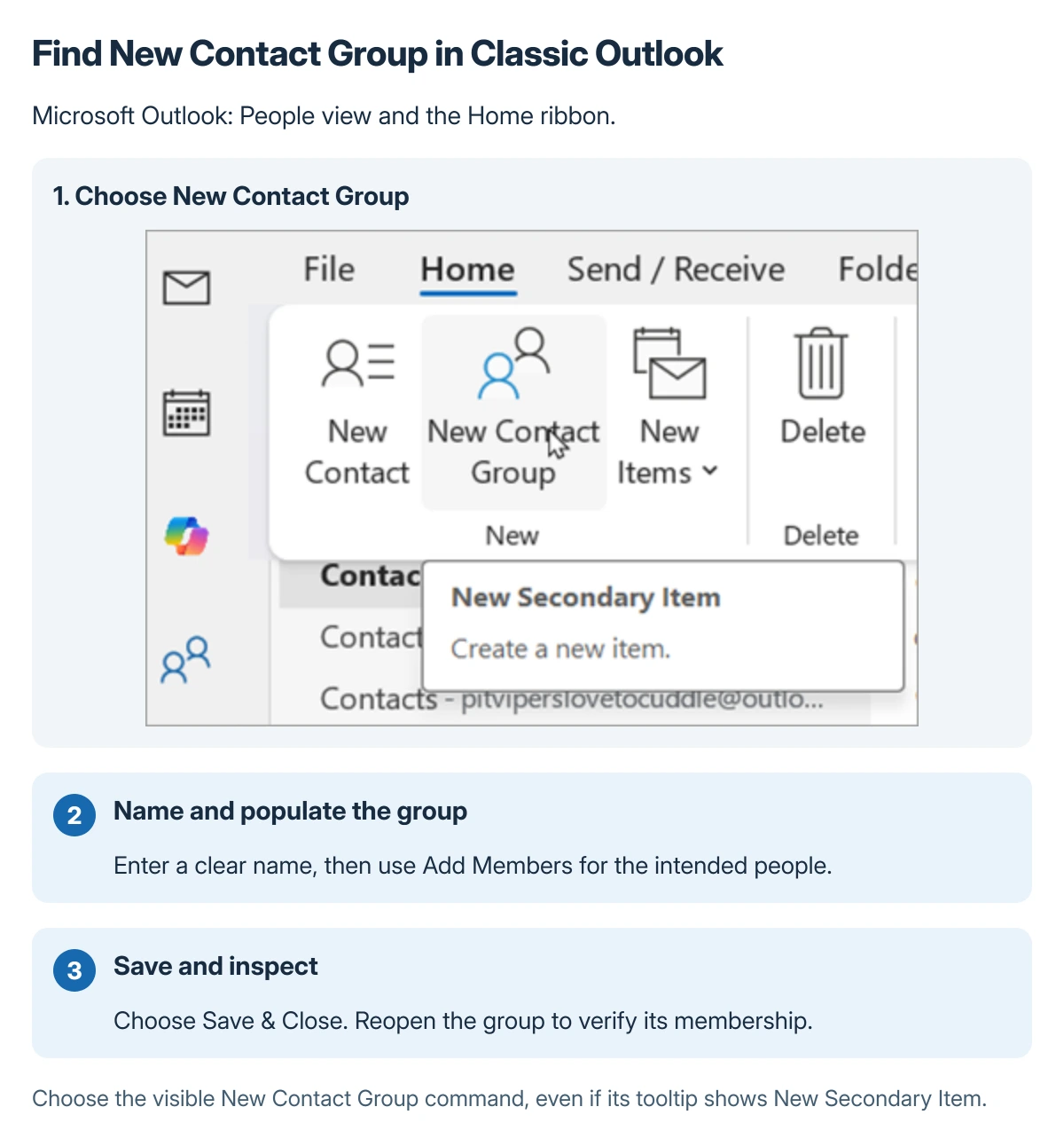
Used with permission from Microsoft.
Address a message to the saved collection
In classic Outlook, open a new email, select To, search for the contact group's name, add the matching group and confirm. Microsoft's training guide describes that address-book route.
In new or web Outlook, select the intended saved list when addressing the message. Inspect the resolved recipient entry before sending, particularly when different lists have similar names.
Choose the appropriate Outlook Bcc field when recipient addresses should be hidden from the other recipients.
For a later delivery time, Outlook scheduling has separate version-specific controls. Review the recipients before scheduling, rather than assuming the delay will correct the list.
Edit the list when membership changes
Microsoft states that deleting a contact list or contact group removes the saved collection while retaining the underlying contacts. Editing the collection is the appropriate action when only one member changes.
New and web Outlook use All contact lists > Edit. In classic Outlook, open the saved group, adjust its members and use Save & Close.
Check addresses before every sensitive message. Outlook recall has narrow requirements and cannot be relied on to retrieve mail sent to the wrong people.
If the message itself needs protection, check Outlook account encryption as well as the saved collection's membership.
If the available controls concern an organization's directory or a shared Microsoft 365 Group, ask its administrator which membership you are authorized to manage.
The Short Version
Use People to create a contact list in new or web Outlook, or a Contact Group in classic Outlook. Name it, add and verify members, then select that saved collection when addressing email.
Where to Next
Inspect the collection once its creation is complete. Confirm its exact membership and give it a name that remains clear when it appears beside ordinary contacts.

Isaac Smith is the founder and editor of PC Glance, a website that covers computers, laptops, and technology. He is a tech enthusiast and a computer geek who loves to share his insights and help his readers make smart choices when buying tech gadgets or laptops. He is always curious and updated about the latest tech trends.