

Remove blank rows in Excel only after confirming that the entire record is empty. A blank cell in one column can still belong to a valid row with information elsewhere.
For a table, filter a reliable record column for blanks, inspect the resulting rows, then delete only the empty table rows. For repeatable cleanup, Power Query provides a separate Remove Blank Rows command.
Check what blank means in this data
Preserve the workbook in a separate saved copy before deleting records. Identify the full width of each record and inspect any columns that can legitimately contain missing values.
Microsoft's table resizing instructions describe filtering for (Blanks) and removing the selected rows. The filter examines the chosen column, so inspect the rest of each record before deletion.
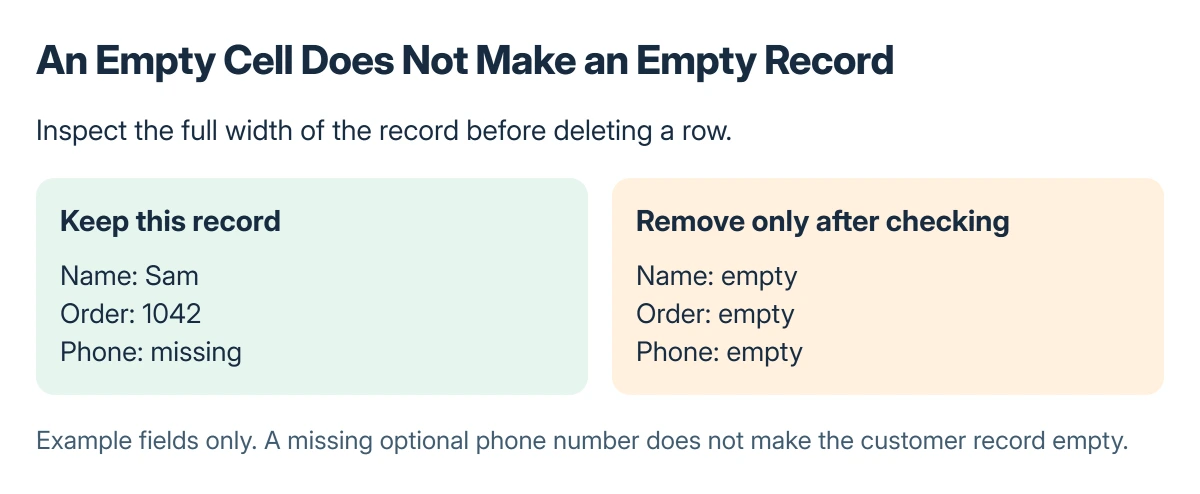
Status: Microsoft's Excel table and Power Query cleanup instructions checked 22 October 2026. Empty records are distinguished from individual missing fields; no worksheet rows were deleted.
Example: a missing phone number does not make a customer record empty when its name and order number remain. Use a column expected to identify every valid record, then verify the other fields as well.
Filter and delete only the empty table rows
Select a cell in the table. Open the relevant column's filter arrow, clear Select All, select (Blanks) and confirm the filter.
Microsoft says the Blanks option appears only when that column contains a blank cell. If it is absent, the visible gap may contain something else or may not belong to the selected table column.
Review the filtered records across all their columns. Select only the genuinely empty table rows, right-click the selection and choose Delete > Table Rows.
Microsoft documents that table-row command separately from deleting worksheet rows. Read the command before confirming so unrelated information elsewhere on the worksheet is not removed accidentally.
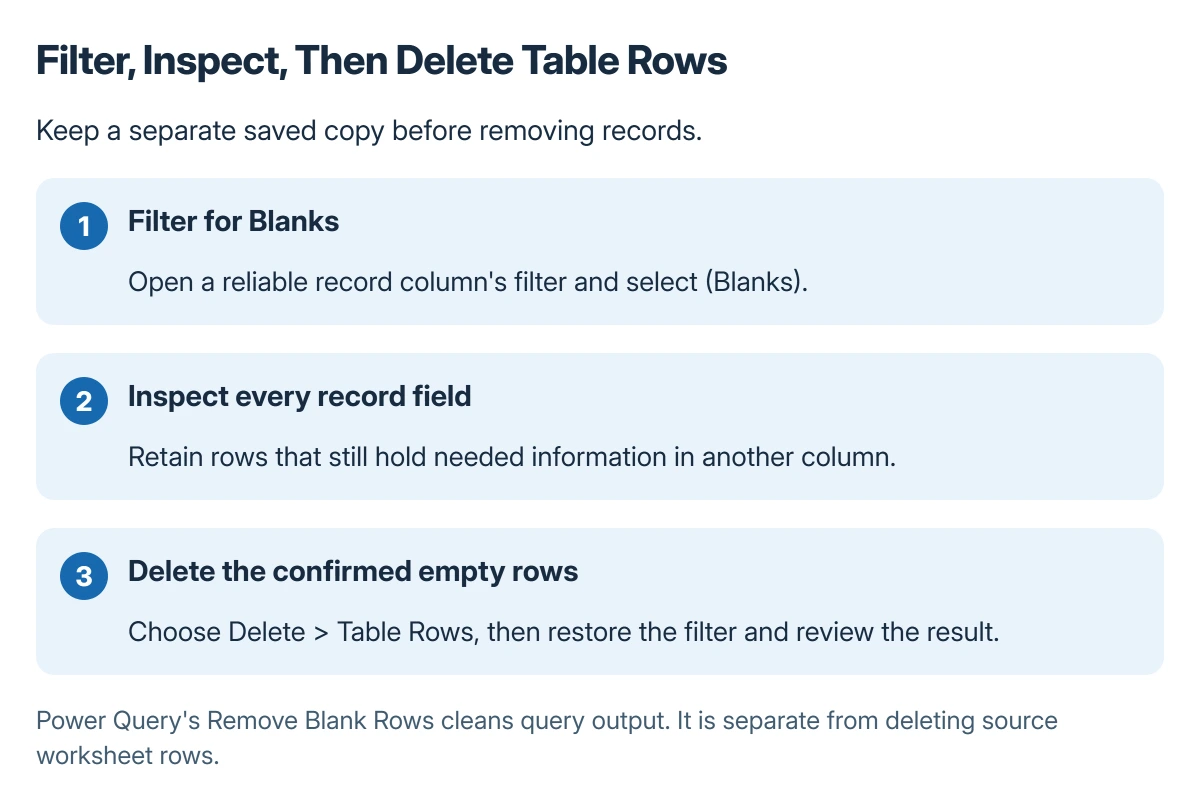
Restore the filter to show the remaining records and check their order. Compare important totals or record counts with the saved copy before replacing a working file.
To add fresh record space afterward, insert complete worksheet rows rather than shifting isolated cells inside a record.
Use Power Query for a repeatable cleanup
Open the data's query in Power Query Editor. Choose Home > Remove Rows > Remove Blank Rows to add that cleanup to the query's steps.
Microsoft states that this command evaluates rows across their values, while a column filter tests the selected column. Review the preview before loading the results back into the workbook.
The command removes empty rows in the query output. It is different from manually deleting the original worksheet rows, and a later refresh reruns the query's recorded steps.
When the gap is not an empty record
Hidden rows need the Excel unhide controls. Removing visible rows will not recover records that are merely hidden.
Duplicate records need a separate comparison. The Remove Duplicates guide explains how selected columns decide which records Excel treats as the same.
If spaces, formulas or imported placeholders remain in apparently empty cells, inspect the contents before deleting anything. Ask the workbook owner how missing values are represented when that is unclear.
The Short Version
Keep a saved copy. Filter a reliable table column for Blanks, inspect each full record and delete only empty Table Rows. Use Power Query's Remove Blank Rows for repeatable cleanup, and distinguish hidden or incomplete records.
Where to Next
Check a few retained records and the workbook's key totals after cleanup. Confirm the resulting file still contains all information needed for the next import or report.

Isaac Smith is the founder and editor of PC Glance, a website that covers computers, laptops, and technology. He is a tech enthusiast and a computer geek who loves to share his insights and help his readers make smart choices when buying tech gadgets or laptops. He is always curious and updated about the latest tech trends.