
A Mac takes a camera photo in Photo Booth. This captures what its camera sees, while a screenshot captures the display. Open Photo Booth, choose the single-photo mode, and click Take Photo.
A Mac without a built-in camera needs an available external camera or a supported iPhone camera connection. Check that a live preview appears before arranging the shot.
Select the camera view and photo mode
Open Photo Booth from Applications or search for it with Spotlight. If the window is displaying an existing picture, return to its standard camera view using the view button.
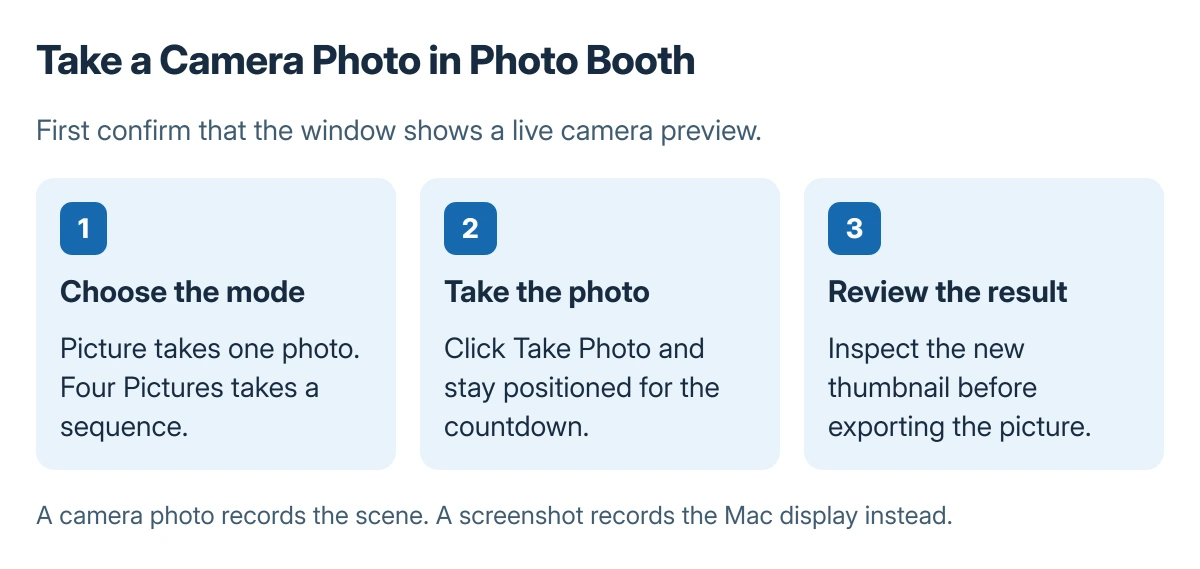
Apple says the Picture button at the lower left selects one photo; Four Pictures selects a four-shot sequence. Its Photo Booth capture guide shows these separately from video mode.
Status: Photo Booth capture and JPEG export documented by Apple, checked 23 October 2026. Instructions cover camera photos, with no Mac camera test claimed.
Click Take Photo and remain in position during the countdown. Review the resulting thumbnail before taking another picture, especially when the camera is external or the room is dim.
Control the flash or remove an unwanted effect
Apple documents holding Shift while clicking Take Photo to suppress the screen flash. Holding Option removes the countdown; holding both changes both behaviors for that capture.
For an unexpected distortion or color effect, choose Effects, then Normal. Recheck the preview. Changing a camera effect and changing a saved image are separate actions.
Export the finished picture as a file
Select the thumbnail and choose File > Export, or drag the thumbnail to the desktop. Apple states that single and four-up photos export as JPEG files; videos export as MOV.
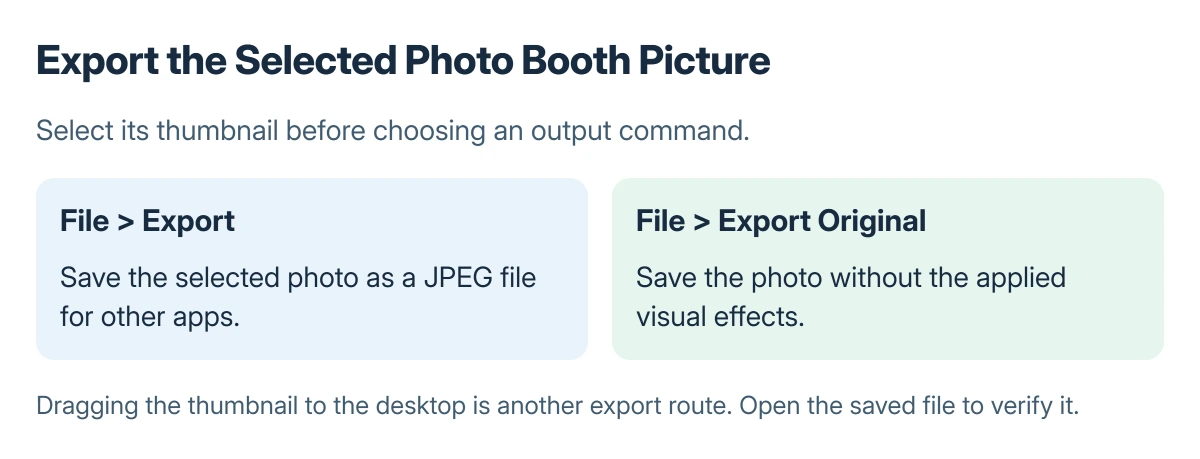
Use File > Export Original when the version without effects is needed. Open the exported file and confirm that it contains the intended shot before attaching or uploading it.
To remove unwanted space around the subject, crop a duplicate in Preview after exporting the JPEG.
When there is no usable camera preview
For an iPhone being used as a webcam, follow the Continuity Camera connection checks. An app that cannot request camera access needs the Mac camera permission controls.
If the camera fails in other apps too, report that wider failure to Apple or the camera maker. Repeatedly exporting the same thumbnail cannot repair a missing live camera feed.
The Short Version
Use Photo Booth's Picture mode for one camera photo or Four Pictures for a sequence. Review the capture, then export its thumbnail as JPEG. Choose Normal or Export Original when an effect is unwanted.
Where to Next
Keep the exported image somewhere easy to find. A picture selected inside Photo Booth still needs exporting before another app can use it as an ordinary file.

Isaac Smith is the founder and editor of PC Glance, a website that covers computers, laptops, and technology. He is a tech enthusiast and a computer geek who loves to share his insights and help his readers make smart choices when buying tech gadgets or laptops. He is always curious and updated about the latest tech trends.