
A Google Pixel screenshot uses Power + Volume down, pressed together. This includes Pixel 4. Open the screen to capture, press the two buttons briefly at the same time, and look for the screenshot preview.
Pixel also offers an Overview method without the physical buttons. A longer scrolling capture requires a supported screen and Android version.
Capture the visible screen with both buttons
Arrange the content before pressing the buttons. Hide notifications or personal details that should not be included, especially if the picture will be sent to someone else.
Google says Power and Volume down capture the screen together. Its Pixel screenshot instructions show a preview at the lower left when the image is saved.
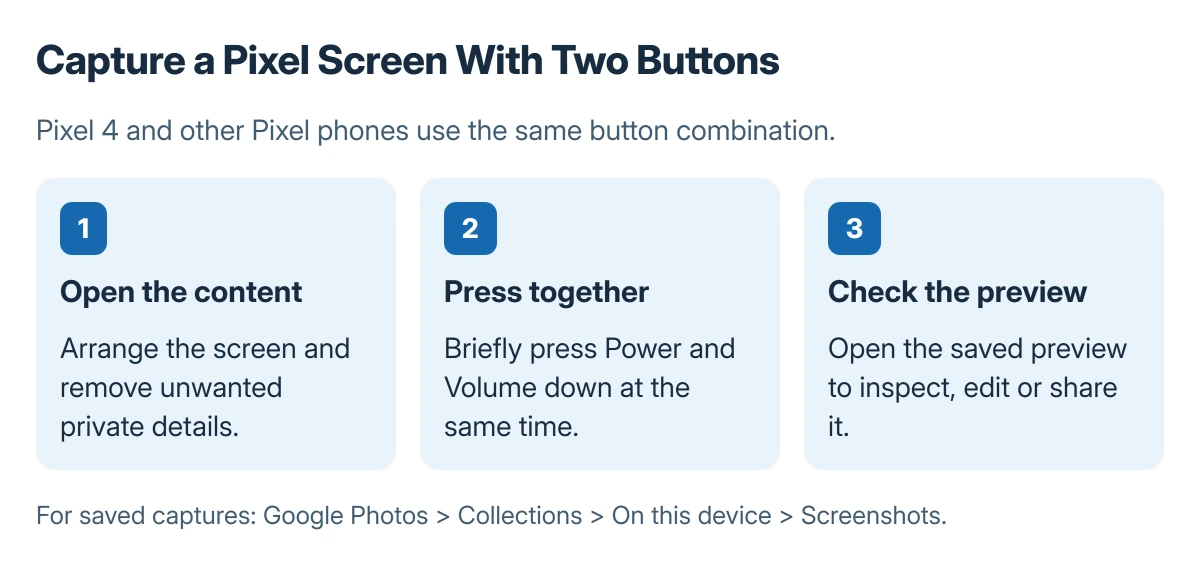
Status: Pixel button capture and Overview options documented by Google, checked 23 October 2026. Pixel 4 is included; no phone was used to generate a screenshot.
Tap the preview to inspect or edit the image. If a volume slider appears instead, try another brief simultaneous press, without holding either button early.
Use Overview when pressing both buttons is difficult
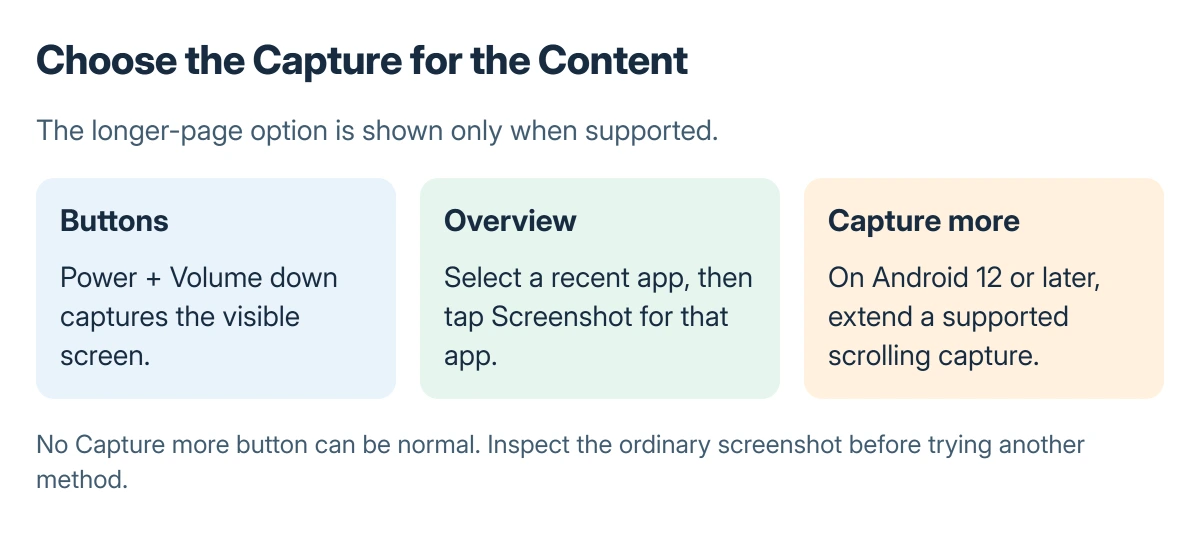
With gesture navigation, swipe upward from the lower screen edge and pause to reveal Overview. Choose the intended app, then tap Screenshot. With three-button navigation, open Overview and choose the app first.
These are Google's steps for supported navigation layouts. Check that the intended app is selected before capturing, because Overview can contain several recent apps.
Capture a longer page when Capture more appears
Take the ordinary screenshot first. On a supported scrolling screen, tap Capture more, adjust the crop guides and save the required section.
Google states that scrolling capture needs Android 12 or later and works on most screens that allow scrolling. An absent Capture more control does not make a normal screenshot unsuccessful.
Find the saved image and check it before sharing
In Google Photos, open Collections > On this device > Screenshots. The folder lets you review older captures as well as the most recent one.
Touch input that misbehaves outside screenshots needs the Pixel touchscreen checks. A picture containing a code has a separate Android QR scanning workflow.
If screenshots fail across ordinary apps, record the Android version and contact Pixel support. For a failure confined to one app, ask its developer whether capture is restricted there.
The Short Version
Press Power and Volume down together, or select Screenshot in Overview. Use Capture more only when offered, then find the saved picture in Google Photos under Collections, On this device and Screenshots.
Where to Next
Open the actual saved file before sharing. Confirm the image includes the information needed and excludes private details outside the intended subject.

Isaac Smith is the founder and editor of PC Glance, a website that covers computers, laptops, and technology. He is a tech enthusiast and a computer geek who loves to share his insights and help his readers make smart choices when buying tech gadgets or laptops. He is always curious and updated about the latest tech trends.