
A Chromebook splits its screen by snapping separate windows beside one another. Hover over a window's Maximize/Restore button, choose Split or Partial, then select the second window when suggestions appear.
For the ChromeOS window method here, put each tab in a separate window first. Drag a tab out, then arrange the two windows.
Choose equal halves or a larger working area
Open both apps or windows on the same display and desk. Hover over Maximize/Restore near the upper-right corner of the first window to show its layout menu.
Google says Split divides the screen evenly, while Partial provides one larger and one smaller area. Its window arrangement guide describes both options.
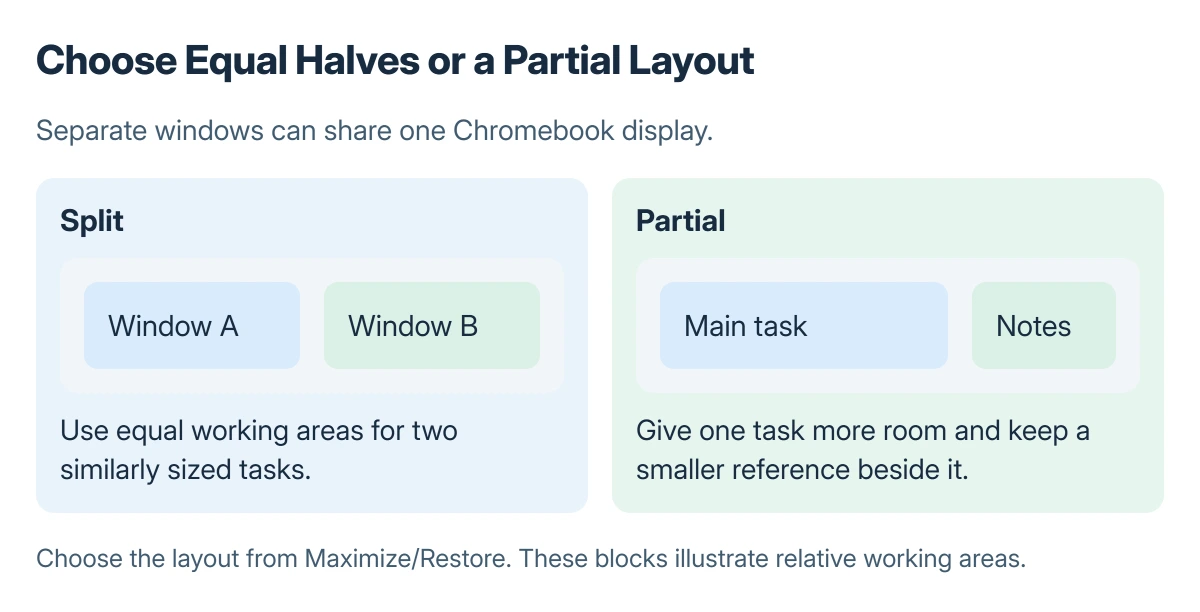
Status: Split, Partial and window-pairing behavior documented by Google, checked 23 October 2026. Diagrams explain layouts and are not Chromebook screenshots.
Choose the intended side and size. Select another window from the suggestions to fill the remaining area. If the second window remains full size, arrange that window too.
To demonstrate work across both windows, record the Chromebook screen with a capture area that includes the pair.
Snap by dragging or by using bracket shortcuts
Drag a window's title bar toward a screen edge until that side highlights, then release. This snaps the window to half the display and can offer another window to pair with it.
For a keyboard method on a horizontal layout, hold Alt and press the left bracket key to snap left, or the right bracket key to snap right. Apply the opposite shortcut to the second window.
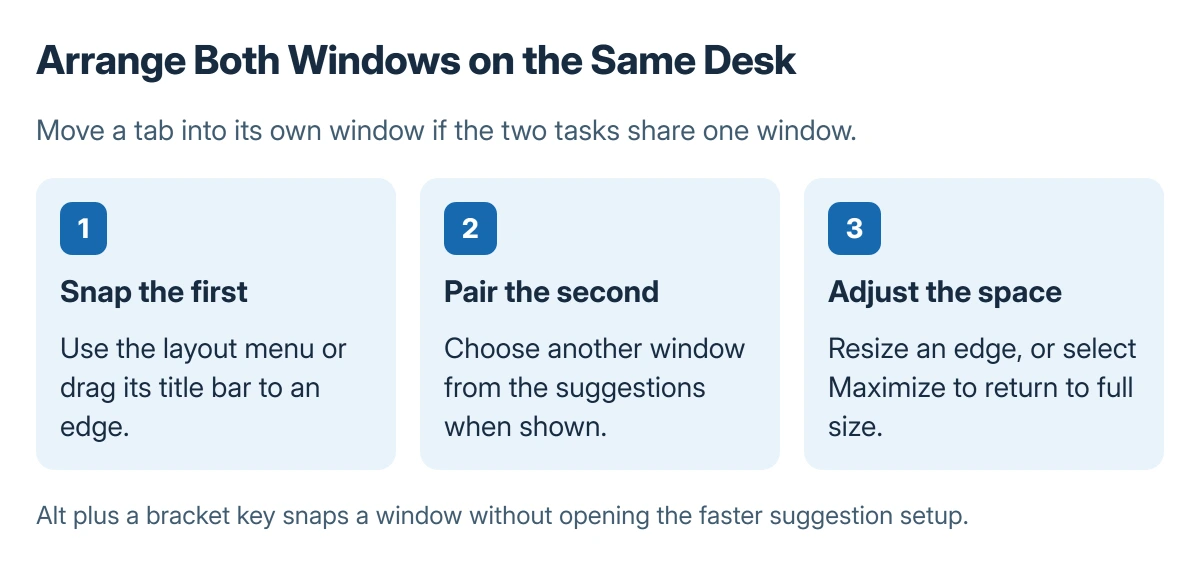
Google states that keyboard snapping does not trigger the faster split-screen suggestion setup. Missing suggestions after a bracket shortcut are therefore expected.
Restore a window and check pairing limits
Select Maximize to return a snapped window to full size. Adjust a snapped window's edge when a different working width is needed, rather than changing display resolution.
Google documents that windows must be on the same desk and display to pair. A window already occupying the opposite side can also prevent the suggestion list from appearing.
Use the display orientation controls for a sideways image; snapping only changes window placement. Moving material between apps has its own cut and paste shortcuts.
If one particular app refuses a layout that other apps accept, record its name and ChromeOS version for its developer or Chromebook support. Avoid resetting the device solely because a suggestion menu is absent.
The Short Version
Make separate windows, choose Split or Partial from Maximize/Restore, and pair the second window. Dragging and Alt with the bracket keys offer alternatives. Keep both windows on one desk and display.
Where to Next
Choose a layout based on the task: two documents being compared need similar space, while a reference page can use the smaller Partial area.

Isaac Smith is the founder and editor of PC Glance, a website that covers computers, laptops, and technology. He is a tech enthusiast and a computer geek who loves to share his insights and help his readers make smart choices when buying tech gadgets or laptops. He is always curious and updated about the latest tech trends.