
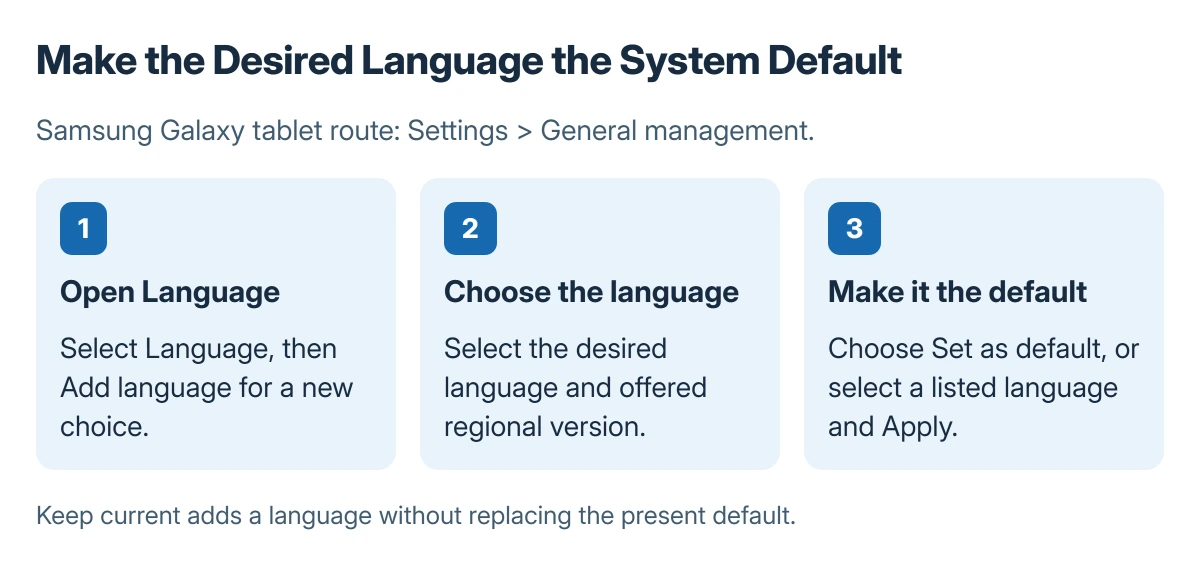
Change the language on a Samsung Galaxy tablet in Settings > General management > Language. Add the desired language and choose Set as default, or select an existing language and tap Apply.
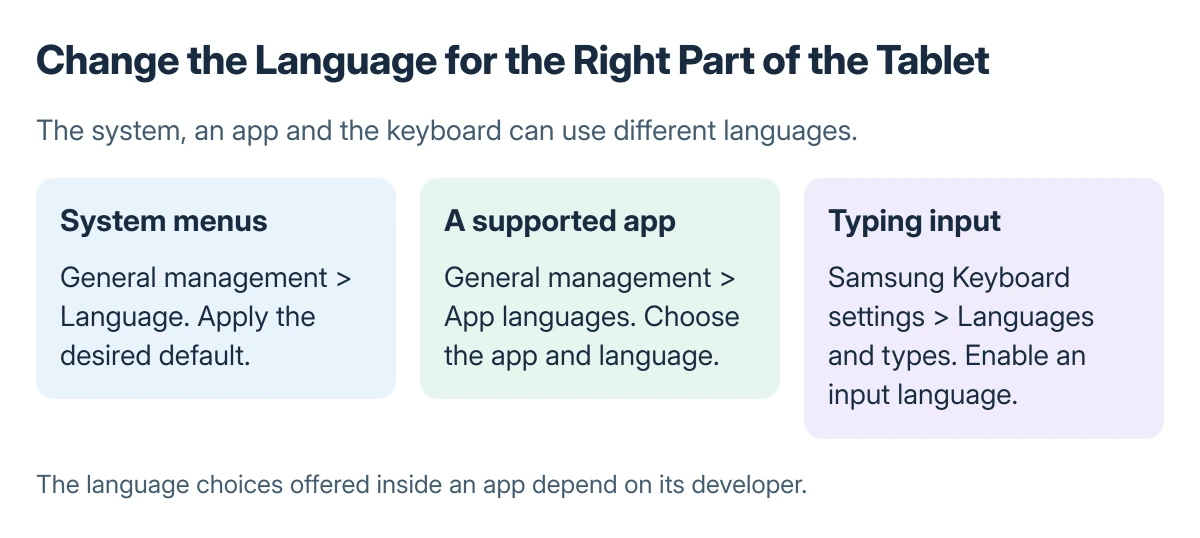
System menus, individual apps and Samsung Keyboard have separate language settings. Choose the control for the screen or keyboard that is using the wrong language.
Add a system language and make it the default
Open Settings > General management > Language > Add language. Select the language and the regional version offered for it. Samsung says More options > All languages reveals additional choices when the desired language is absent.
Choose Set as default to use the newly added language immediately. Keep current adds it while retaining the existing default. Samsung's Galaxy language instructions cover both choices.
Status: Galaxy language settings documented by Samsung, checked 23 October 2026. Menu wording varies by software and model; no tablet settings were changed.
For a language already listed, tap it and choose Apply. Return to Settings and inspect several menu labels to confirm which language is now the default.
Change only the app when the rest of the tablet is correct
Samsung states that supported apps can use their own language through Settings > General management > App languages. Select the app, then choose one of its offered languages.
The app developer determines its available choices. An app missing from this list does not prove that the system-language change failed. Check the app's own language controls as well.
A program that closes immediately has a different problem. Use the Android app troubleshooting steps when it cannot remain open long enough to inspect its settings.
Set the Samsung Keyboard input language separately
Open Settings > General management > Samsung Keyboard settings > Languages and types > Manage input languages. Enable a downloaded language, or download the desired entry and enable its switch.
Samsung says its keyboard's language icon switches between enabled languages. Its keyboard settings guide applies to Samsung Keyboard; another installed keyboard uses its own settings.
Test in an ordinary text field. A correctly translated Settings app does not automatically mean the keyboard has the intended input language enabled.
If the controls differ, check the tablet's software version before comparing instructions for another Galaxy model. Avoid resetting the whole tablet for a language selection.
The Short Version
Set the tablet's default under General management and Language. Use App languages for a supported individual app, and Samsung Keyboard settings for typing languages.
Where to Next
Keep the previous language available until the new menus and keyboard are usable. Give Samsung support the tablet model, software version and affected app if a language remains unavailable.

Isaac Smith is the founder and editor of PC Glance, a website that covers computers, laptops, and technology. He is a tech enthusiast and a computer geek who loves to share his insights and help his readers make smart choices when buying tech gadgets or laptops. He is always curious and updated about the latest tech trends.