
Send an audio message on iPhone from Messages > conversation > Add > Audio. Record the message, stop it, listen to the preview if needed, then tap the send control. The keyboard microphone is for dictating text instead.
Audio recordings can expire from the conversation on your own iPhone. Use Keep for an individual message, or change the Audio Messages expiration setting when recordings should stay.
Record and review before sending
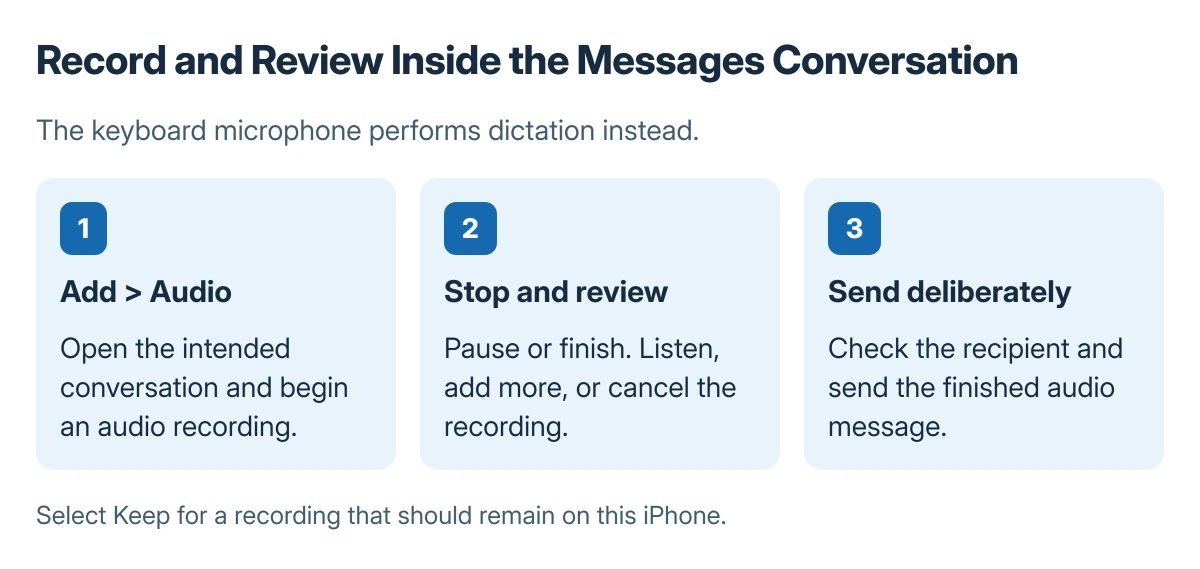
Open the intended conversation in Messages. Tap the Add button beside the text field, choose Audio, and begin speaking. Tap the recording control to pause or finish the recording.
Apple documents previewing the recording, adding to it, canceling it or sending it in its audio message guide. Listen before sending when the wording or sound level needs checking.
Status: Messages recording and retention behavior documented by Apple, checked 23 October 2026. No conversation was opened and no audio message was sent.
Confirm the conversation's recipient before using the send control. A preview has not been delivered until the message is sent.
Keep the recording before its local expiration
Tap Keep for an incoming or outgoing recording that should remain in the conversation. Apple says the default removes an audio message from your iPhone two minutes after it is sent or listened to.
That removal is local. Apple states that recipients can play the recording after receiving it, and need to select Keep within two minutes after listening if they want to retain their copy.
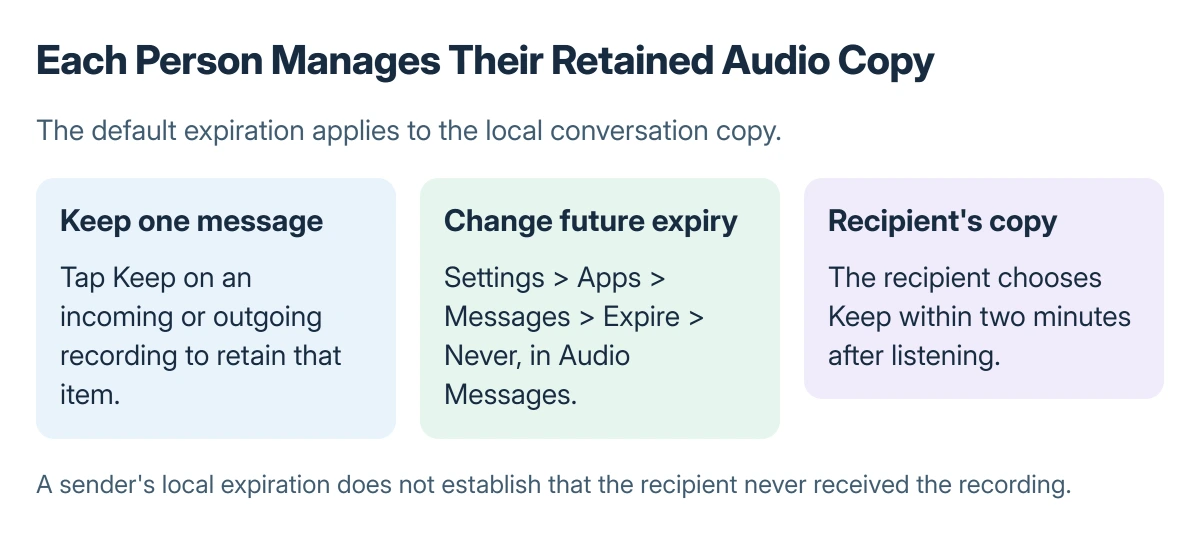
To change the ongoing setting, open Settings > Apps > Messages > Expire, in the Audio Messages section, and choose Never. Check that this is the audio setting rather than the setting for general message-history retention.
For an audio recording already in the conversation, Apple also provides touch and hold > Save to Voice Memos. Confirm that the saved item is available there before relying on it as a separate copy.
Separate an audio recording from dictation and delivery failures
The keyboard microphone converts speech into written text. The iPhone dictation guide covers that input feature; selecting it does not create the same audio attachment as Add and Audio.
Transcripts of audio messages depend on supported languages. A missing transcript does not by itself prove that a recording is silent or undelivered.
When attachments generally fail to send, use the Messages attachment checks. Re-recording repeatedly will not resolve a delivery problem affecting ordinary attachments as well.
The Short Version
Use Add and Audio inside the conversation, review the recording and send it to the intended person. Tap Keep for a particular message or set Audio Messages expiration to Never. Each participant manages their own retained copy.
Where to Next
When a recording disappears, distinguish local expiration from a failed send. Record the action that preceded its disappearance and the selected Expire setting when contacting Apple support.

Isaac Smith is the founder and editor of PC Glance, a website that covers computers, laptops, and technology. He is a tech enthusiast and a computer geek who loves to share his insights and help his readers make smart choices when buying tech gadgets or laptops. He is always curious and updated about the latest tech trends.