
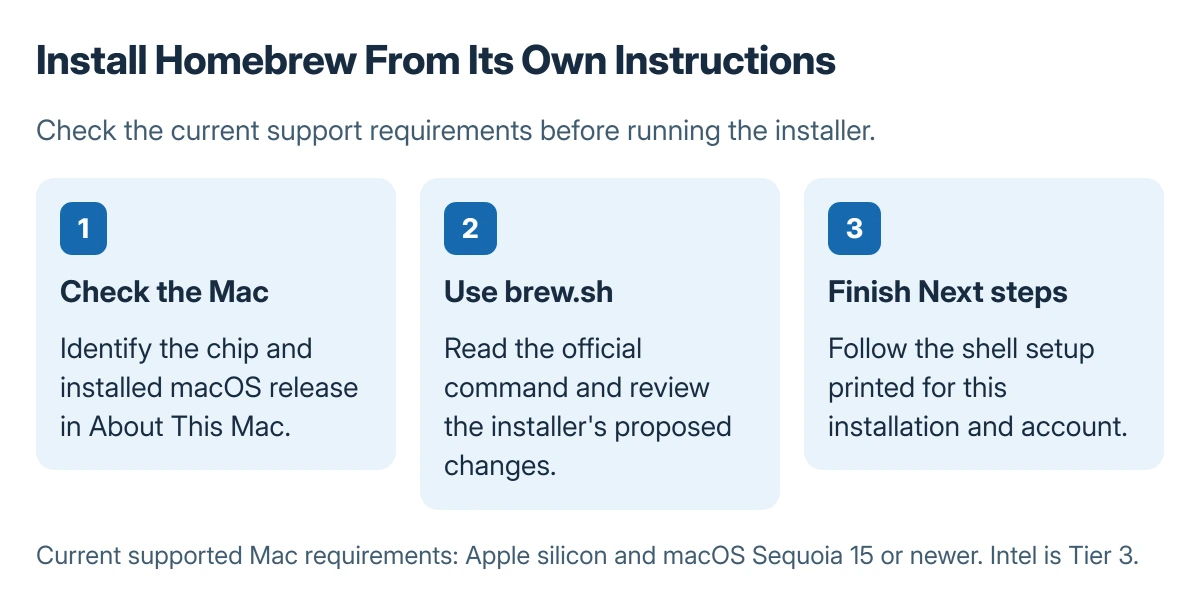
Install Homebrew from brew.sh after checking current Mac support. Homebrew's installation documentation now lists Apple silicon and macOS Sequoia 15 or newer for its supported Mac setup; Intel is listed as a Tier 3 configuration.
Use the official installer and its printed next steps. An older guide's Intel assumptions or copied shell setup commands may not match the current Mac or Homebrew release.
Check the Mac before choosing the installer
Open Apple menu > About This Mac and identify the chip and installed macOS release. Compare them with the current Homebrew installation requirements rather than treating every Mac that can open Terminal as supported.
The standard Apple silicon prefix is /opt/homebrew. Homebrew's documentation says its macOS package installer also supports only Apple silicon. An Intel Mac needs the separately documented Tier 3 expectations.
Status: current installation requirements documented by the vendor and Terminal controls checked with Apple on 23 October 2026. No Mac installer was executed.
A work-managed Mac may require administrator approval. Stop at an organizational restriction and ask its administrator to provide the approved package or installation method.
Open Terminal and use the official command
Apple documents opening Terminal through Finder > Applications > Utilities > Terminal. Its Terminal guide also gives the Spotlight route.
Open the Homebrew homepage and copy its current installation command. Paste that command into Terminal and inspect it before pressing Return. The source should be Homebrew's own installation page, not an unrelated download advertisement.
Homebrew explains that its installer prints what it intends to change and pauses for confirmation. Read the proposed changes, then follow the prompts if the Mac meets the stated requirements.
Complete any required developer-tools step offered during setup. If macOS repeatedly requests the same tools afterward, the Command Line Tools prompt-loop guide covers that specific fault.
Finish shell setup and check that brew is available
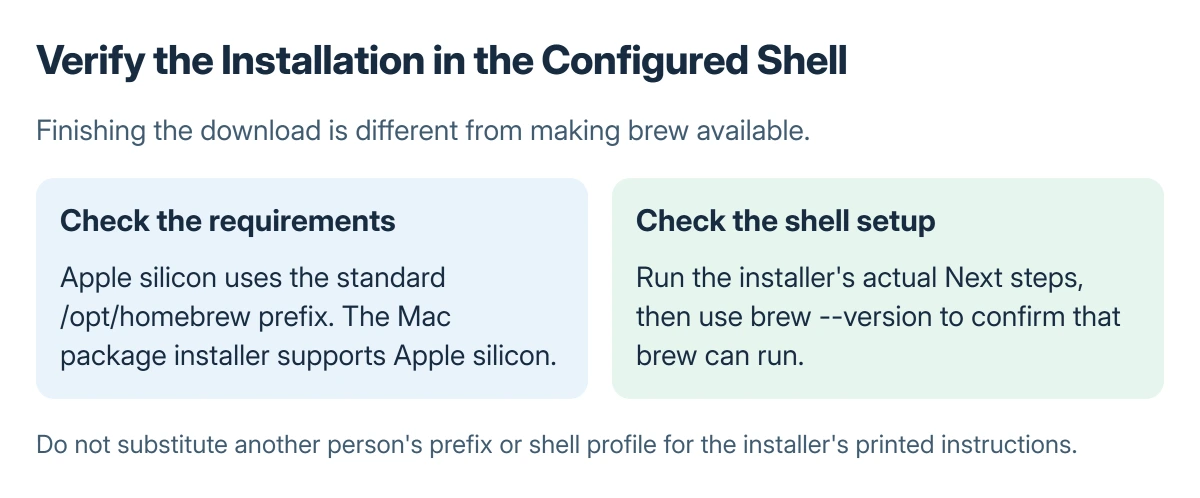
Read the installer's Next steps. Run the shell-configuration commands printed for that installation and account. They can contain the actual prefix and shell profile, so copying another person's paths can leave brew unavailable.
Run brew --version afterward. A reported version confirms that this shell can find and run brew. If the command is not found, check the printed shell setup and open a fresh Terminal session before installing packages.
Apple says entering exit ends a shell session, with a dialog if work is still in progress. Let the installer finish and return to the prompt before closing its session.
If pasted text includes unusual wrapper characters, use the Terminal paste repair before running the command. Do not add permissions commands from a different error merely to make installation continue.
The Short Version
Check Mac support, obtain the official installer and complete its printed next steps. Verify brew in the configured shell. Intel Tier 3 is different from supported Apple silicon installation.
Where to Next
For a failed install, keep the exact error, chip type, macOS version and installation stage. Provide those details to Homebrew support or the Mac's administrator before changing ownership or permissions.

Isaac Smith is the founder and editor of PC Glance, a website that covers computers, laptops, and technology. He is a tech enthusiast and a computer geek who loves to share his insights and help his readers make smart choices when buying tech gadgets or laptops. He is always curious and updated about the latest tech trends.