
CH341A and CH347 adapters work on macOS when you choose software for the job. Use a serial driver for a UART connection, or a compatible programming tool for an SPI flash chip. The serial driver won't detect a flash chip.
First check whether your Mac detects the adapter over USB. Then follow the serial or programming steps for your board, rather than installing both driver packages and hoping one works.
1. Check the adapter in System Information
Connect the adapter without an attached target board first. Open Apple menu > System Settings > General > About, then System Report. Select USB under Hardware and look for the newly connected device.
Use the System Information guide to find connected hardware. Note your adapter's product name, vendor ID and product ID. WCH's vendor ID is 0x1a86.
If the adapter isn't listed, try another cable that carries data or another USB connection. Work on that connection first; leave the drivers, serial app and programming software until your Mac can see the adapter.
Once it appears, check your board's manual for its mode. UART is a serial connection; SPI and I2C are other ways to communicate with chips. Boards using chips from the same family can offer different connection types.
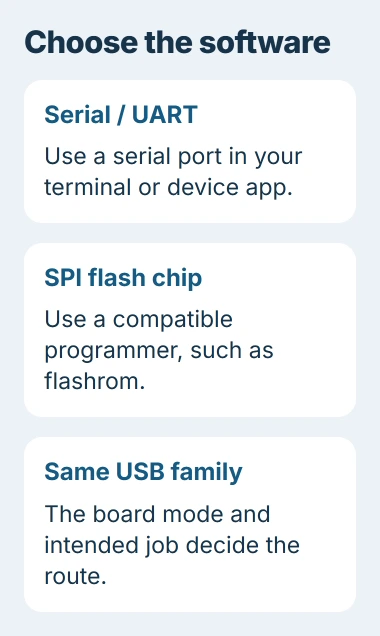
A board sold as a programming tool may already be in SPI mode, so it won't show a serial-port name for that connection. If you're moving between Windows and Mac, the CH341A mode checks explain this difference on Windows.
2. For serial use, install the Mac serial package
First check whether your serial application already offers the adapter as a port. If it does and communication works, you don't need another driver. Otherwise, download the Mac package from the official serial-driver repository.
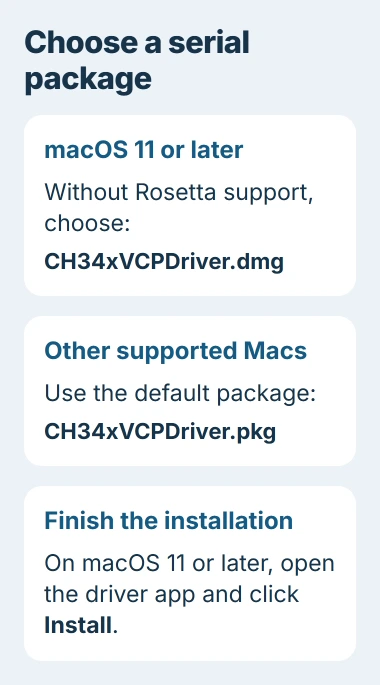
WCH recommends the CH34xVCPDriver.dmg package for macOS 11 or later without Rosetta support. Its default for the other supported systems is CH34xVCPDriver.pkg. Choose the package that fits your Mac.
For the DMG package, open the disk image and copy CH34xVCPDriver to Applications. Open the copied app there and click Install to install the driver. Copying it into Applications isn't enough on its own.
For the PKG package, open it and follow the installer. On macOS 11 or later, also open the installed CH34xVCPDriver app and click Install. On macOS 10.9 through 10.15, restart after installing the package.
Approve the driver extension when macOS asks. Current releases put driver controls in System Settings > General > Login Items & Extensions. Earlier versions use their security settings.
Find Drivers in those settings and approve the driver you just installed. The extension settings reference shows that category; these steps don't require disabling Mac security.
3. Select the serial port in your application
Reconnect your adapter after installation, then open Terminal from Applications, Utilities. This command lists serial-device names without changing anything:
ls /dev/tty*The driver's port name starts with tty.wchusbserial. Compare the list with your adapter unplugged and plugged in to spot its port among any Bluetooth or other USB devices.
Select that port in your serial app. Set the baud rate, or connection speed, and other serial options to match your device's instructions. Even if the port opens, check that the text you receive is readable.
If the port exists but text is garbled, check those communication settings before reinstalling the driver. If the app can't open the port, close other serial programs that may already be using it and select the port again.
4. For SPI flash, use a supported programming tool
To work with a flash chip, use flashrom with its ch341a_spi or ch347_spi option for your adapter. If Homebrew already works on your Mac, install the flashrom package with:
brew install flashromIf Terminal doesn't recognize brew, complete the Homebrew setup first. Check the package's supported macOS versions and processor requirements for your Mac, especially on an older Intel machine.
Before attaching a chip, check the wiring instructions for your adapter and target board. Both the power supply and signal voltages must suit the chip. Some CH341A boards send the wrong voltage even when the supply label looks right.
I'd check the adapter's mode, wiring and which way the clip fits before running a command. The software can't fix a backward clip or a board wired for the wrong voltage.
Once you've connected the hardware correctly, run the command for your adapter:
flashrom -p ch341a_spiFor a CH347 instead:
flashrom -p ch347_spiWith no read, write or erase option, these commands just check for a chip. Compare the name shown with the markings on your chip. Note whether an error says the tool can't open the adapter or can't detect the chip attached to it.
If the tool detects the correct chip, read and save its contents. For a CH341A, for example:
flashrom -p ch341a_spi -r original-chip.binChoose a new filename to keep any earlier backup. The command reference explains how to check for a chip and read it. Save the command's output with the backup before following a repair guide for your board.
5. Use the Mac library for other supported interfaces
For apps that use SPI, I2C, GPIO (general-purpose input/output) or another supported connection directly, the CH341PAR_MAC package has a Mac software library and demo app. It supports macOS 11 and later.
The library gives apps access to those connections without a driver. It's separate from the serial-port installer, not a general-purpose BIOS repair app with buttons and menus. The Windows CH341PAR.EXE package won't install on a Mac.
Follow the included instructions for your chip family and connection type. If the board isn't detected, send the seller its revision, USB IDs, your macOS version and the full error output so they can check whether that setup is supported.
The Short Version
Check USB detection and your adapter's mode. Serial work needs a working port; flash work needs compatible software and correct wiring. Check the detected chip's name and save a backup before attempting a repair.
Checked November 4, 2026.

Isaac Smith is the founder and editor of PC Glance, a website that covers computers, laptops, and technology. He is a tech enthusiast and a computer geek who loves to share his insights and help his readers make smart choices when buying tech gadgets or laptops. He is always curious and updated about the latest tech trends.