
A Chromebook freezing in one tab needs a smaller fix than a Chromebook that stops responding everywhere. Start by closing unused apps and restarting, then check whether the problem follows a particular tab or recently installed extension.
Keep resets until needed files are backed up.
Separate one frozen tab from a frozen Chromebook
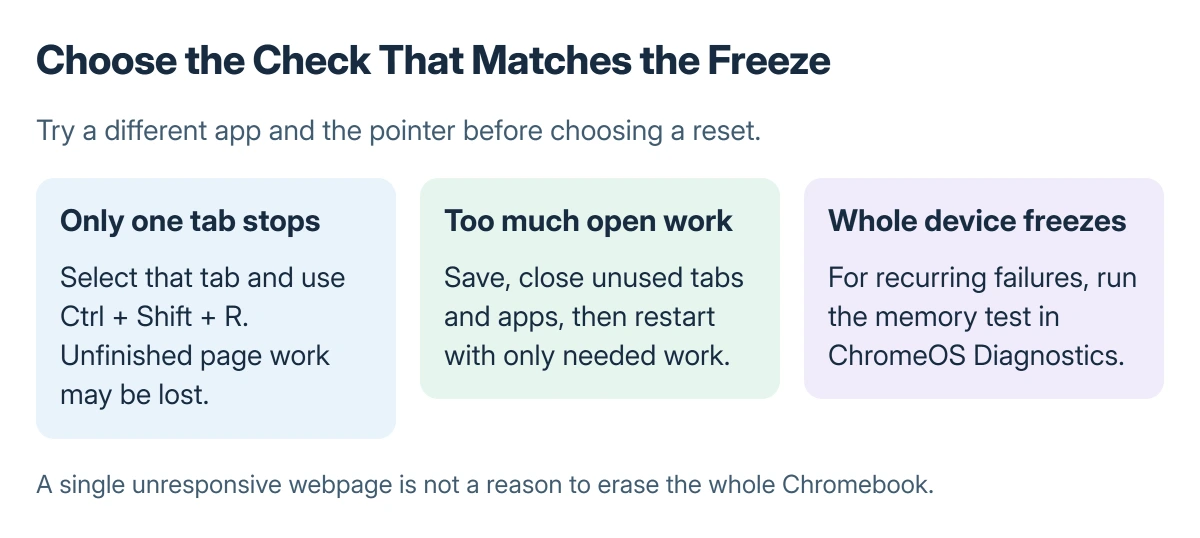
Try moving the pointer, switching to another app, and opening the system menu. If those still respond while one webpage does not, work on that tab first. A locked pointer and unresponsive apps suggest a wider problem.
Status: Google's documented troubleshooting steps. Owner research supplied no confirmed repair outcome, with no device test performed for this article.
Google states that a hard refresh is a troubleshooting step when a particular browser tab causes the computer to crash or freeze: select the affected tab and press Ctrl + Shift + R.
This reloads the page, so unfinished work in that page may be lost.
Distorted graphics with working apps are a different symptom. Use the Chromebook display checks when the picture glitches while input still responds.
Reduce the open work and restart
Close unused apps, browser windows and tabs. Save what still responds, restart the Chromebook, and reopen only the work needed to check the problem. Google says closing apps and windows is part of its Chromebook freezing guidance.
If trouble began after installing an app or extension, remove that recent addition and check again. Change one suspected item at a time so a stable restart tells you something useful.
Use the Chromebook app removal controls for the suspect app. A Chrome extension has a separate Remove control or temporary off switch.
Google documents Shift + Esc for Chrome's Task Manager when tabs keep reloading. Use it to inspect busy browser tasks while the system responds. Ending a task can lose its unsaved work; it is not a memory hardware repair.
Run the memory check when the fault keeps returning
Open Settings > About ChromeOS > Diagnostics, then find the memory test. Diagnostics is available on ChromeOS 90 and later. Follow its instructions and keep a record of a failure message.
The memory guidance documented by Google says a failed memory test can indicate faulty memory and directs the reader to the manufacturer. It does not establish which component to replace from a freezing symptom alone.
A passing result also does not prove every app or device component is healthy. Note which app was open and whether the freeze happened immediately after sign-in or only during a particular task. Give that pattern to support.
Back up before trying Powerwash
A factory reset removes locally stored files, apps and settings. Save required local files, including Downloads, in Drive or on an external disk. Confirm that the saved copies open before continuing.
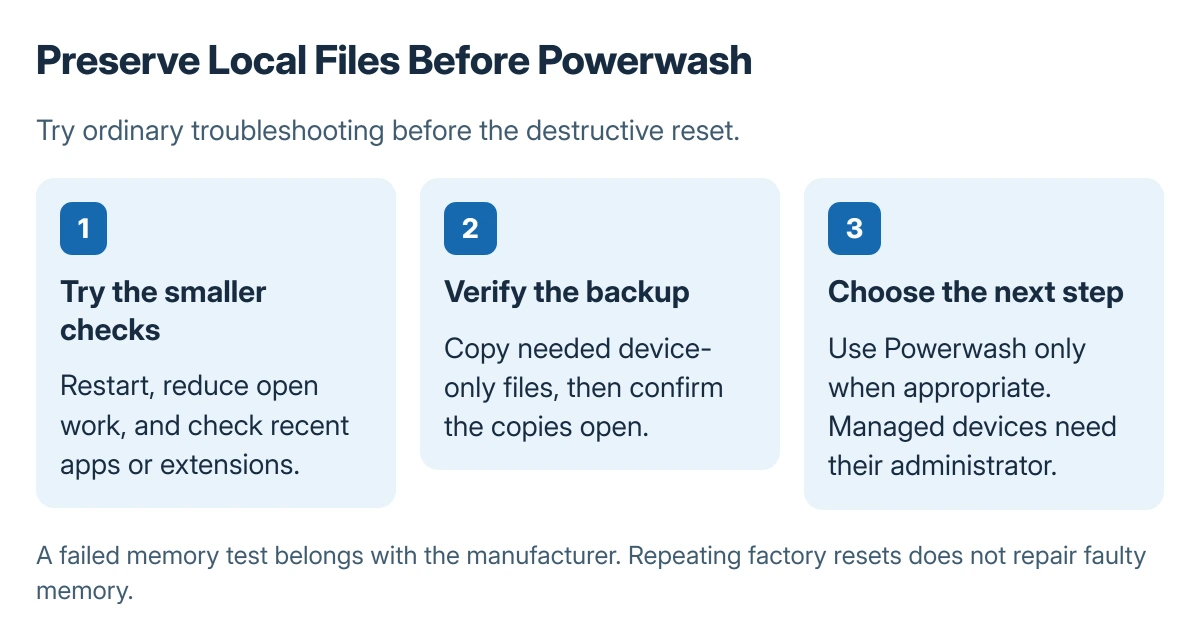
The Chromebook factory reset steps cover the Powerwash procedure and setup afterward. On a work or school Chromebook, contact the administrator instead of trying to wipe a managed device.
If freezing persists after Google's recommended steps, ask the manufacturer for help with the model, installed ChromeOS version and Diagnostics result. A failed hardware test is a reason to seek service rather than repeat resets.
The Short Version
Treat a single stuck tab first, reduce open work, and restart. Use Diagnostics for recurring system freezes. Powerwash is a later step that requires a verified backup of local files.

Isaac Smith is the founder and editor of PC Glance, a website that covers computers, laptops, and technology. He is a tech enthusiast and a computer geek who loves to share his insights and help his readers make smart choices when buying tech gadgets or laptops. He is always curious and updated about the latest tech trends.